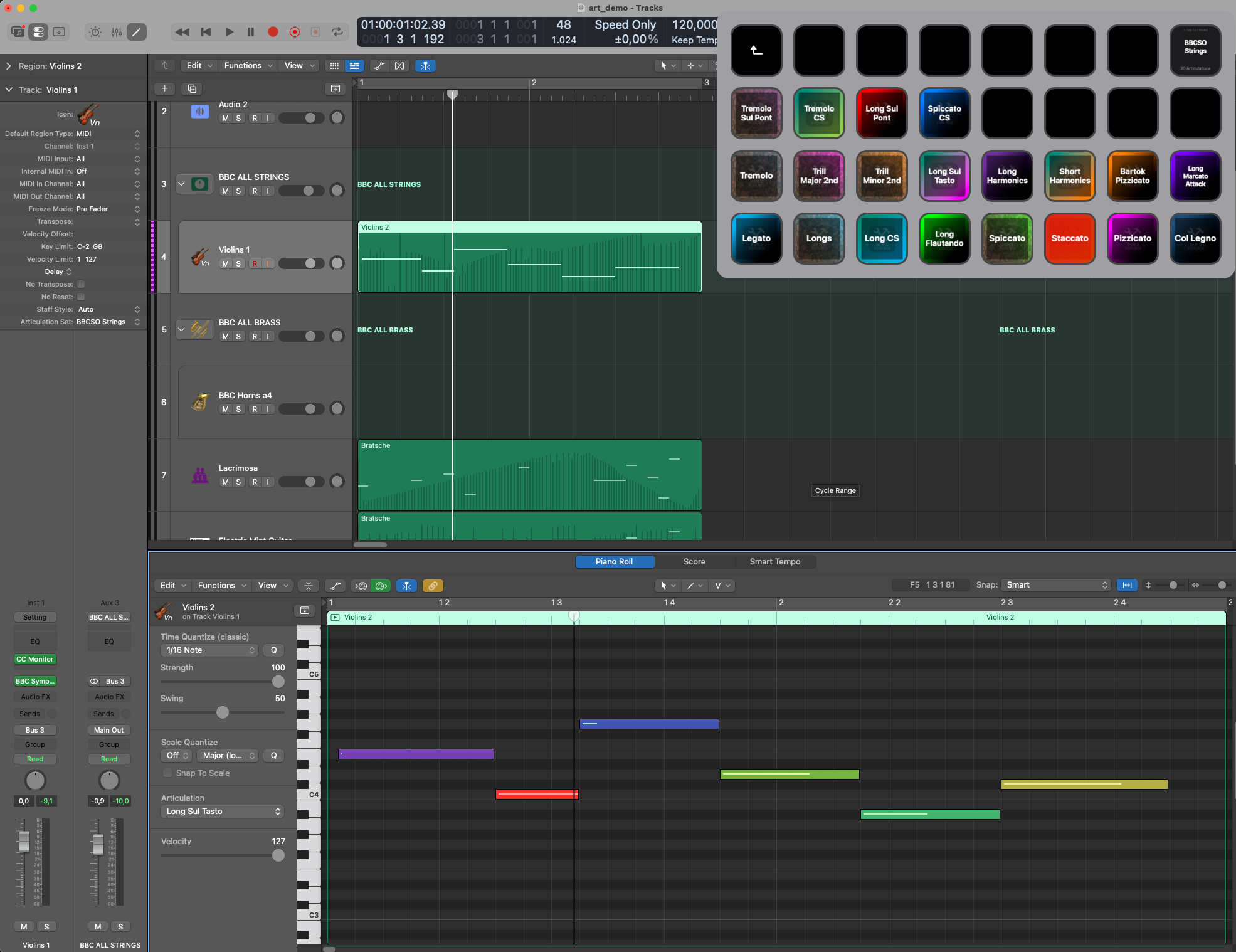
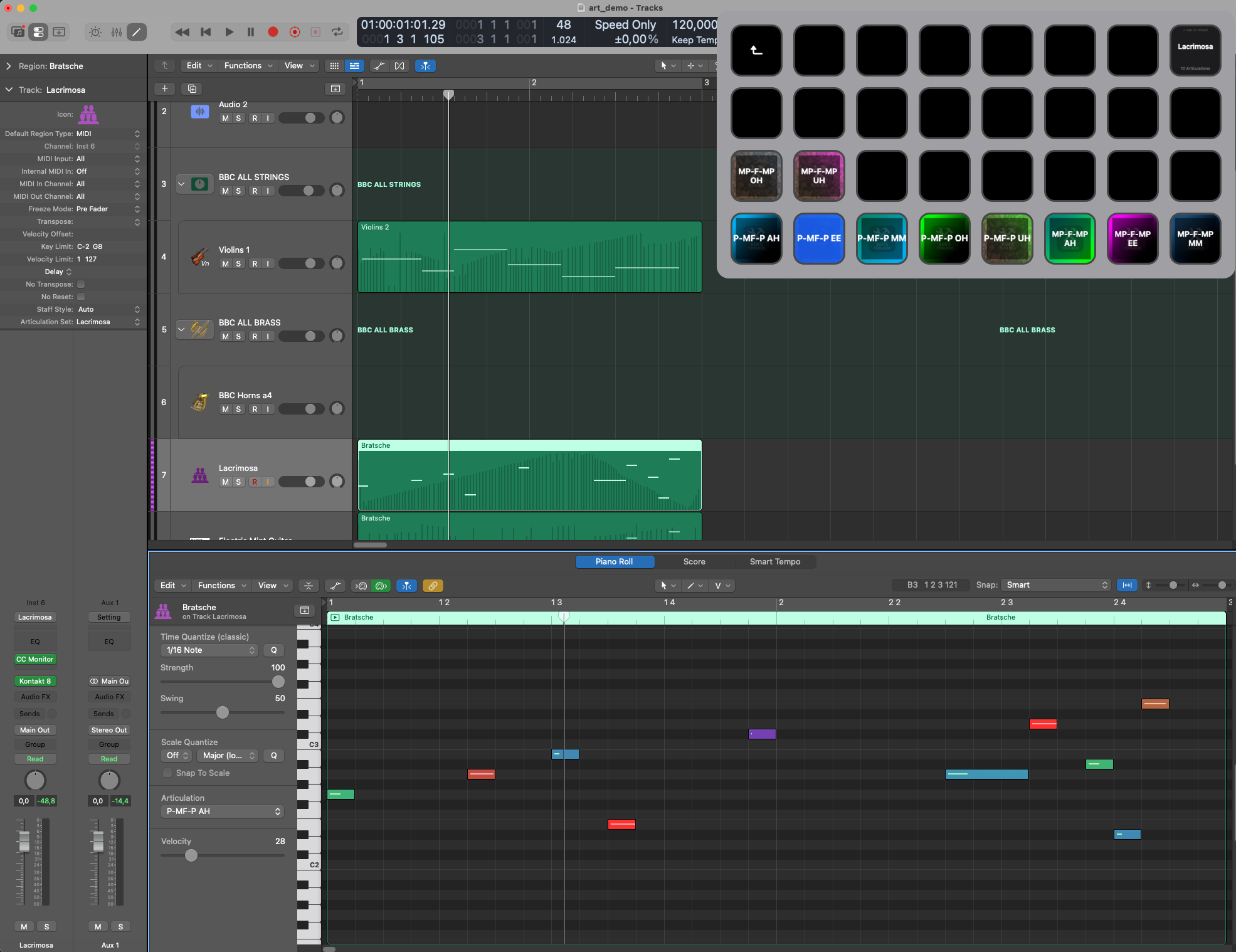
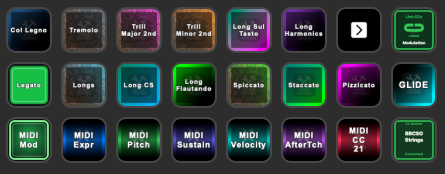
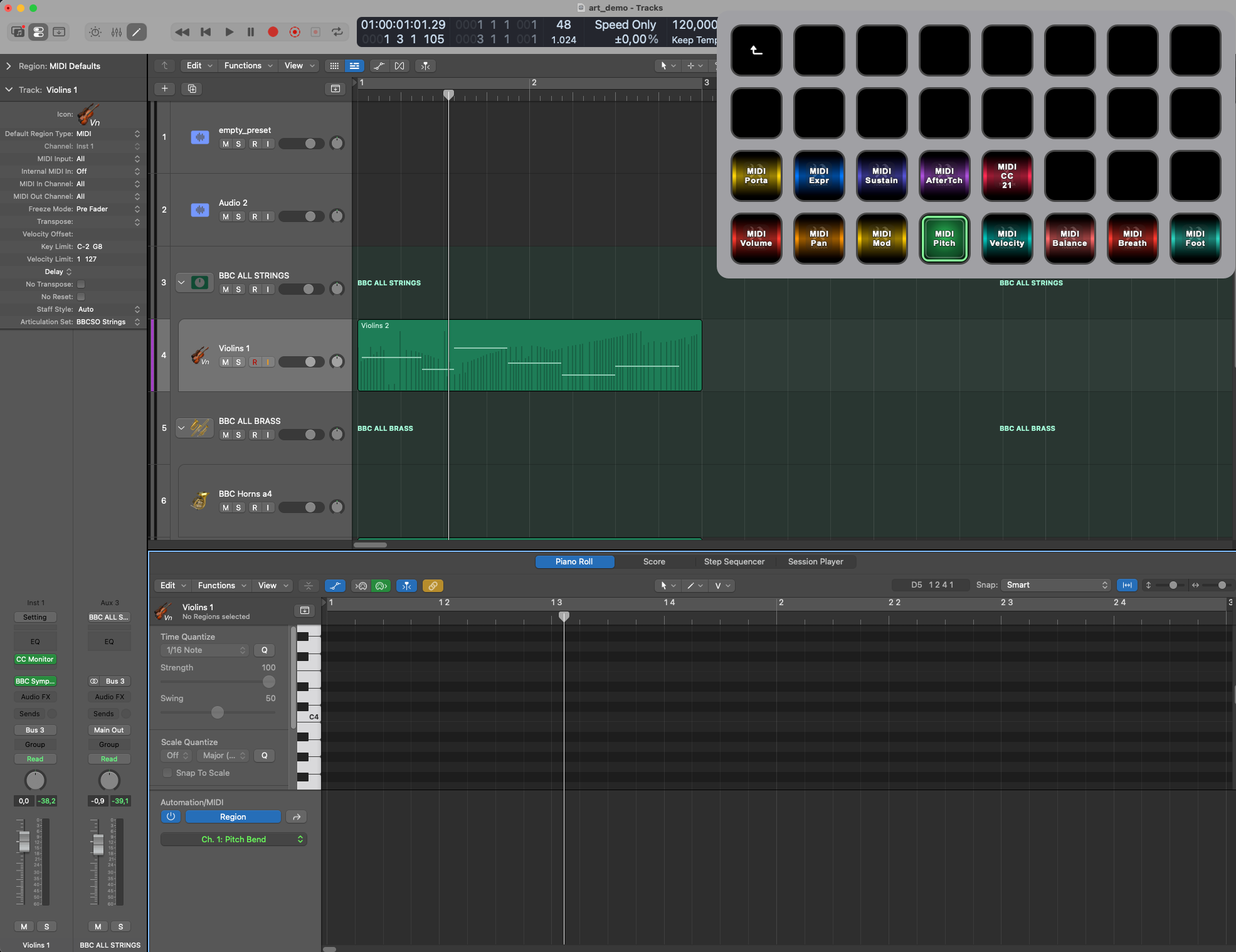
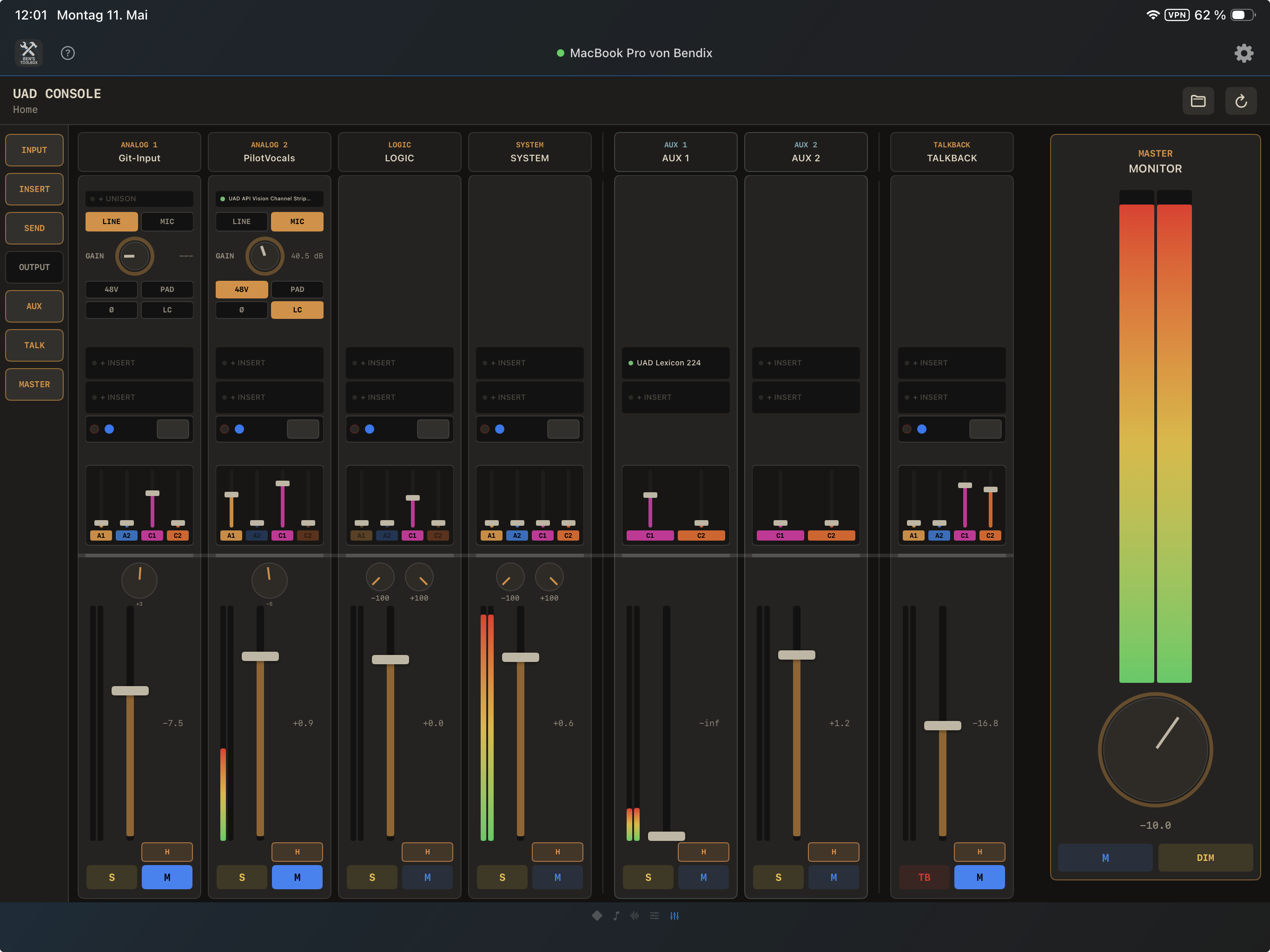
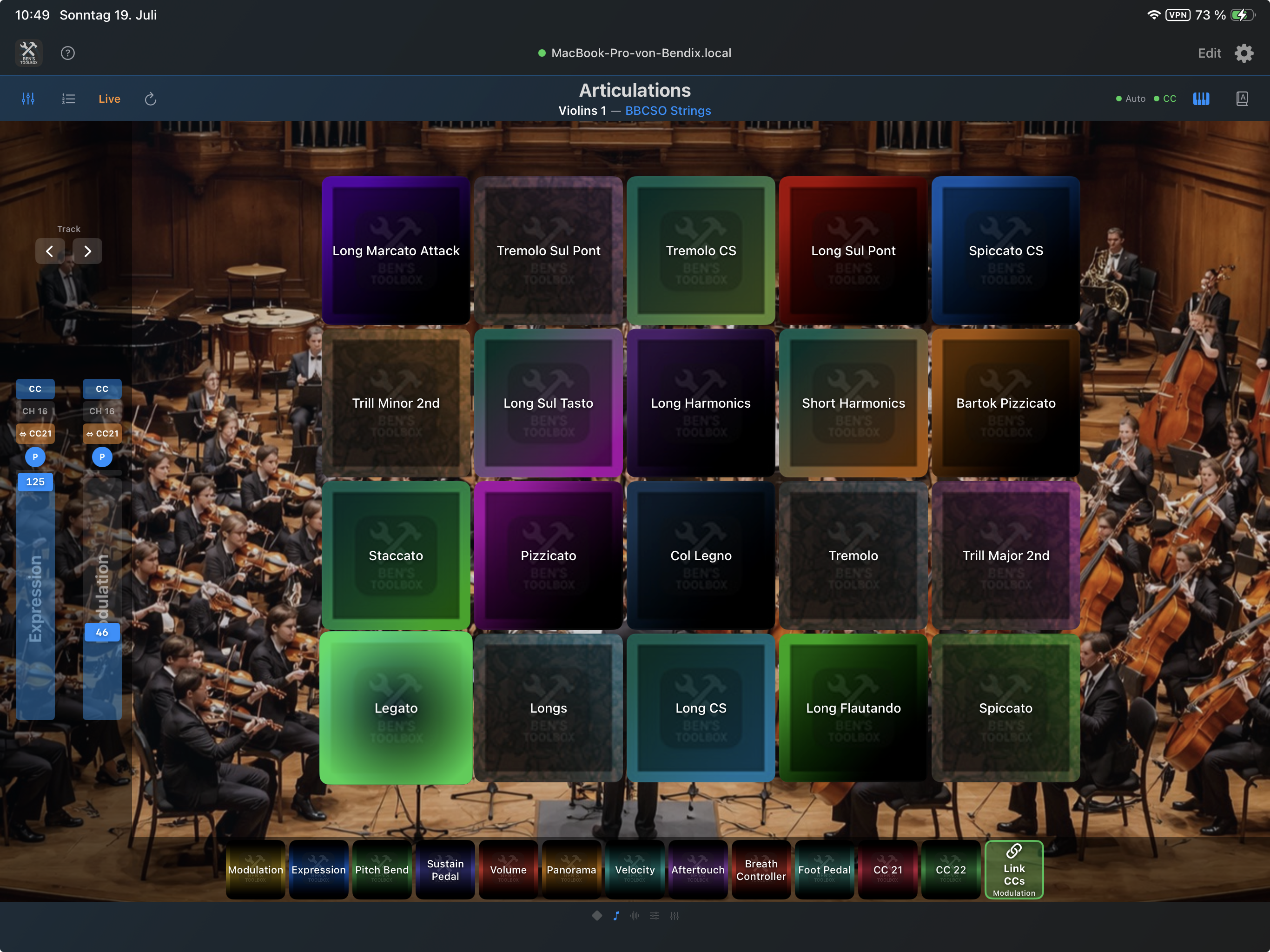
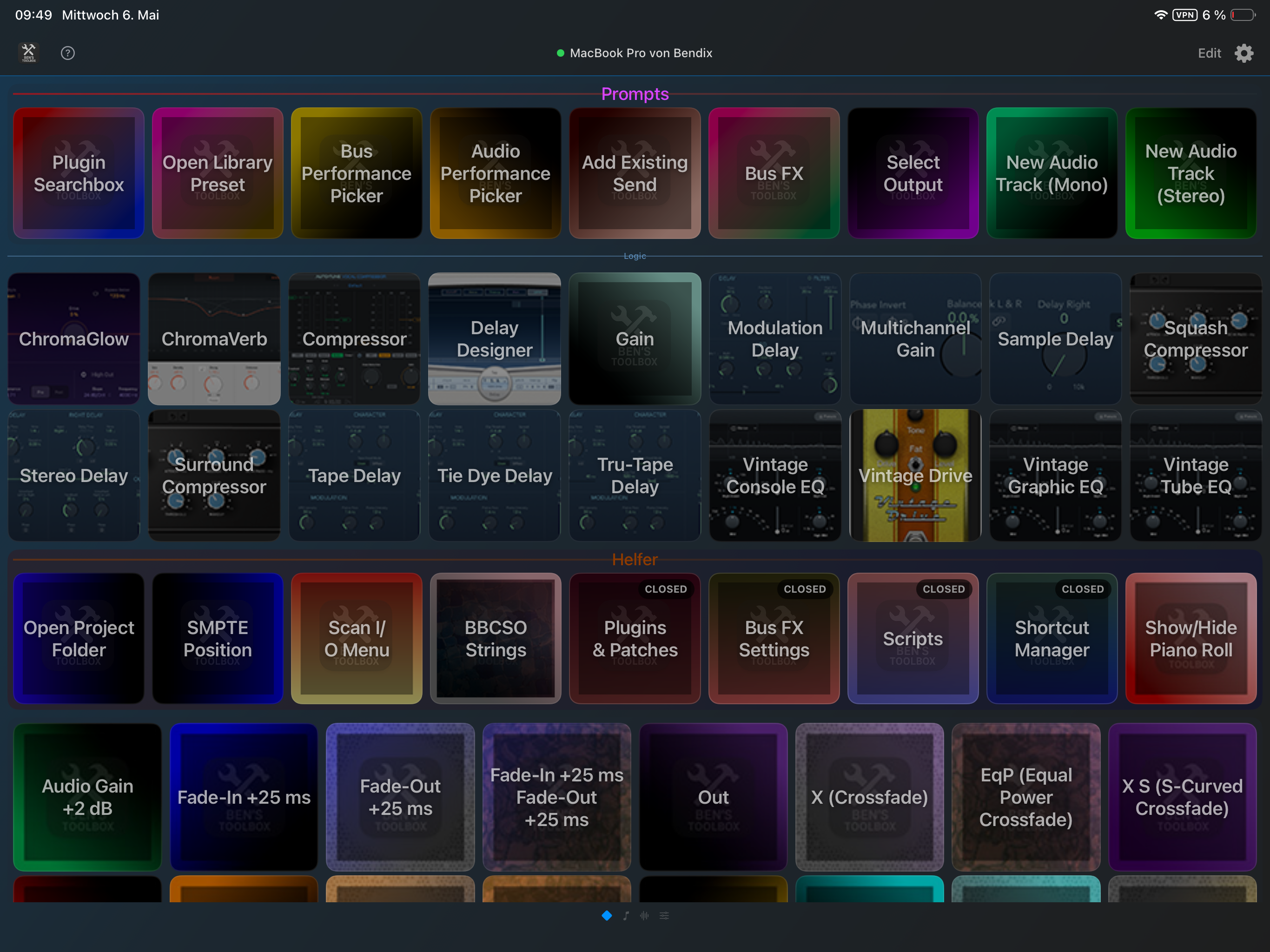
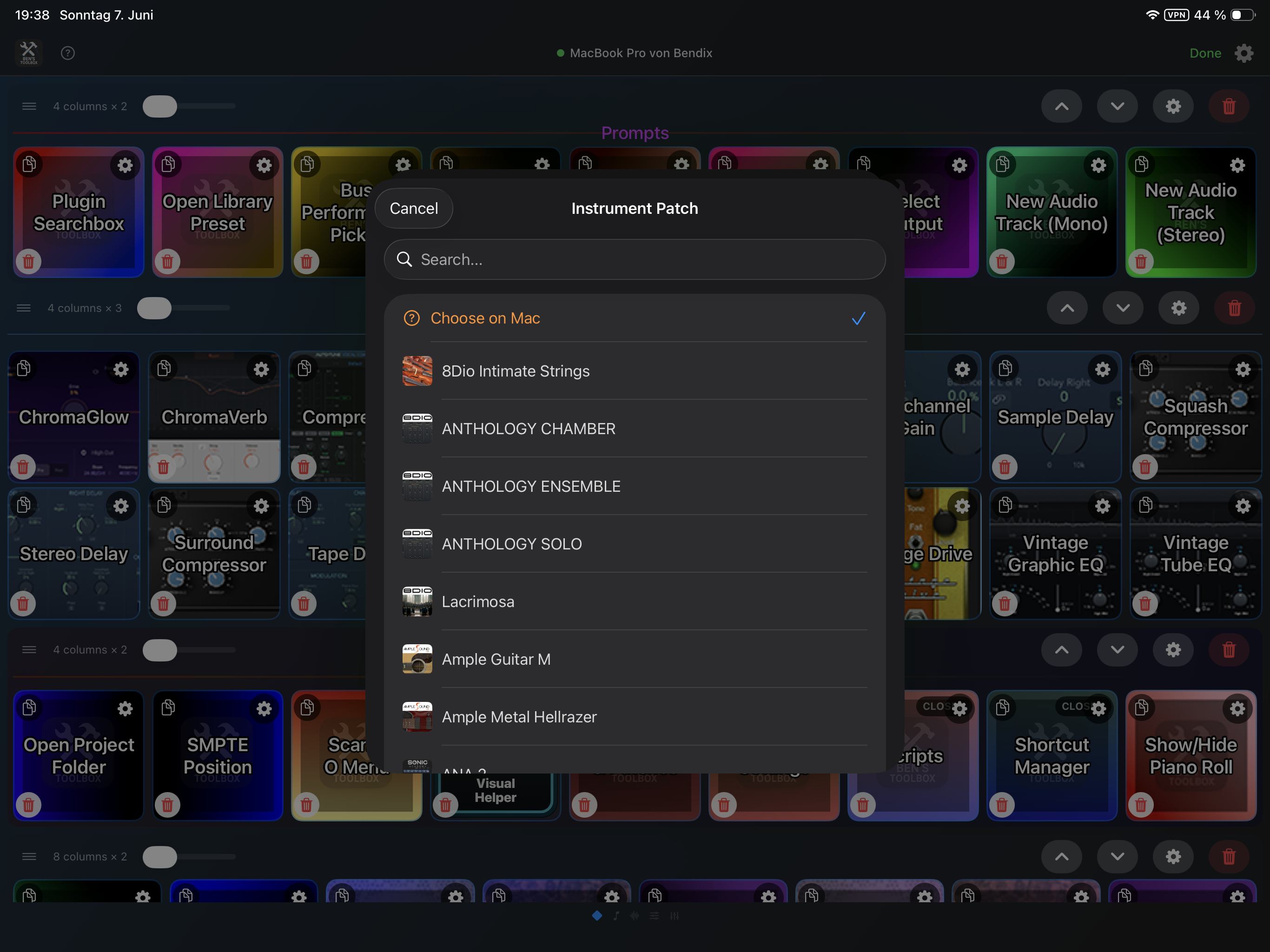
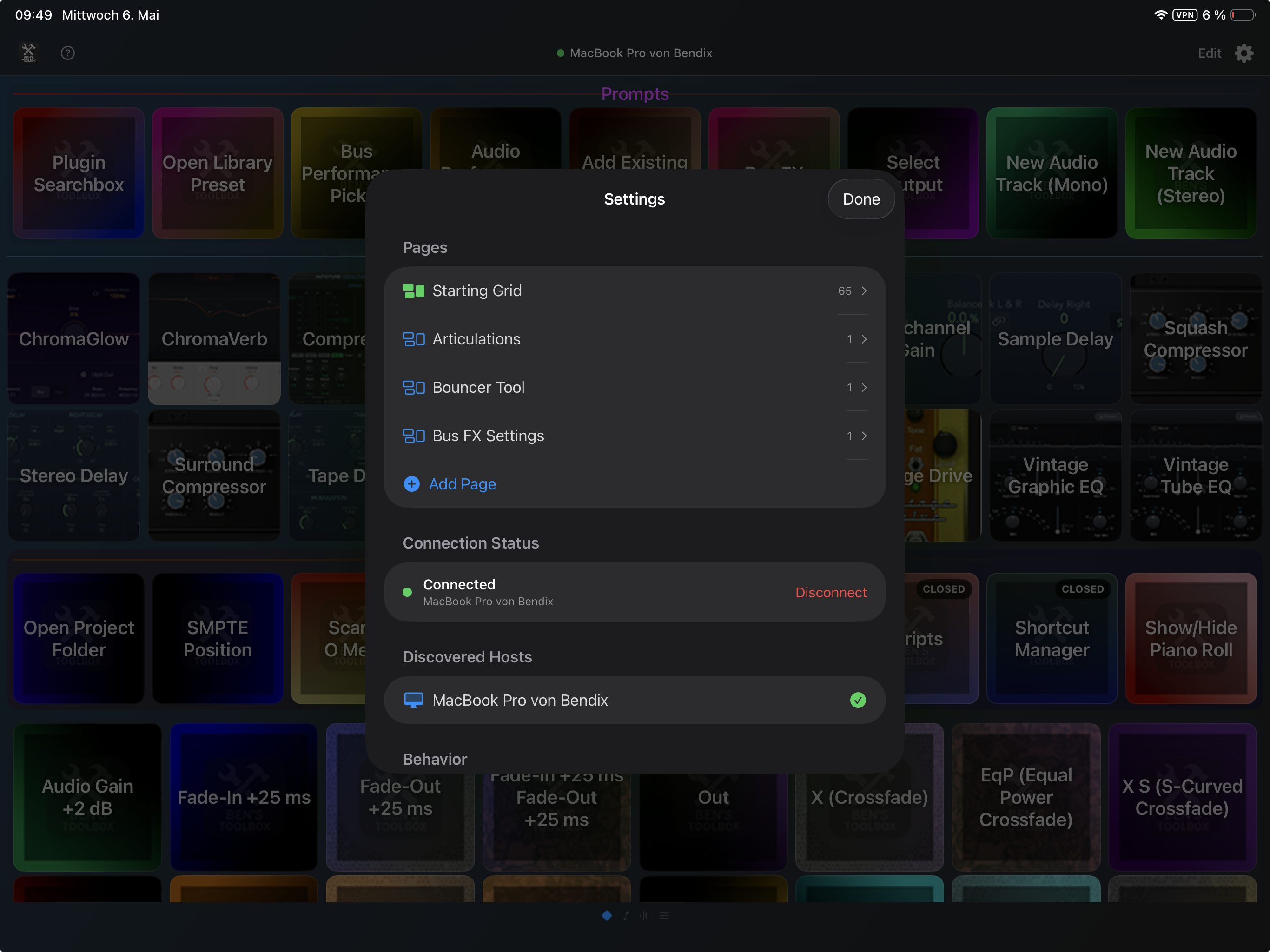
Ben's Toolbox is a macOS app that automates recurring Logic Pro work and makes it accessible via macOS, Stream Deck, iPad Remote and iPhone Motion. This now also includes the UAD mixer in the iPad Remote. This documentation not only describes how to get started, but also all important tools, options and typical workflows.
The Mac app is always the central authority. Stream Deck, iPad and iPhone send commands or control data to the Mac app. The Mac app checks license, status, presets, logic windows, UAD console data, scanned data and performs the actual action in Logic Pro or UAD Console.
Why Ben's Toolbox is different
Ben's Toolbox is not a single shortcut package, but a coherent Logic Pro system: Mac app, own MIDI device, Stream Deck plugin, iPad Remote, UAD Mixer Remote and iPhone Motion access the same database. This allows complex studio workflows to be triggered via buttons, gestures or prepared presets without having to navigate through Logic or UAD console menus each time.
USP
What's important about it
Where it is used
Bouncer Tool
Multiple mixes, stems, versions and deliverables are prepared as repeatable Bounce rounds. Naming rules, audio settings, dictionary, track selection and export folders are part of the workflow.
macOS App, iPad Remote
Live articulations with feedback
Articulations are read from Logic, displayed on iPad and Stream Deck and can be triggered live there. The interface shows which playing technique is active.
iPad Remote, Stream Deck, Logic Pro
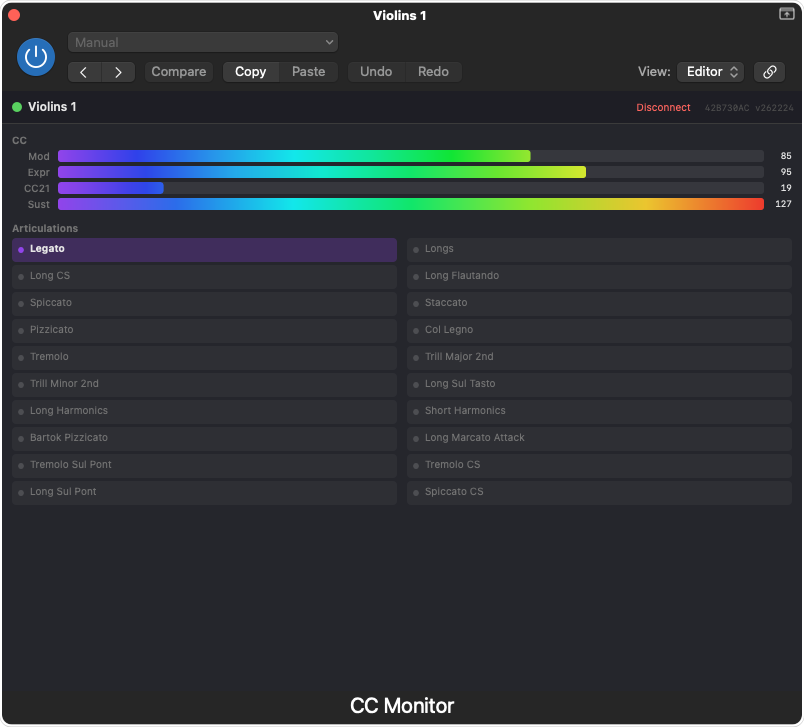
MIDI Recall via CC Monitor
Using the CC Monitor, the iPad articulation control can better track the current state in Logic. This means that not only is the signal transmitted, but the musical state can also be reported back.
iPad Remote, Logic MIDI FX, articulation tracks
UAD Mixer on the iPad
Select UAD console mixer functions can be viewed and controlled directly on the iPad: channel strips, inserts, preamp controls, sends, cue/aux sends, talkback and sessions.
iPad Remote, macOS App, UAD Console
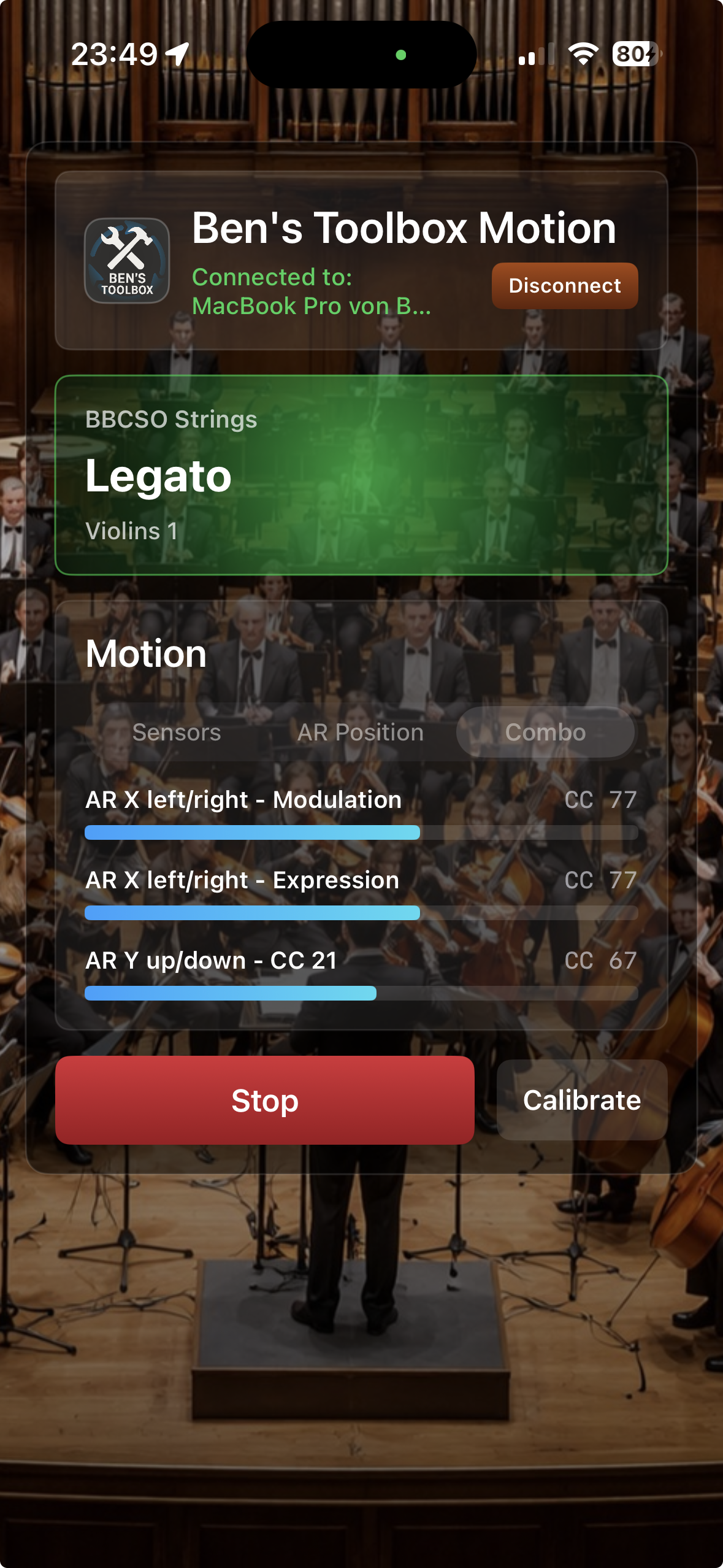
Dynamics control with the iPhone
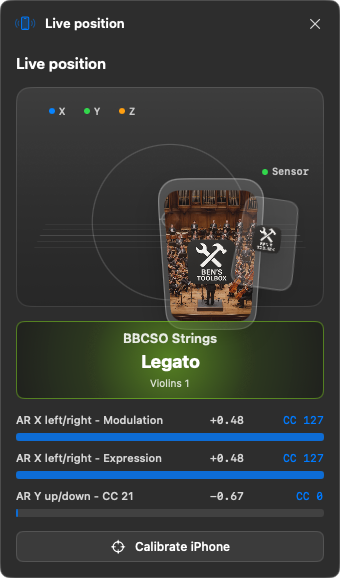
Movement, height, direction or activation gestures become MIDI CC, Pitch Bend, vibrato or articulation control. The mapping is in the Mac app and can be changed without an iPhone app update.
iPhone Motion, macOS Motion Window
Lots of workflow tools
Load plugins, open patches, set outputs, build sends, change gain/Fades, select MIDI-CC lanes, open windows and trigger logic shortcuts.
Mac, iPad, Stream Deck, shortcuts
Customizable iPad grid
Buttons, pages, sections, custom images, auto-labels and dynamic lists come from the Mac app. The iPad can therefore be set up as a template-specific control surface.
iPad Remote
Own MIDI infrastructure
Ben's Toolbox uses its own virtual MIDI device. This means that shortcuts and triggers run consistently over a controlled connection instead of using loose keyboard macros.
Logic Pro, Stream Deck, iPad, Shortcut Manager
How to start
1. Prepare Mac app
Install and start Ben's Toolbox.
Allow macOS accessibility features.
Open Logic Pro.
Set Ben's Toolbox to the same language in which Logic Pro is running.
The Ben's Toolbox MIDI device is automatically checked at startup and installed if necessary.
2. Scan data
Plugins & patches open.
Scan plugins, library presets, inputs/outputs and buses.
Rescan for new plugins or changed I/O names.
For articulations, also read in the current articulation set.
Important: If iPad or Stream Deck cannot find names, icons, outputs, presets or plugins, the cause is almost always in the Mac app. There the data must first be read or updated.
Language of Logic and Ben's Toolbox
Ben's Toolbox reads many Logic Pro menus, windows, tables, and panels via the visible names in Logic. Therefore, Ben's Toolbox must be set to the same language in which Logic Pro is running. For example, if Logic runs in German, Ben's Toolbox must also be in German; If Logic is in English, Ben's Toolbox must be in English.
Available languages: German, English, French, Spanish, Japanese, Korean and Simplified Chinese.
Practice: If Ben's Toolbox does not find entries in Logic or actions do not work reliably, first check the language setting and then rescan plugins, outputs, buses and articulations.
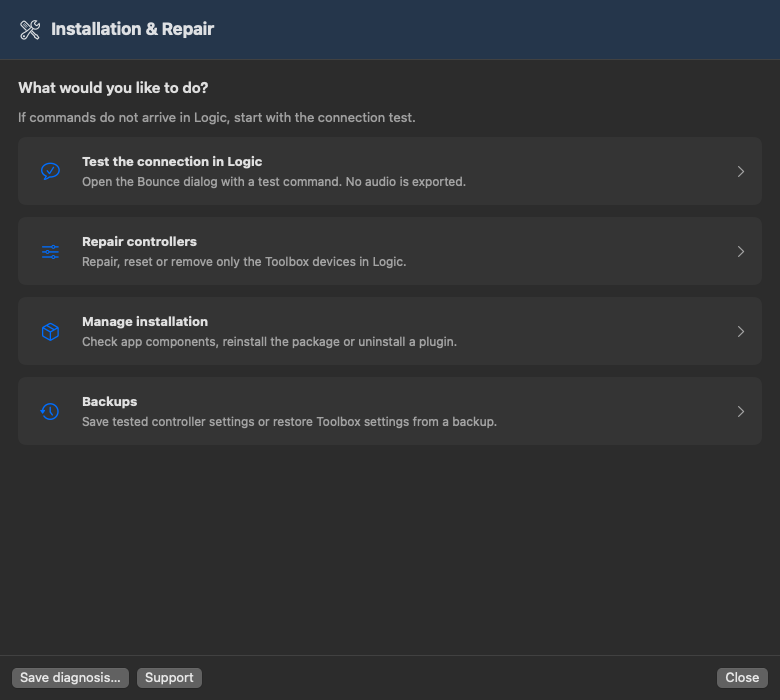
Installation & Repair Assistant
A clearer Installation & Repair home screen: test the connection, repair controllers, manage installation, and backups. If commands do not arrive in Logic, start with the connection test.
Controller repair now has three pages: choose an action, choose devices, review and confirm. Selection alone changes nothing. Repair completes missing assignments; reinstall resets selected Toolbox assignments; removal affects only selected Toolbox registrations, not the app or plugins.
Main views no longer require page scrolling. Test results, the five-part manual guide and the support form are separate. Prerequisites appear beside actions; controller changes remain blocked while Logic is running. Guidance in all seven app languages.
Manage installation separates file status from package installation and plugin removal. Green checks are not connection tests. Changes require Logic or Stream Deck to be closed, depending on the component. Backups retain tested controller settings; restore imports only Toolbox entries and protects other devices.
Open the assistant in Setup. Test the connection first: leave Logic open with a project in the background, close existing dialogs, then click TEST. The internal Logic command only opens the Bounce dialog; it does not export audio. Cancel the dialog afterwards. Alternative: menu bar icon → Scripts → Bounce WAV → Test now.
Success means this command arrived, not that every other function has been verified. If problems remain, describe them and click Send to submit the current Toolbox log to support. Only the receipt with a reference number confirms delivery. If prerequisites are missing, follow the displayed instructions first; this is not yet a failed connection test.
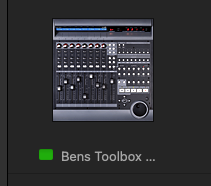
No Bounce dialog despite meeting the prerequisites? Save the project, leave Logic open and quit Ben's Toolbox. In Logic's Control Surface Setup, remove only Bens Toolbox and MCU Bens Toolbox (possibly displayed as Bens Toolbox MCU), never other controllers. Then quit Logic, start Ben's Toolbox and complete setup. Open Logic again and repeat TEST. The pictures below help identify the two entries; do not delete by icon alone.
Bens ToolboxMCU Bens Toolbox / Bens Toolbox MCU
After a successful TEST, back up the tested controller settings. The dated test marker applies to the saved configuration read during that test, not later or unsaved changes. Restore transfers only Toolbox entries and preserves other current devices and assignments. Unknown or ambiguous mappings are refused without changes; there is no automatic whole-file replacement.
Green checks under Components confirm files or permissions, not the MIDI connection. Refresh device status reads again and shows the check time. Custom assignments differing from the template are not inherently an error. CC Monitor normally installs in /Library; a copy in ~/Library is not required.
For repair, reinstallation or restore, save the project and quit Logic first; review the preview before applying. Reinstalling controller assignments replaces custom Toolbox assignments with the standard template. A backup is created before changes. Uninstall components only if needed: CC Monitor/MIDI script require Logic to quit; the Toolbox plugin for Stream Deck requires Stream Deck to quit. The disabled button explains why. Projects and presets remain; the selected component moves to a backup. Reinstall the app, MIDI script and CC Monitor with the official signed installer; macOS may request administrator approval. Stream Deck is installed separately.
4.2.22 · Logic Pro / CC Monitor
Clear installer introduction: On opening, the installer explains that you must save your project and quit Logic Pro before installation because the package also updates CC Monitor. Introduction and blocking messages are included in all seven app languages.
Early Logic check before administrator authorization: If Logic is still running, installation is blocked with a specific explanation. Save your project, quit Logic yourself and reopen the installer. macOS controls how the block appears; Logic is not quit automatically.
Additional protection: The later preinstall check remains in place in case Logic is reopened in the meantime. Unknown process states safely block installation; the native macOS empty result is recognized correctly. App functionality, Lua mappings and CC Monitor are unchanged.
Basic concepts
Action, parameter, trigger
Almost every tool consists of an action and optional parameters. Example: set_output is the action, the desired output is the parameter. The trigger can be a stream deck button, an iPad button, a shortcut, a URL scheme, or a button in the Mac app.
Remote surfaces are control surfaces
Stream Deck and iPad do not run Logic automation themselves. You send an action to the Mac app. This keeps license checking, status, local language, Logic window detection and actual automation in one place.
Dynamic lists
Many options are not hard saved in iPad or Stream Deck. Plugin names, library presets, audio performances, bus performances, I/O names and logic key commands come from the Mac app.
Own MIDI device
Ben's Toolbox sets up its own virtual MIDI device. Logic receives defined MIDI commands, while the Mac app knows which command belongs to which function. This allows iPad, Stream Deck and Shortcut Manager to trigger the same actions without each surface having to maintain its own logic configurations.
In practical terms, this means: A button can exist on the iPad, on the Stream Deck or as a shortcut and still trigger the same Ben's Toolbox action with the same parameters. The real intelligence remains in the Mac app.
macOS App
The macOS app provides the actual tools. Use the menu bar symbol to open the windows for scripts, Bouncer Tool, and plugins & Patches, Bus FX, Motion, Shortcut Manager, Articulations, Support, Settings, License and Updates. If Ben's Choir is activated, Voice Central also appears for voice profiles and choir-related workflows.
Window
What it is intended for
Typical timing
Scripts
Overview of executable tools and their parameters.
If you want to get to know a tool or trigger it directly.
Bouncer Tool
Batch Bounces, stems, versions, naming rules and export folders.
Before mix submissions, stems, deliverables and version exports.
Plugins & patches
Scans for plugins, library presets, outputs, inputs, buses and performances.
After installation, template change or changed I/O names.
Bus FX Settings
Preset management for send/bus workflows.
When preparing recurring rooms, delays or FX sends.
Shortcut Manager
Own keyboard shortcuts and parameterized actions.
If you want to work without Stream Deck or also via keyboard.
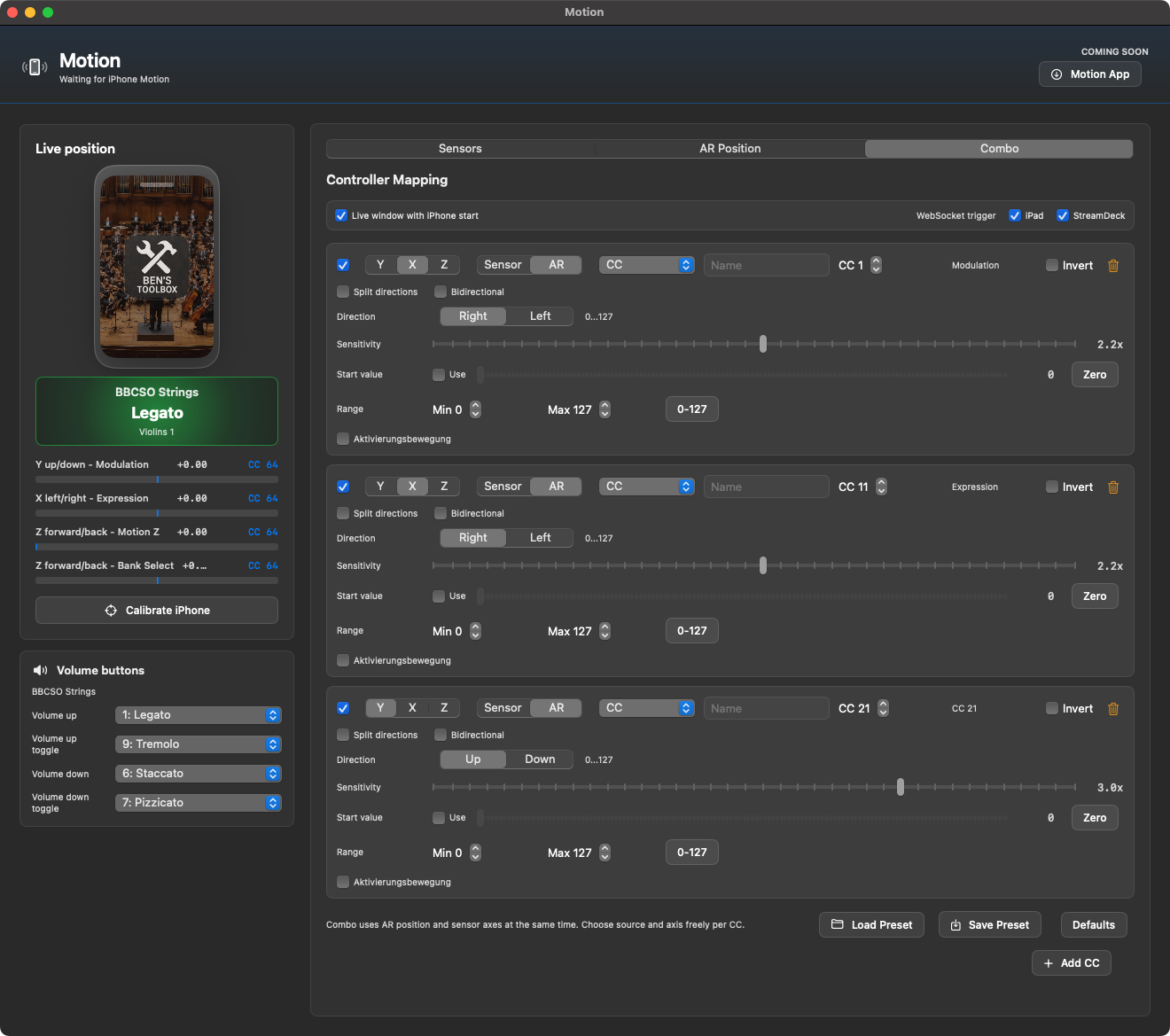
Motion
Map iPhone movement to MIDI CC, Pitch Bend and articulation functions.
For live control, vibrato, dynamics or performative controls.
Articulations
Read, convert and prepare articulation sets for remote control.
For orchestra libraries, soundtracks and sample libraries with many playing techniques.
Support
Prepare support report and display help context.
If a function should be tested reproducibly or reported to support.
Voice Central
Import and manage voice profiles and prepare choir-related workflows.
Only visible if Ben's Choir is active for the account.
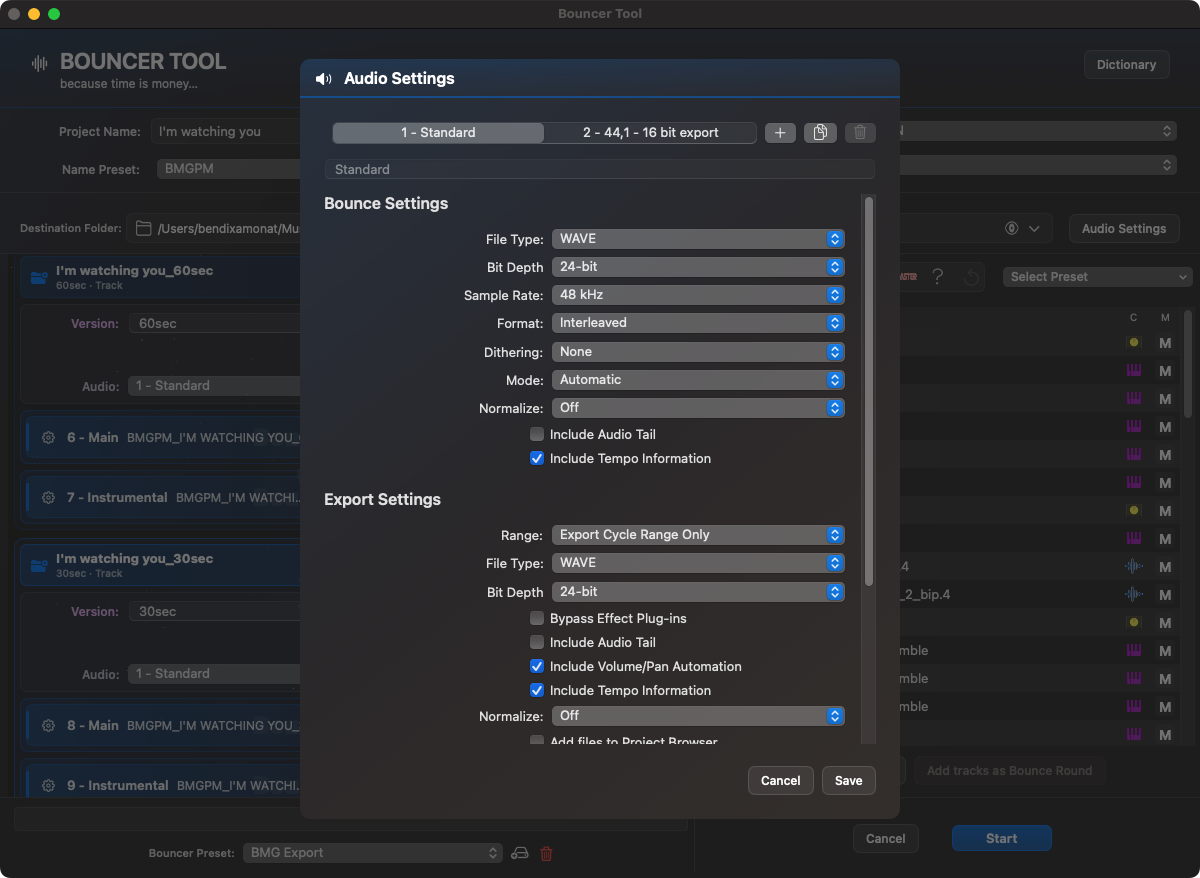
Opens the full Bouncer Tool window. This tool is intended for complex export tasks and is described in detail below.
Bounce WAV
Exports WAV, AIFF or CAF via Logic Pro. Options include format, bit depth, sample rate, interleaved/split, dithering, normalization, offline/realtime mode, audio tail, tempo information and optional opening of the export folder.
Bounce MP3
Creates MP3 files with fixed mono/stereo bitrate, quality level, stereo mode, normalization, offline/realtime mode, VBR, smart encoding, filter below 10 Hz, audio tail and tempo information.
Bounce WAV + MP3
Combines both deliverables in one pass. Useful if you regularly need to deliver a high-quality master and also a quick listening version.
export
Exports audio based on selected ranges and options. This includes Trim Silence, Cycle Only, Extend to End, Format, Bit Depth, Normalization, Bypass FX, Tail, Volume/Pan and Tempo information.
Tools: Plugins & Presets
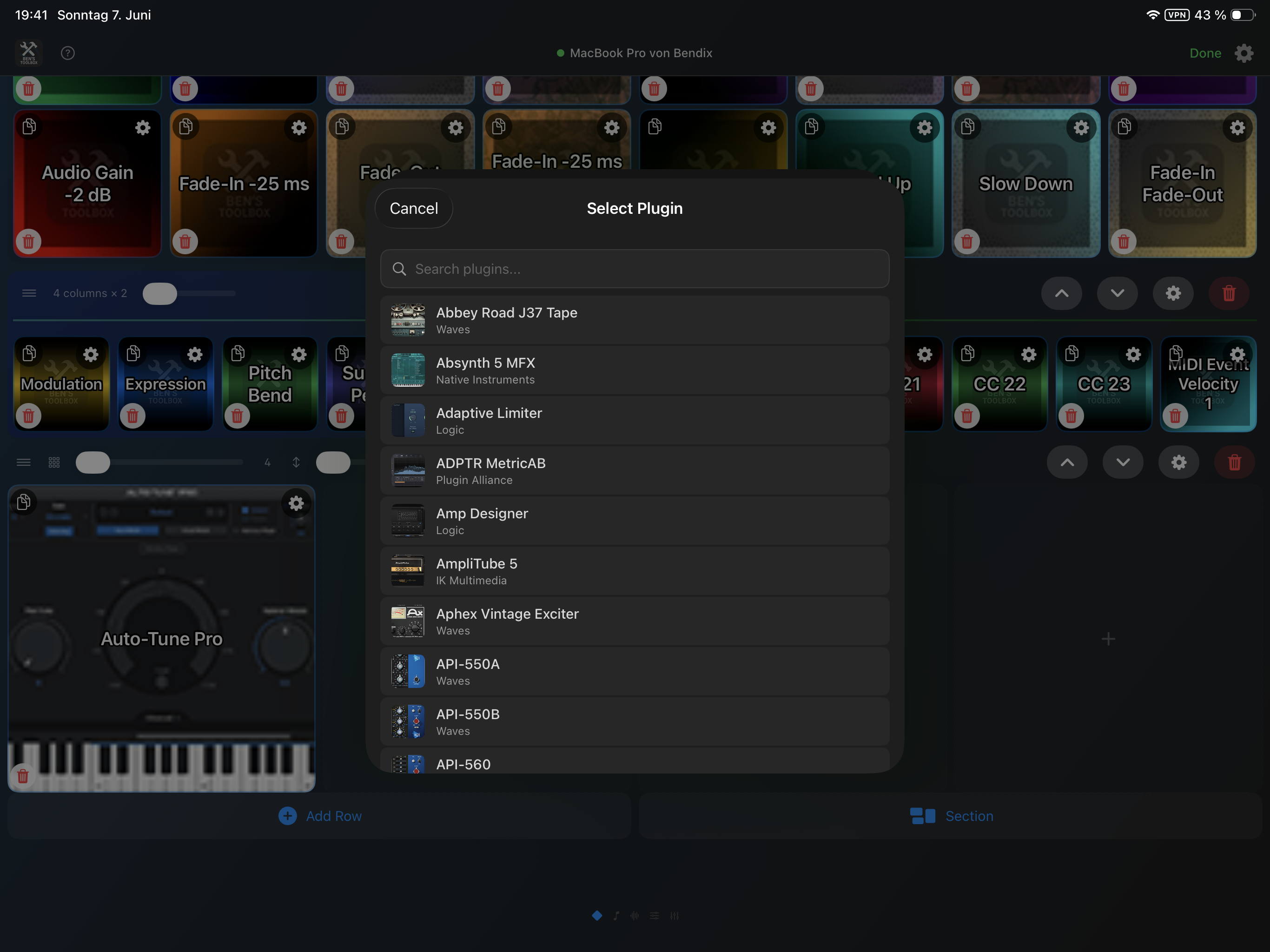
AddFX plugin & Quick Insert
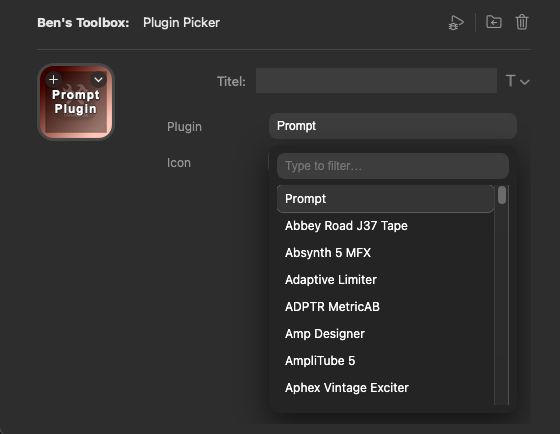
Loads a specified audio FX plugin into the next appropriate slot. Optionally, mono-to-stereo may be preferred if Logic offers multiple variants. Opens a search/prompt workflow. You specify the plugin name or choose it via a remote interface. The prompt can appear on Mac, iPad or both.
Open Library Preset
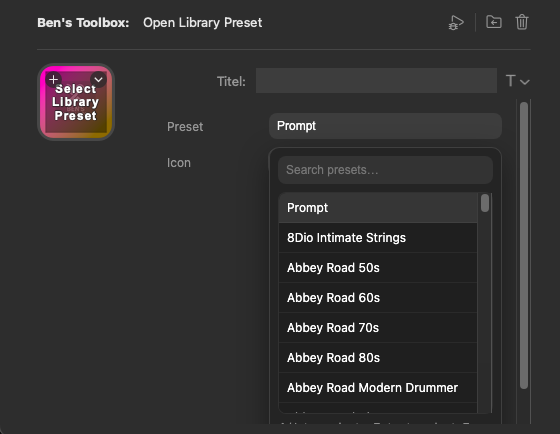
Opens a Logic Library Preset. The selection can be made directly or as a prompt. The list comes from the scan in plugins & Patches and can be grouped by subfolders.
Audio & Bus Performance Picker
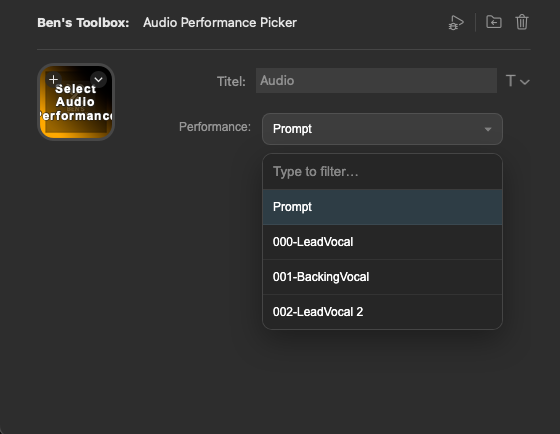
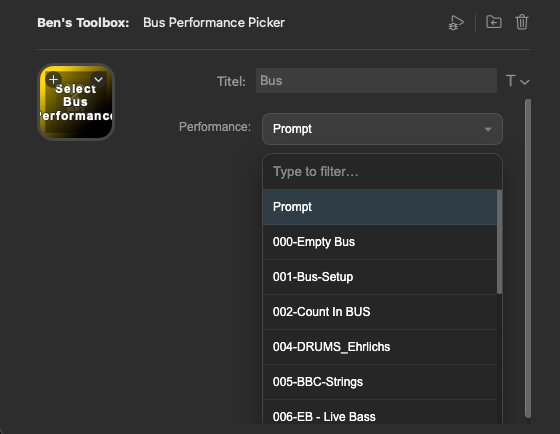
Uses saved audio and bus performances on audio or bus tracks. You can trigger a predefined performance directly by pressing a button on iPad, Stream Deck or via a shortcut. Alternatively, the tool opens a prompt in which you can select from the existing performances on the iPad or Mac.
4.2.19 · Quick Insert
The shared plug-in insertion path for Stream Deck and Toolbox can use Logic's unique enabled native search menu command when the MIDI request does not open its search window. Insertion still requires a verified matching search result.
Persistent MIDI endpoint IDs are assigned earlier and read back; discrepancies are logged. This does not certify general Lua reconnection. Other MIDI commands are not blindly retried on missing feedback; iPad feedback and shortcut addresses remain unchanged.
4.2.21 · Quick Insert
Manufacturer search for audio effects and software instruments: Plugins & Patches and the plug-in/instrument search windows accept combined name and manufacturer terms, such as “sonible smart” or “smart sonible”. Plug-in selection in Scripts, Shortcuts and Fx→Bus also searches the manufacturer.
A separate Manufacturer column in plug-in and instrument search windows. Display and search terms stay separate from insertion: Logic still receives the original plug-in name; existing presets, shortcuts and Lua mappings remain unchanged.
More reliable list refresh after scanning: manufacturer changes and changes within equally sized lists update the search index and table. Fx→Bus uses the current catalogue; plug-ins without manufacturer information remain searchable by name.
Tools: Mixing & routing
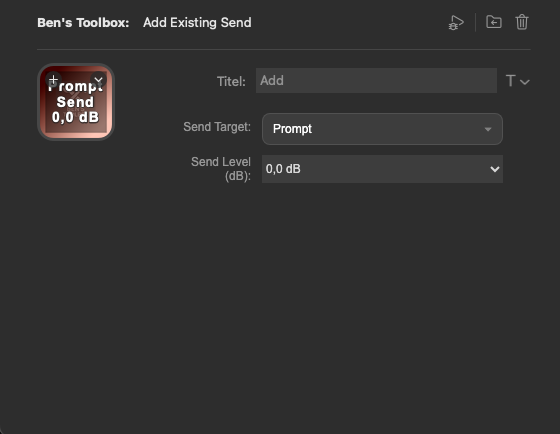
Add Send
Adds an existing send on the current channel. You can define goal, level and prompt behavior. The available send destinations come from the scanned I/O data.
FX Send Preset
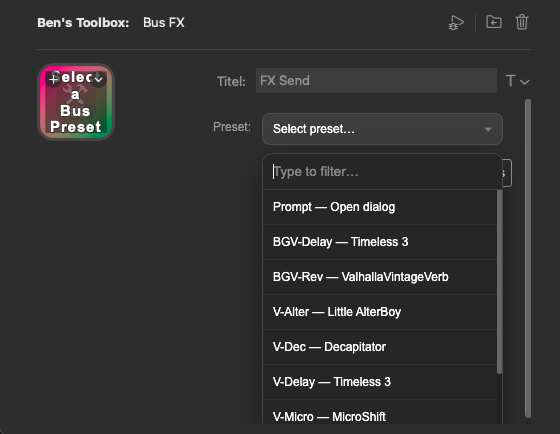
Creates or uses a prepared bus FX workflow with send name, plugin, destination output and send level. Ideal for recurring spaces, delays or parallel effects.
Set output
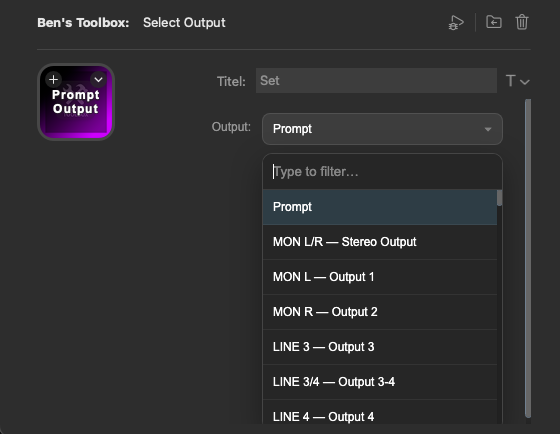
Sets the output of the active channel. The output can be passed directly as a parameter or selected via prompt.
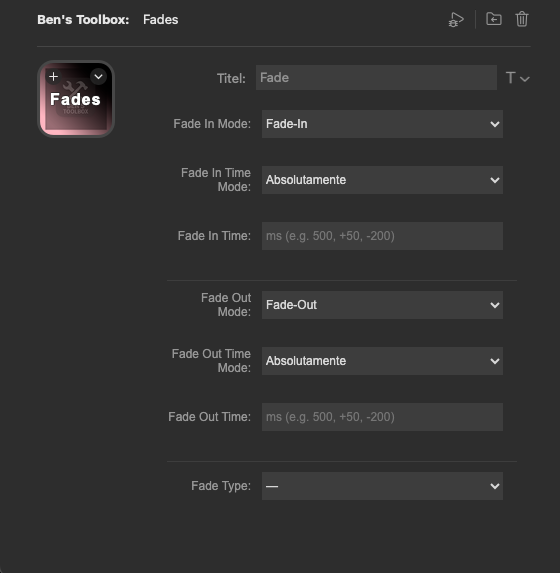
Fade
Changes Fade-In, Fade-Out, Fade-Time, and Fade-Types. Times can be set absolutely or changed relatively. Fade types include, but are not limited to: Out, X, Equal Power and X S.
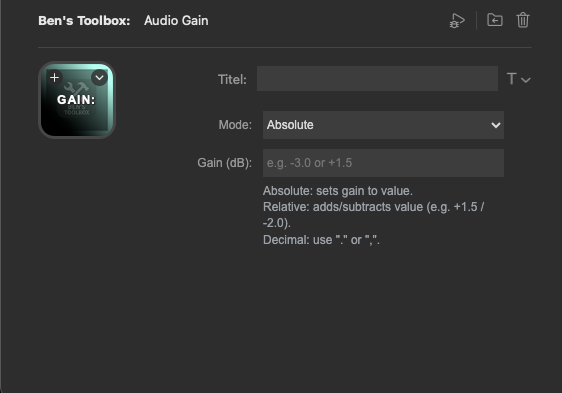
Set gain
Sets or changes gain in dB. The mode can be absolute or relative, for example +2dB or -2dB.
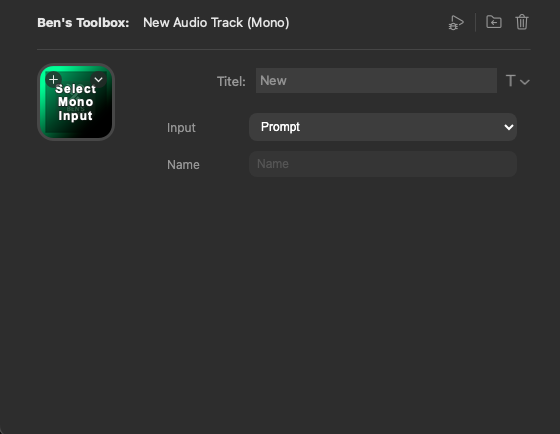
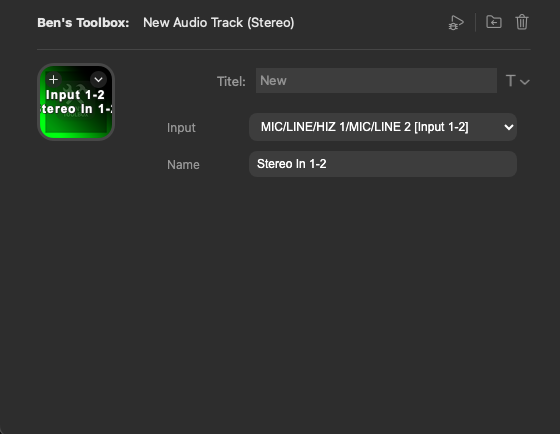
New Audio (Mono & stereo)
Creates a new mono or stereo audio track with prepared input and optional track name. If the input is not passed hard, Ben's Toolbox opens a prompt where you can select the input and name. This is particularly useful for recurring recording setups such as voiceovers, solo instruments, DI signals, stereo miking, synthesizers, external instruments or submixes.
Hover Actions
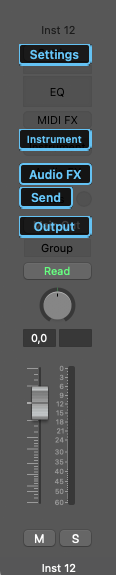
Hover Actions are context-dependent actions directly in the logic channel strip. You move the mouse to a marked location and trigger the appropriate Ben's Toolbox action with a Modifier-Klick. This means you don't have to open the Channel Strip manually, search it or select the target slot in a separate window.
The modifier keys for Hover Actions can be used in Shortcut Manager be adjusted. The usual modifier keys are possible; just be careful not to choose a combination that Logic already uses for important actions of its own. Are recommended Control, option and Cmd.
The marked channel strip areas respond to Mouse Hover plus Modifier-Klick and start the appropriate picker or prompt.
Settings Button on audio and bus tracks
On the Settings button of an audio or bus channel strip, the hover action opens the appropriate performance picker prompt. Audio performances are offered on audio tracks and bus performances on bus tracks. This allows you to apply saved performance setups directly to the current track.
Input, output and send
Hover Actions on Input, Output and Send open the respective routing prompts. The selection lists come from the scanned I/O and bus data of the Mac app. This is particularly useful if you don't want to search for routing destinations via Logic menus, but rather work directly from Ben's Toolbox, iPad, Stream Deck or shortcuts.
Empty instrument and audio FX slots
On empty instrument or audio FX slots, Hover Actions starts the appropriate plugin or quick insert workflow. For instrument tracks, an instrument can be loaded; For audio FX slots, an audio effect is inserted into the empty slot. Alternatively, a prompt can be opened to select from the scanned plugins.
Important: Hover Actions need the visible logic channel strip and the correct position of the mouse. If Logic focuses on another window, the Channel Strip is not visible or the I/O data is out of date, first bring Logic to the foreground and in plugins & Patches rescan the relevant data.
Tools: MIDI & Piano roll
Set velocity
Sets the velocity of selected MIDI events to a target value. This is useful for quick unification or special values like very low trigger velocities.
Next CC
Jumps to the next available CC or automation track in the Piano Roll.
Set CC
Directly selects a piano roll CC lane. Typical controllers such as volume, pan, modulation, Pitch Bend, velocity, balance, breath, foot, portamento, expression, sustain, aftertouch, program change, surround parameters and CC 20 to CC 32 are supported.
If the piano roll is not visible or Logic sets the focus differently, these tools can be ineffective. In such cases, first open the Piano Roll and test the action directly.
Tools: Articulations
Set articulation
Sets an articulation based on a name, for example legato, staccato or pizzicato. The tool looks for a suitable entry in the articulation menu of the current track.
Trigger articulation
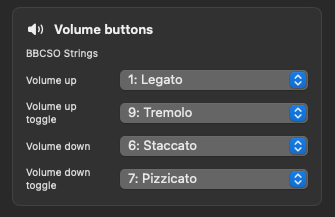
Triggers articulations according to slot index 1 to 32. This mode is particularly suitable for Stream Deck and iPad because buttons can be placed directly on slots.
Articulation Menu
Opens the Articulation Picker for quick selection in Logic.
Read Articulations
Reads the current articulation set of the active track and writes it to the shared state for Stream Deck and iPad. This is the most important refresh step if the remote interface does not show the expected playing techniques.
Important: When triggering articulations live via iPad or Stream Deck, if the Piano Roll is not in focus, Logic may flash briefly or visibly change focus. The reason is not a bug in the function, but rather that the wrong window for setting the articulation is active. The articulation is still triggered; flashing does not affect functionality. If it bothers you, click on the piano roll once. As long as the Piano Roll remains the active window, the flashing disappears.
Tools: Utilities
Open Project Folder
Opens the current Logic project's folder in Finder.
SMPTE Reset
Sets the SMPTE position to zero at the current playhead position.
Logic shortcut
Triggers any logic key commands. The key command list is provided from the Logic command data and is searchable on iPad and Stream Deck.
Scan I/O & buses
Rescans I/O and bus names. Use this after template changes, changed output names or audio interface changes.
Set of markers
Creates or names markers based on a passed name.
Paste Colored MIDI Region
Inserts a MIDI region in a selected color. Available colors are red, yellow, green, blue and purple.
Submit Script Request
Opens the way to send new script or workflow requests to support. This tile is not a Logic automation step, but rather a contact and feedback entry point.
Bouncer Tool
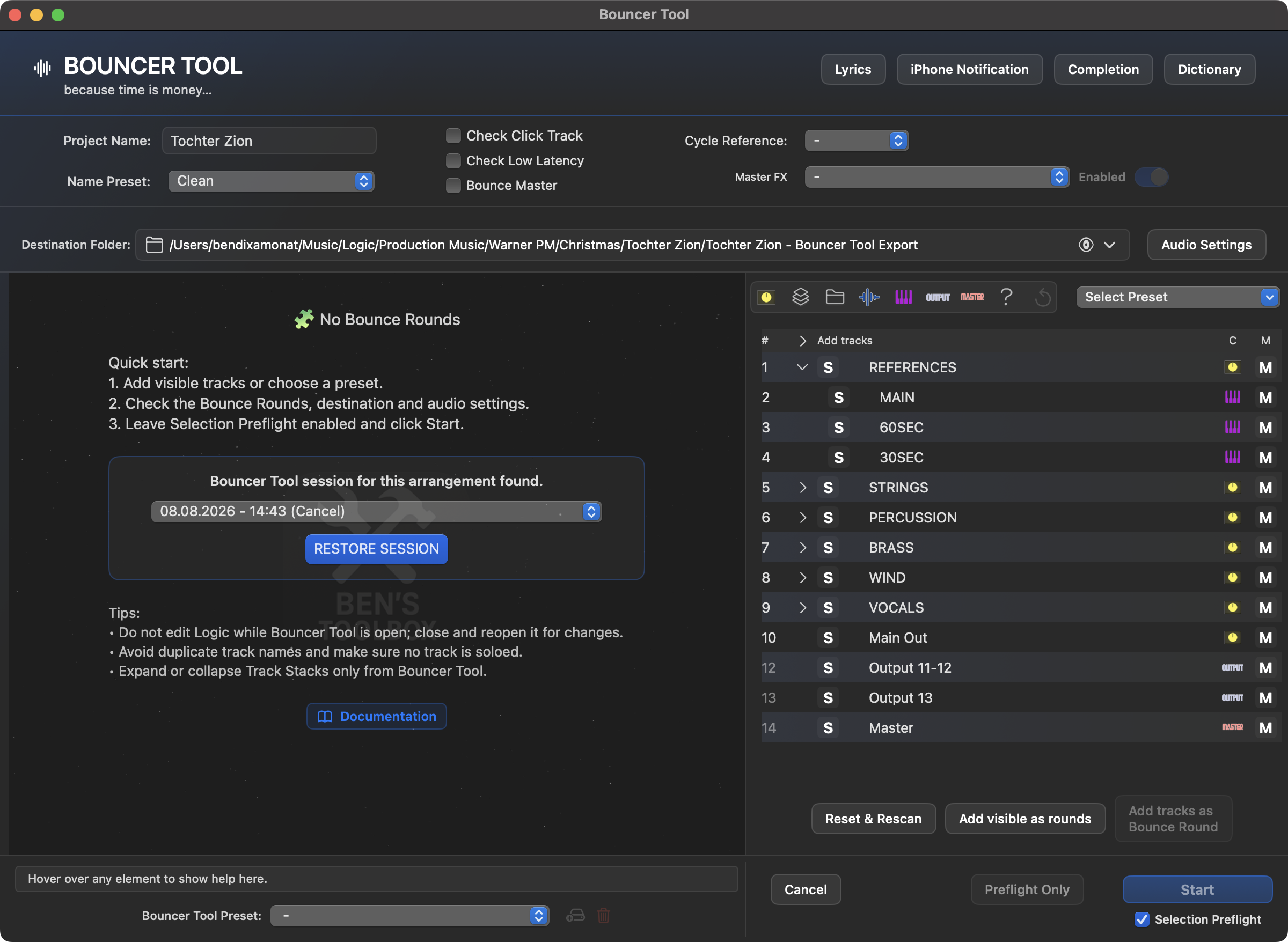
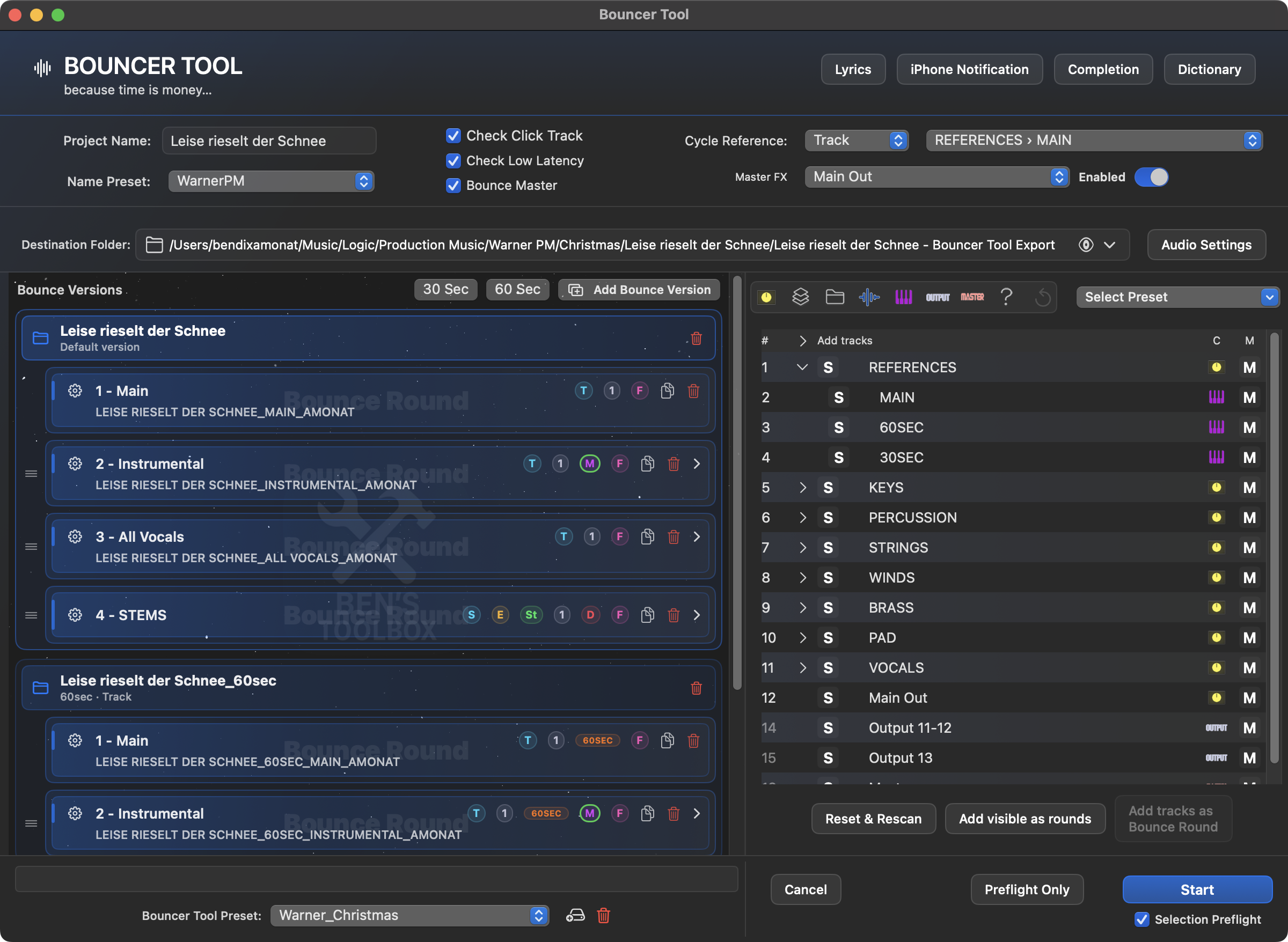
The Bouncer Tool is the most important and comprehensive export tool in Ben's Toolbox. It is intended for recurring deliveries: mixes, instrumentals, TV tracks, stems, single tracks, variants and custom deliverables.
Concept: The Bouncer Tool stores complete export logic instead of just a file format. You define Bounce Versions, export rounds, track selection, scheduled mutes, round names, dictionary, audio format, destination folder, header options and reusable Audio Settings presets. The track list is read from the Logic project file or from the autosave and serves as the basis for presets, manual rounds, iPad Remote and Main Presets.
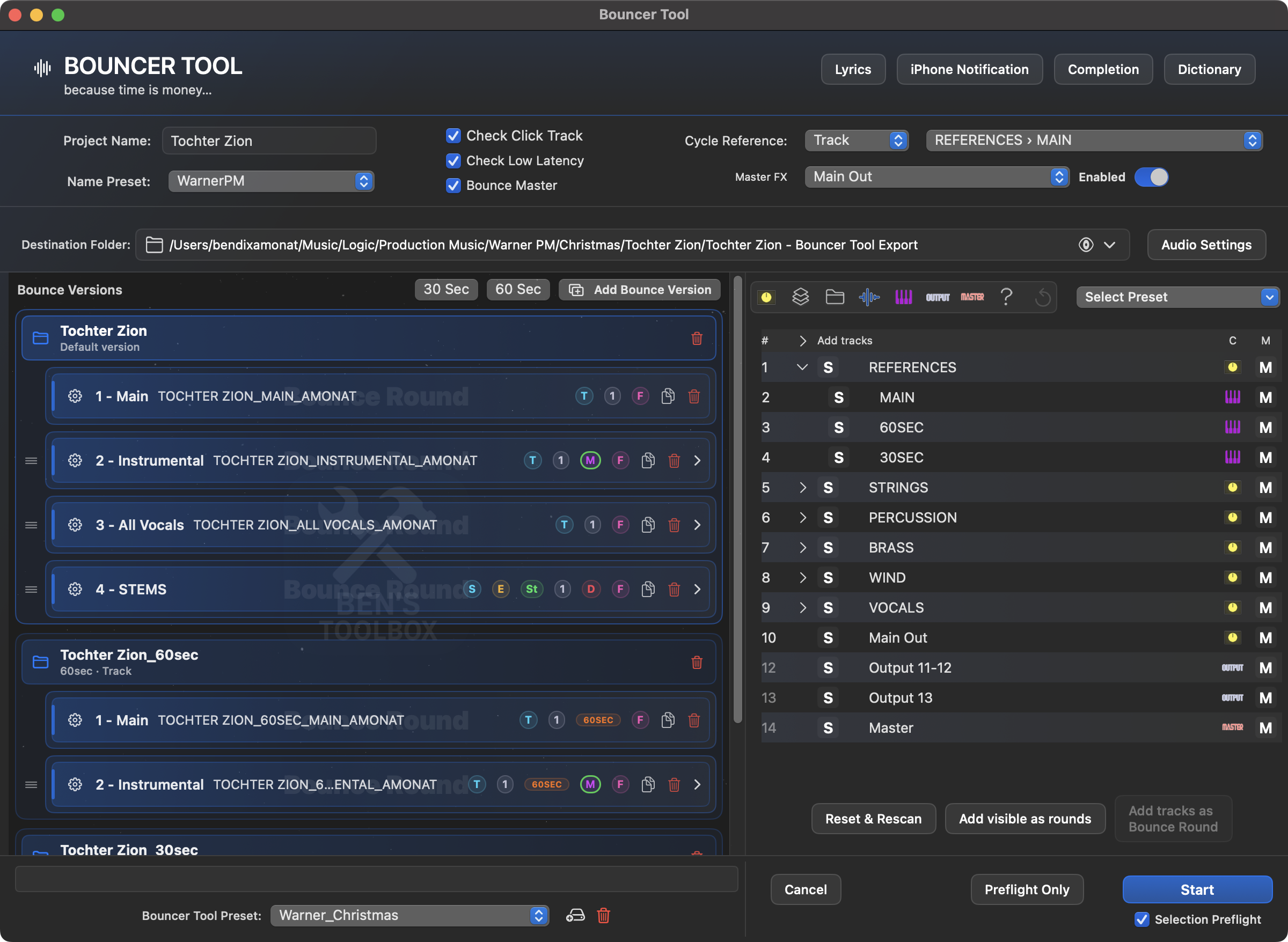
The main window combines project and target folders, track list, Bounce Versions, rounds, presets and preflight. If saved sessions exist for this arrangement, you can use them in the empty setup Restore session be restored.
Start Bouncer Tool safely
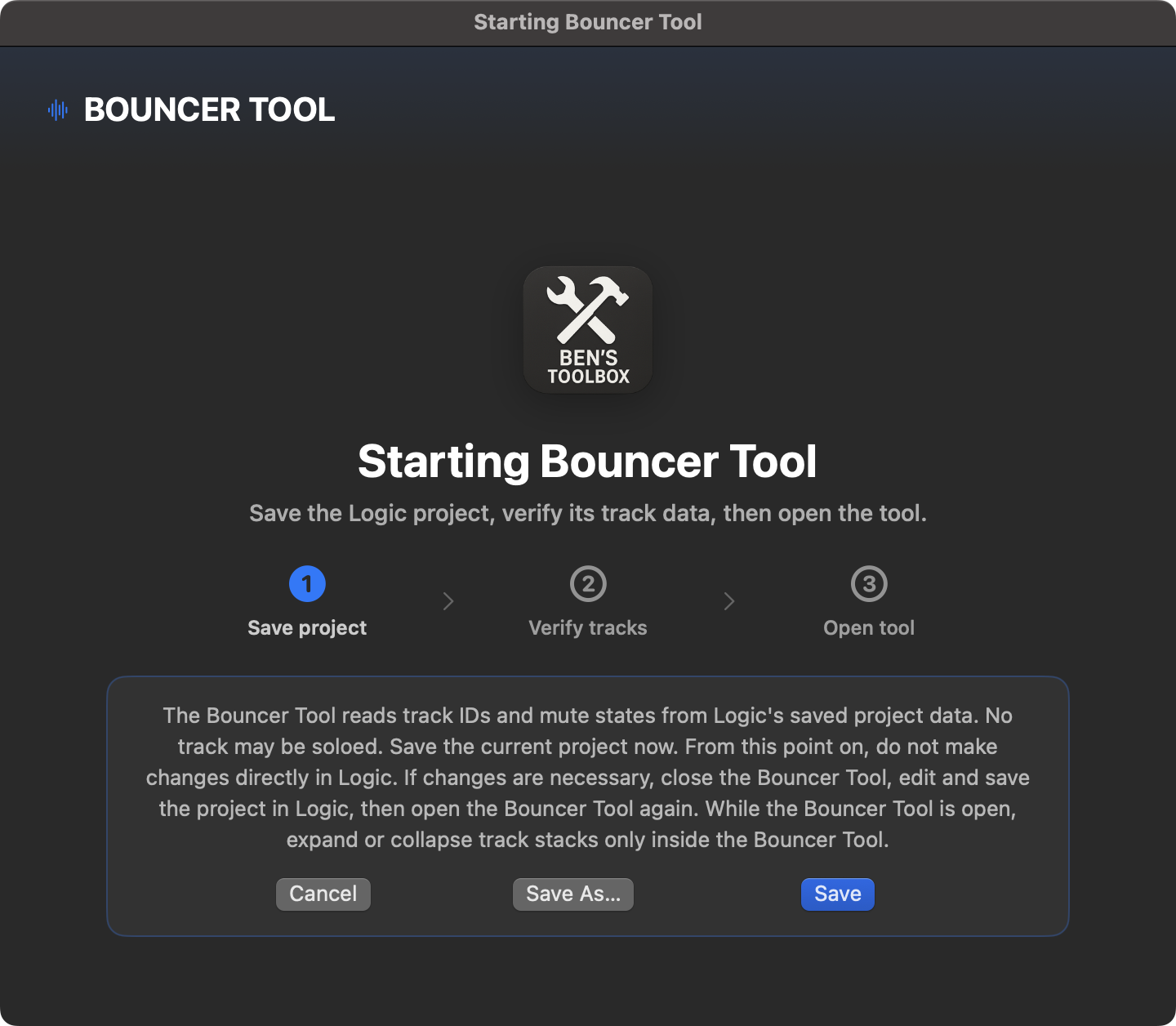
The start deliberately begins before the actual Bouncer window. Save the active Logic project with it Save or Save As; Ben's Toolbox then waits until the project file has been completely written and verified. Only then is the track structure read and the main window opened.
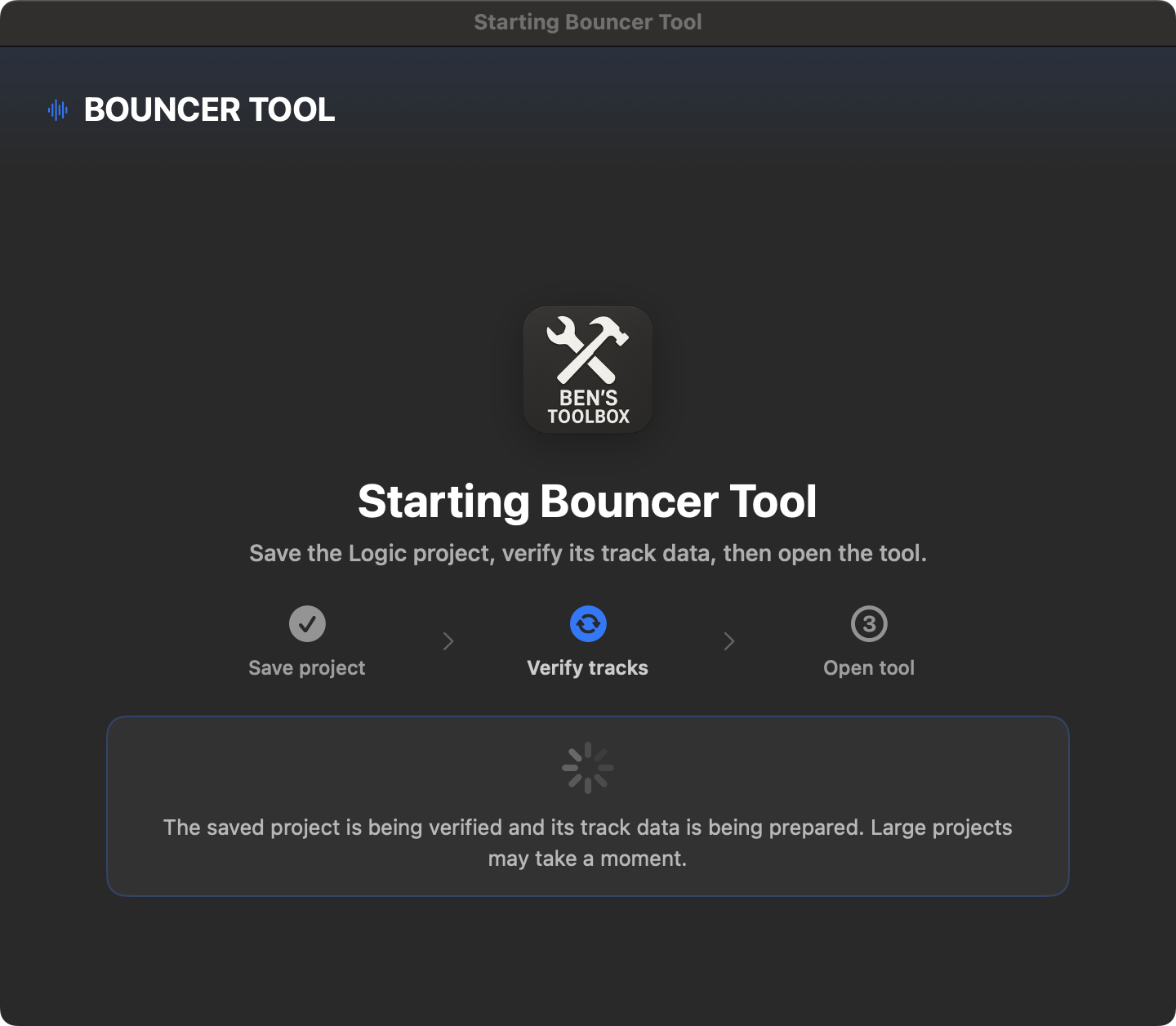
Step 1 saves the active Logic project. With Cancel the Bouncer is not opened.Step 2 verifies the saved file and then reads track IDs and mute states.
Before opening: In Logic, no track can be soloed. If the start scan detects a solo state, the actual Bouncer window remains closed. Remove the solo state and start again - or use Clear Solo States Automatically; This resets the solos, saves the project and repeats the scan immediately.
While Bouncer is open: Do not change tracks, order, or structure in Logic. Close the Bouncer for changes, save the project and reopen it. Meanwhile, track stacks may only be expanded or expanded using the disclosure control of the Bouncer track list.
Track reading from project file and autosave
When opening the Bouncer Tool and at Reset & Rescan Ben's Toolbox evaluates the currently active Logic project file. If another arrangement is opened, the previously loaded project-related state is discarded and the new track list is read in. If a newer autosave file exists, it can be considered for version and structure checking; The basis remains the currently verified save status.
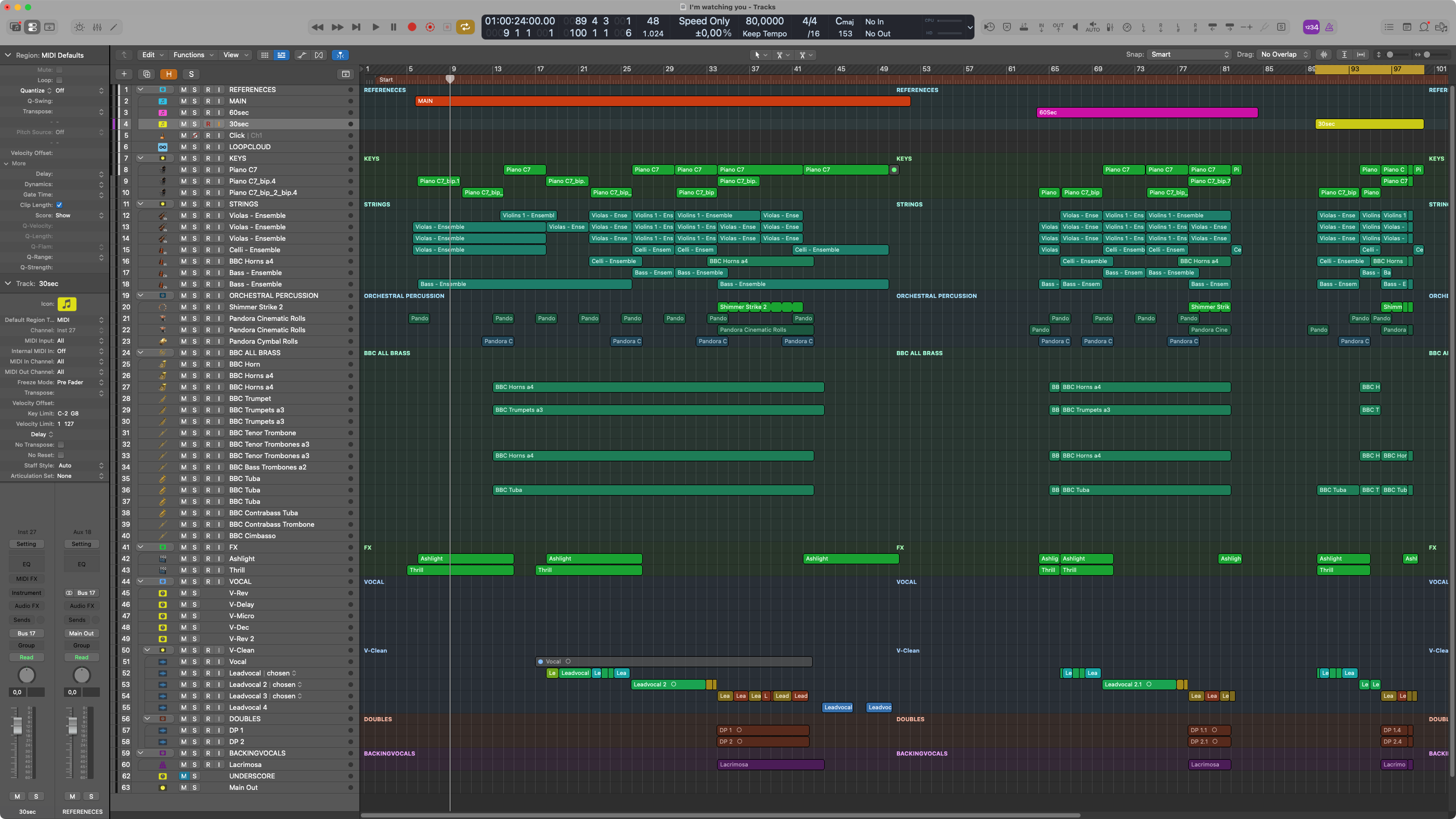
The scan reads track IDs, track names, track types, mute states, visible and collapsed tracks, aux/subgroups, and top level and nested levels. When opened, the track list shows whether a track in the arrangement is muted. Mixer and UI Search are not the primary source of the tracklist; they are only used as limited fallbacks when a live state or a collapsed reference path is not directly accessible.
The Bouncer takes over the track structure, track types and existing mute states from Logic. A muted track in the arrangement appears in the track list with a blue M, without automatically being considered a planned Bouncer mute rule.
Important: The project structure read by the Bouncer is the basis for each run. The numbers in the Bouncer list are internal Bouncer positions and do not necessarily correspond to Logic track numbers. Logic can display copies of the same channel in multiple arrangement positions; The Bouncer uses the saved project identity and the structure path for this. Avoid duplicate track names because they make secure assignment unnecessarily difficult.
Save arrangement: For a secure project analysis, the arrangement must have been saved with at least Logic Pro 11.2. Reset & Rescan asks for confirmation, discards the currently created Bounce-Rounds and completely rebuilds the track assignment from the newly saved project.
Folder projects, Bouncer scope and root level
The Bouncer Tool also supports Logic projects with multiple nested folder levels. Every bounceable track remains visible and selectable in the track list - regardless of how deep it is in a folder. Folders themselves are not included as an audio source in a round; they serve as orientation and can be used as Bouncer Scope be used.
Open the desired folder in the Bouncer track list and check the tracks it contains.
Click on the desired folder Root-Symbol at the point where it is on normal tracks S stands.
Logic switches to this folder. The Bouncer hides levels above and permanently shows the note Bouncer Scope: [folder name].
Within this area, select Tracks, Cycle Reference, Master FX and Bounce-Rounds as usual.
A scope makes sense if a large project involves areas such as: Sketch, arrangement and Mix owns, but only within Mix should be exported. With Show full project you leave the scope again. Start fresh also resets the scope, empties the current Bouncer session and the visible main preset selection - saved Main Presets and audio settings are retained.
Selection and navigation: For a Bounce-Round, the Bouncer Tool stores not just a name, but the project identity and the folder path of the selected track. Before a round, Logic navigates from the root or active scope specifically to these tracks, solos or mutes them and then restores the original state. This means that tracks from different folder branches can also be part of the same round.
Recommendation for reliable Bounce targets: Use preferred Folder stacks or Summing stacks with unique channel strips. Classic Logic Folders – folder tracks without their own solo switch – are region-based arrangement containers. Multiple track representations can use the same channel strip; This means that even regions that are not visible can be played and bounced together. Ben's Toolbox supports such projects in the best possible way, but separate isolation via solo is not possible for every setup in this type of project.
Important areas
Area
Description
Destination
Export folder, project name and target structure.
Bounce Versions
Multiple versions of a setup, e.g. B. 60sec, 30sec or alternative cutdowns, with their own defaults for range, track, Audio Settings and Master FX.
Bounce Rounds
Multiple export passes with their own settings.
Track selection
Which tracks or groups are exported. Track type and nesting can be used as conditions.
Mute Rules
Which tracks are muted for specific rounds.
Audio Settings
Format, sample rate, bit depth, MP3 options and Bounce mode.
Name Presets
Prefixes, suffixes, numbering, customer specifications and export names.
Dictionary
Replacement or normalization of track names.
Lyrics
Formats lyrics for deliverables and saves them appropriately named in the export folder.
Completion
ZIP, cloud upload, local backup, file handling and final emails.
Main Presets
Complete Bouncer Tool configurations for recurring projects.
Recommended workflow
Open Bouncer Tool and in the start dialog Save or Save As choose. The tool waits for the fully written and verified project status.
Make sure no track is soloed in Logic. For large folder projects, then decide whether the entire project tree or just one folder should be used as the Bouncer scope.
Check or select project name and export folder.
Define the checkboxes in the header, set the cycle reference and if necessary Master FX Activate or deactivate for the selected channel. To do this, select the corresponding track in the dropdown.
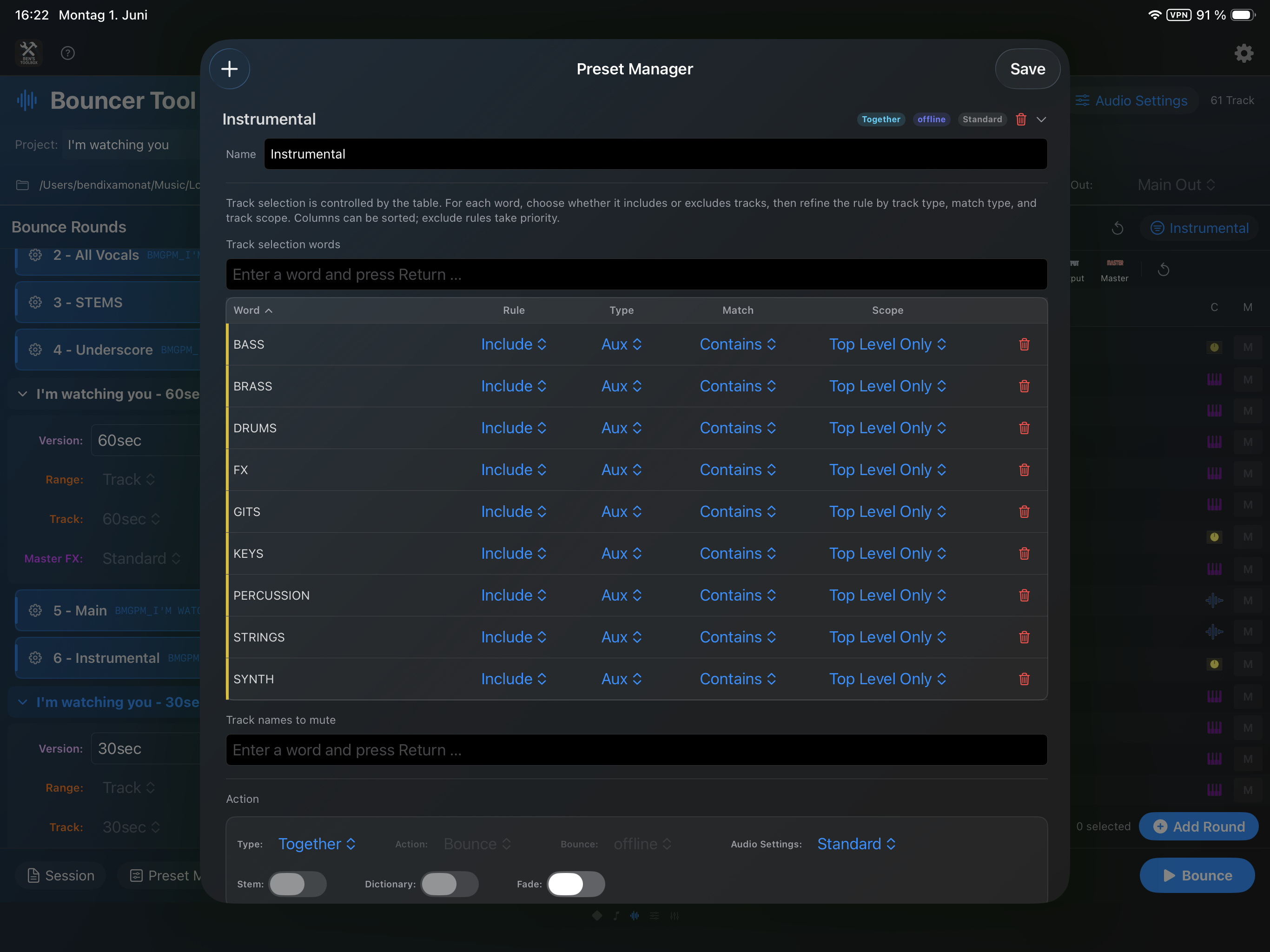
Use the Preset Manager to create presets that include or exclude tracks based on names, track types, and properties. Alternatively, you can manually select tracks and add them as Bounce-Round.
In the preset you can already prepare Bounce/export type, dictionary, mute rules, Fade and Audio Settings. When adding manually, a prompt asks you to click on Add Tracks the most important round options.
Check round names and change them directly in the round if necessary. Only the part is edited # -, so e.g. b. Instrumental. Duplicate Together names are automatically made unique so that exported files do not overwrite each other.
If you want to adjust a round later, you can delete individual tracks from the round or drag and drop changed tracks from the track list into an existing round.
Select an individual Audio Settings preset for each Bounce-Round if this round requires other Bounce/export settings.
If necessary, use the dictionary to specifically rename tracks and achieve consistent naming.
If the export includes lyrics, open Lyrics, paste the text, choose the desired formatting and save the text file directly in the Bounce folder.
Under Completion If necessary, choose customer email, cloud upload, local ZIP backup and treatment of the finished files. You can save recurring customer settings as your own completion preset.
Run Safety: Selection Preflight checks the required tracks before the run without switching Solo or Mute. Before every Solo command, the target track is selected again and uniquely verified. None skips optional preliminary checks. Exact Solo target selection and ON/OFF state confirmation always remain active.
Diagnostic: On the Mac, hold ⌘ (Command) while clicking Start. Then choose a stopping point or Step by step. There is no longer a diagnostic checkbox in the header.
If the setup is correct, you can save all the Bounce/export logic as Main Preset and reuse it for another project. This also includes manual rounds, changed round names, Bounce Versions and scheduled mutes.
Start complete export.
4.2.20 · Solo / Click / Cycle
Bouncer now switches Solo through the uniquely selected and verified track rather than a Solo slot inferred from its selection slot. ON and OFF states are read back in every Run Safety mode, including None. Identically named tracks remain distinguishable by project identity; uncertain states stop the run without blind retries.
Improved Click/Cycle recognition for older project settings: a known secondary settings block 2507 no longer prevents reading the valid primary block. Stale copies are never used as the state source; unknown formats still require manual confirmation.
Safer Solo cleanup after cancellation: Bouncer checks the current state of its own target tracks and avoids accidentally switching Solo back on. Output routing, sends, Lua mappings and shortcut positions remain unchanged. No Output with sends still needs a suitable signal path for the bounce.
4.2.23 · Output / Master
Bouncer: Visible output tracks such as “Stereo Out” no longer incorrectly cause “Logic project state could not be verified”. The special output presentation created by Logic’s Master Track command is also recognized.
Safe identity matching: Outputs are verified using project ID, channel type, saved name and Logic track number, never name alone. Master, VCAs and ordinary tracks named “Master” or “Stereo Out” retain their existing mappings.
Safety checks remain active: Unresolved or changed tracks still block starting. Lua commands, MIDI slots, CC Monitor and the Stream Deck plugin are unchanged.
Selection Preflight and Cycle References
Selection Preflight checks the required tracks before the run without switching Solo or Mute. Before every Solo command, the target track is selected again and uniquely verified.
Cycle References are initially addressed directly like all other arrangement tracks. If a reference is in a collapsed stack or is not visible in the direct path, the Bouncer uses limited logic Search and Select Track, displays the path and validates the track found. Because this can cause visible lines to move, the track assignment is then re-bound. UI search remains a fallback and is not used across the board for all subsequent channels.
Error reports: If safe track identification fails, the Bouncer Tool displays its structured error dialog with an option to send a diagnostic report. The export does not start. Preflight Only is therefore the quickest way to validate a new project without creating actual Bounces.
Run Safety and Diagnostic Runs
The Run Safety menu below Start controls how thoroughly the Bouncer Tool validates track control. Run Safety and Diagnostic mode (Command-click Start) serve different purposes: Run Safety automatically checks whether Logic reaches the intended targets. Diagnostic pauses at visible checkpoints so you can observe and hear what Logic actually does.
Run Safety
Behavior
Recommended for
Selection Preflight
Selection Preflight checks the required tracks before the run without switching Solo or Mute. Before every Solo command, the target track is selected again and uniquely verified.
The recommended default for normal runs.
Extended Safe Run
Includes the full Selection Preflight. During the real run, it also selects and Accessibility-validates every Arrangement target, then checks the corresponding Solo/Mute state. Mixer-only targets are validated on their exact Channel Strip.
New, complex, or suspicious projects and investigating silent or incorrect output. This mode is slower.
None
None skips optional preliminary checks. Exact Solo target selection and ON/OFF state confirmation always remain active.
Proven personal setups where speed matters more than additional validation.
Preflight Only: This separate button runs only the complete selection test and does not start a Bounce or Export. A successful Preflight applies to the unchanged current Bouncer session; a subsequent real run does not repeat the same test unnecessarily.
Preparing a Diagnostic Run
Create the desired Bounce Rounds and choose the appropriate Run Safety mode. Diagnostic can be combined with Selection Preflight, Extended Safe Run, or None.
Diagnostic: On the Mac, hold ⌘ (Command) while clicking Start. Then choose a stopping point or Step by step. There is no longer a diagnostic checkbox in the header.
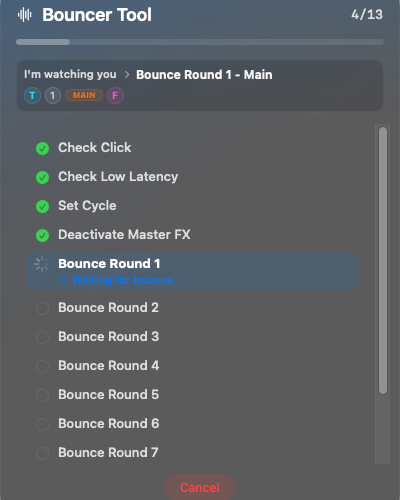
The Bouncer Tool shows the actual planned, user-verifiable steps of the Bounce/Export run. Internal waits are intentionally omitted. If the selected Run Safety mode includes a Preflight, it runs first in its normal status view.
Stop after selected step: The run pauses after a previously selected checkpoint. Step by step: The run pauses after each checkpoint.
The list is built from the current Bounce Rounds. It can include preparing Logic track addressing, Cycle and Master FX changes, planned Mutes, setting or removing Solo, opening and configuring the Bounce/Export dialog, file creation, renaming, and Completion Actions. Every listed item is part of the real run; Diagnostic does not simulate these actions.
Checking and Continuing at a Checkpoint
At each pause, Last completed describes what the previous step should have done. Next step explains the upcoming action. Check the visible or audible state before continuing; after a Solo step, you can start playback in Logic to check the result.
Next Step: Executes exactly the next checkpoint and pauses again.
To Step…: Opens the list of remaining checkpoints and continues through the selected step.
To End: Disables Diagnostic pauses for the rest of the run and completes all remaining rounds automatically.
Ending a Diagnostic Run
End & Reset: Ends the run and restores the Logic states changed by Bouncer, just like a normal cancellation.
End & Keep State: Ends only the automation and leaves Logic exactly in the current diagnostic state. Use this to inspect playback, Solo/Mute, track selection, Mixer mode, or an open dialog manually.
After End & Keep State: The intentionally preserved Logic state is no longer a safe baseline for another Bouncer run. Finish the manual inspection, restore Logic yourself if necessary, save the project, and reopen the Bouncer Tool. This verifies the track mapping again before the next run.
When Diagnostic is useful: Use it when Logic behaves differently during playback and Bounce, output is unexpectedly silent, or you need to isolate a session-, plug-in-, or routing-dependent effect. Leave Diagnostic disabled for unattended batch exports because its pauses intentionally require user confirmation.
Resumption after interruption
Ben's Toolbox stores arrangement-related sessions Pre-flight only, start and Cancel. As long as no new Bounce-Round has been created, the empty main field shows available time statuses and Restore session. If a run ends due to a Logic crash, abort or other interruption, the last suitable setup can be restored.
Only fully confirmed rounds are skipped. A round is only considered completed after successful Bounce, final file handling and completion of the associated steps. The round that was just interrupted or failed is therefore re-executed so that no incomplete file is silently treated as finished.
Stability during a run: CC Link, the articulation reader, and MIDI-CC monitors are paused for the duration of a Bouncer run and then restored. This prevents background monitoring from competing with the logic control of the export.
Reset & Rescan is deliberately a complete restart of the track assignment: After confirmation, the currently created Bounce-Rounds are deleted and the tracks are re-read from the saved project. Use instead Restore sessionif you want to resume a previous setup or an interrupted run.
Structured naming
For the sensible use of Bouncer Tool presets, a uniform naming of subgroups, instruments, audio tracks and stem groups is very helpful. Presets, mute rules, track selection and dictionary refer to the names and structure of your Logic project. The more consistent these names are, the more reliably a preset can be applied to different arrangements.
A simple example: If vocal tracks and vocal subgroups in your projects are always named according to the same principle, a Bouncer Tool preset needs significantly fewer special rules to correctly create main mix, instrumental, TV track or vocal stems. Inconsistent names, on the other hand, force more exceptions and increase the likelihood that a trace will be mishandled in a Bounce round.
If there are multiple versions, it is often most efficient to create all versions one after the other in an arrangement. Create a separate reference track for each version and use this track as a cycle reference for the Bounces of this version. If the names of the reference tracks, subgroups and stem groups remain the same across your arrangements, a Main Preset once built can be applied directly to another arrangement. After opening and scanning, the export is then ready to start with practically one click.
Practice: Anyone who regularly creates many versions, stems or customer submissions should work in a structured manner anyway. With a large output, you quickly lose track of things without clear track, group and subgroup names.
Create Bounce-Rounds
A Bounce-Round is a saved export pass within a Bouncer Tool setup. The Bouncer Tool processes the rounds one after the other. Each round can have its own track selection, mute rules, Bounce type, export type, dictionary usage and Fade setting.
First read the current Logic project so that the Bouncer Tool knows track names, track types, numbers, mute states and group structure. This happens automatically when you open the window; after structural changes Reset & Rescan necessary.
Either select tracks manually in the track list or select a preset in the top right.
Click on Add Tracks. For a preset, a round with the preset name is created directly. If selected manually, a manual round is created from the selected tracks.
Set in the round whether it should be as Together or Single should run. Together creates a common file from the round, Single processes the included tracks individually.
Choose whether the round should run as Logic-Bounce or as an export. With Single rounds this can be done, for example: For example, a track selection can be converted into a single track export.
For Single-Rounds, check the names of the files created. These come from track name, Name Preset, project name, optional stem block and dictionary.
For Together and main rounds, the compact round card now deliberately separates two pieces of information: The first line only contains the numbered, editable name of the Bounce-Round. The second line shows the actual resulting export name. This means that directly before preflight or start you can check how the project name, round name, version, prefix, postfix and capitalization are put together using the active Name Preset. Very long names are shortened in the middle of the card; the full name remains available as a clue.
The first line identifies and serves the Bounce-Round; the second line shows the resulting file name. This means that the effect of the active Name Presets remains visible before the actual run, even with long names.
Visible arrangement tracks as individual rounds
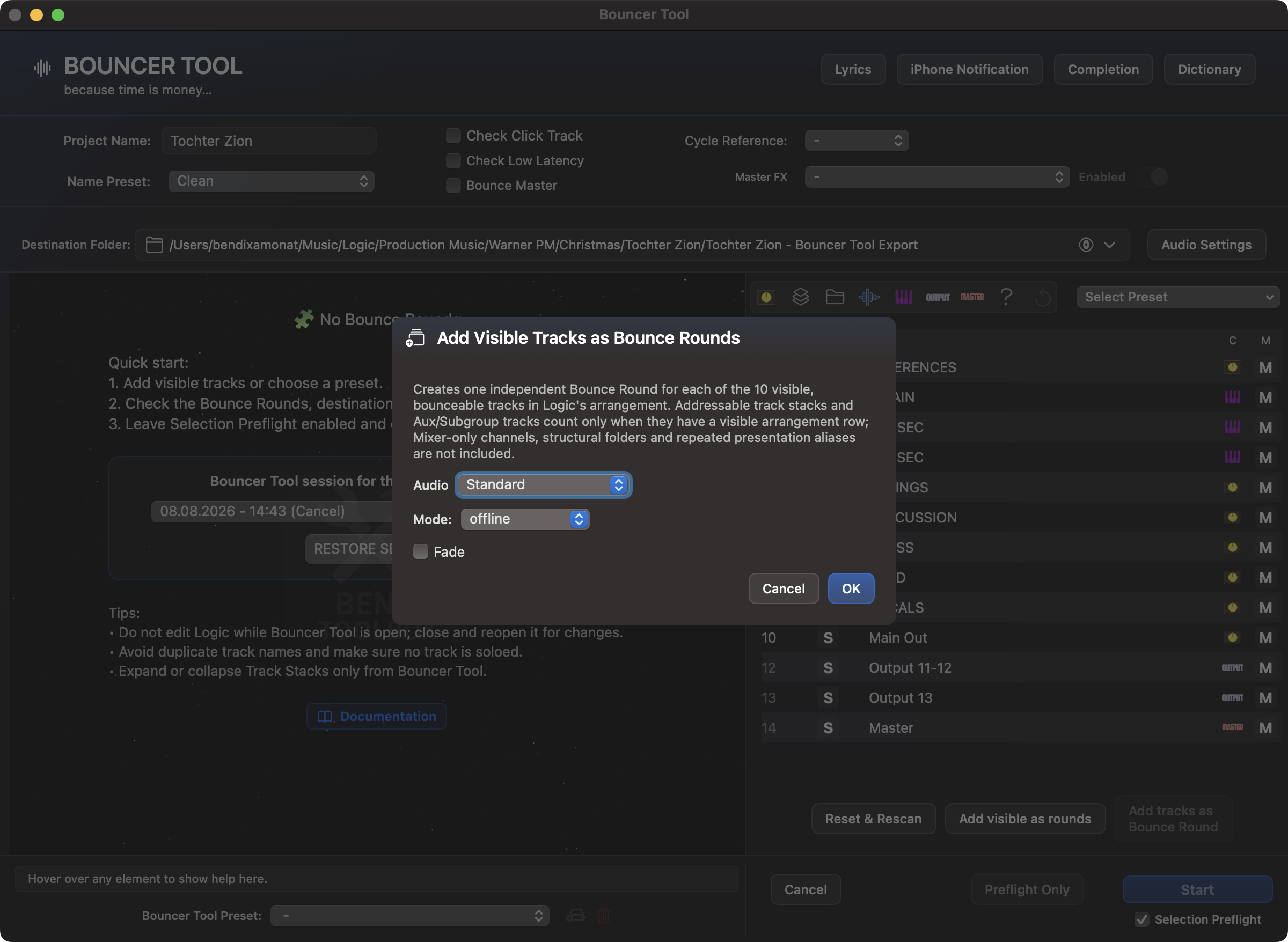
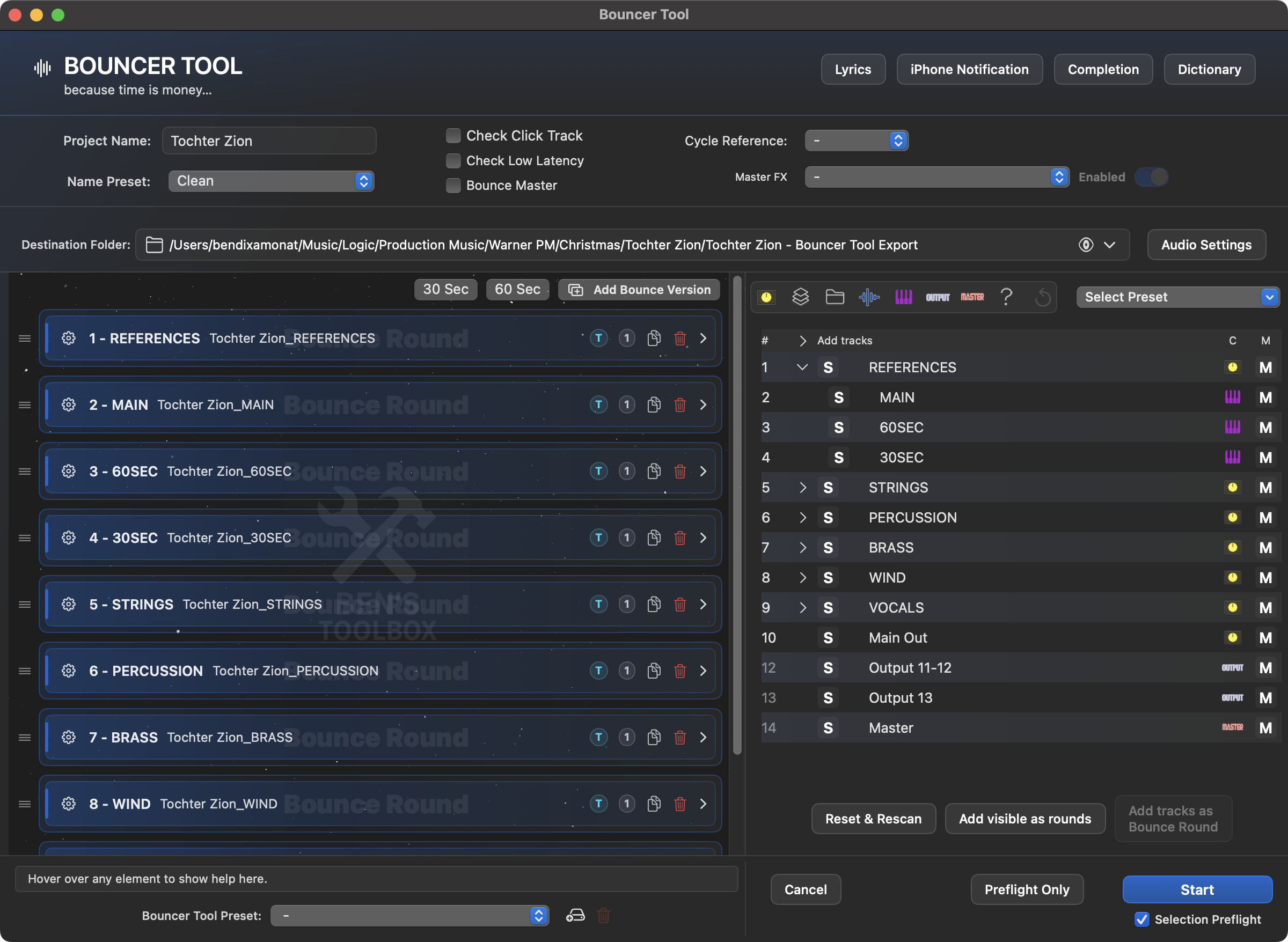
Add visible as rounds means the actual visible lines in the Logic arrangement - not the full Bouncer tracklist and not all mixer channels. Visible stack, aux and subgroup tracks are taken into account if they have their own visible arrangement line. Mixer-only channels, pure structure folders and alias lines are excluded. Each track found creates its own Together round; An additional Together/Single selection is therefore not necessary.
Before creation, the dialog summarizes the number and visibility rules.Once confirmed, each visible, bounceable arrangement track receives its own round.
The round name can be edited directly in the round settings. What is meant is only the visible part of the name that follows # - stands, not the automatic number in front of it. For Together rounds, this name is used for the common export name. If a Together round with the same name already exists, the Bouncer Tool automatically makes the new name unique so that no output is overwritten.
A round does not only contain the tracks that are to be actively exported. It can also contain mute-only tracks. These tracks are not part of the solo/export selection, but will be temporarily muted before export if a mute rule or manual scheduled mute selection requires it. Mute-only tracks are shown crossed out in the round.
In the tracklist are S and M deliberately separate click targets: S actively includes the track in the round, M plans a Bouncer mute rule. The drag zone lies between these buttons. It is used to drag a changed track into an existing round. After the drop, the temporary selection state of the dragged track is reset.
Tracks can be removed from existing rounds, both in Together rounds and in Single/export rounds. This is important if a preset is fundamentally suitable, but individual tracks should not end up in this round for a specific arrangement.
Mute/Solo state per round
Before each Bounce-Round, the Bouncer Tool compares the scanned original state with the tracks that will be active in this round. An already muted track does not need to be unmuted first for a solo round: Logic gives Solo priority over Mute. Upon completion, the Bouncer removes its temporary solo states and restores the original mutes.
This preserves the musical working state of the Logic project: an originally muted track can still be part of an instrumental, stem or Single export without accidentally remaining muted after the run.
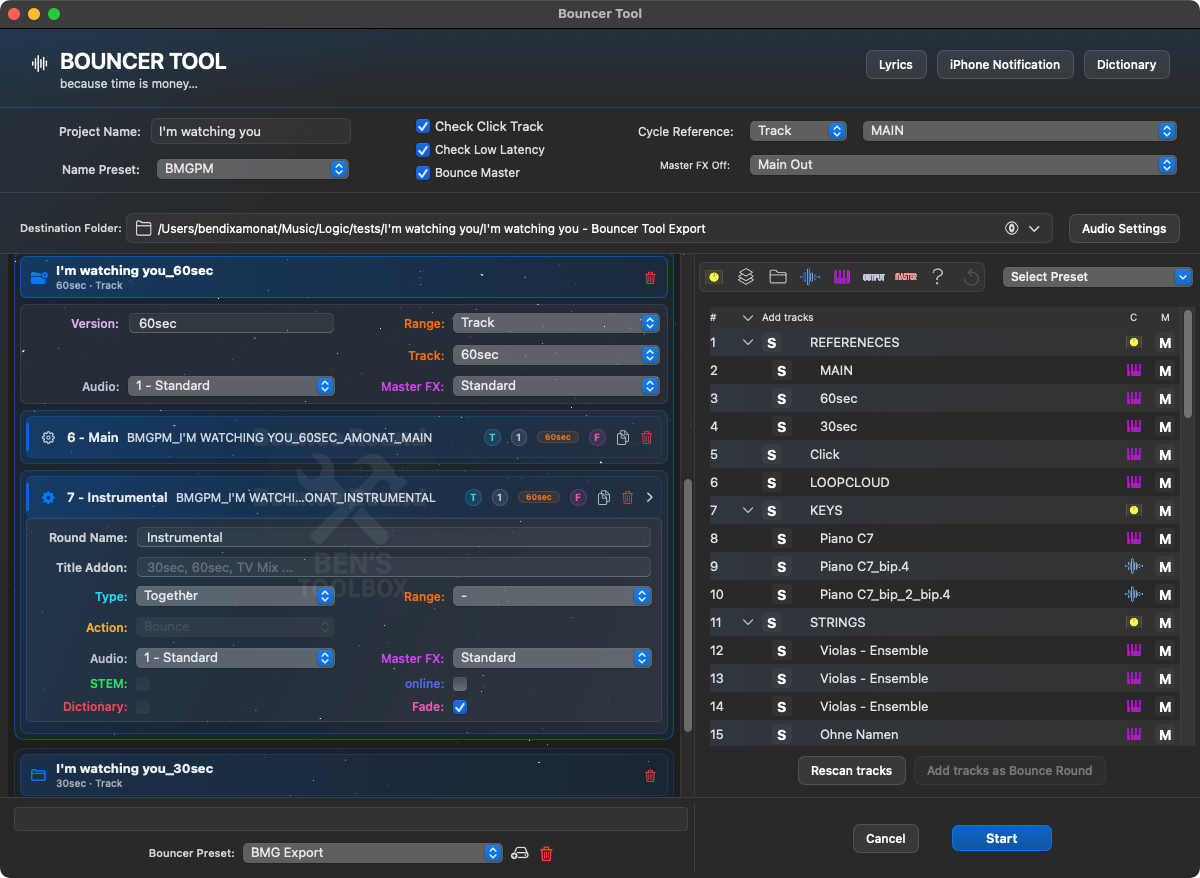
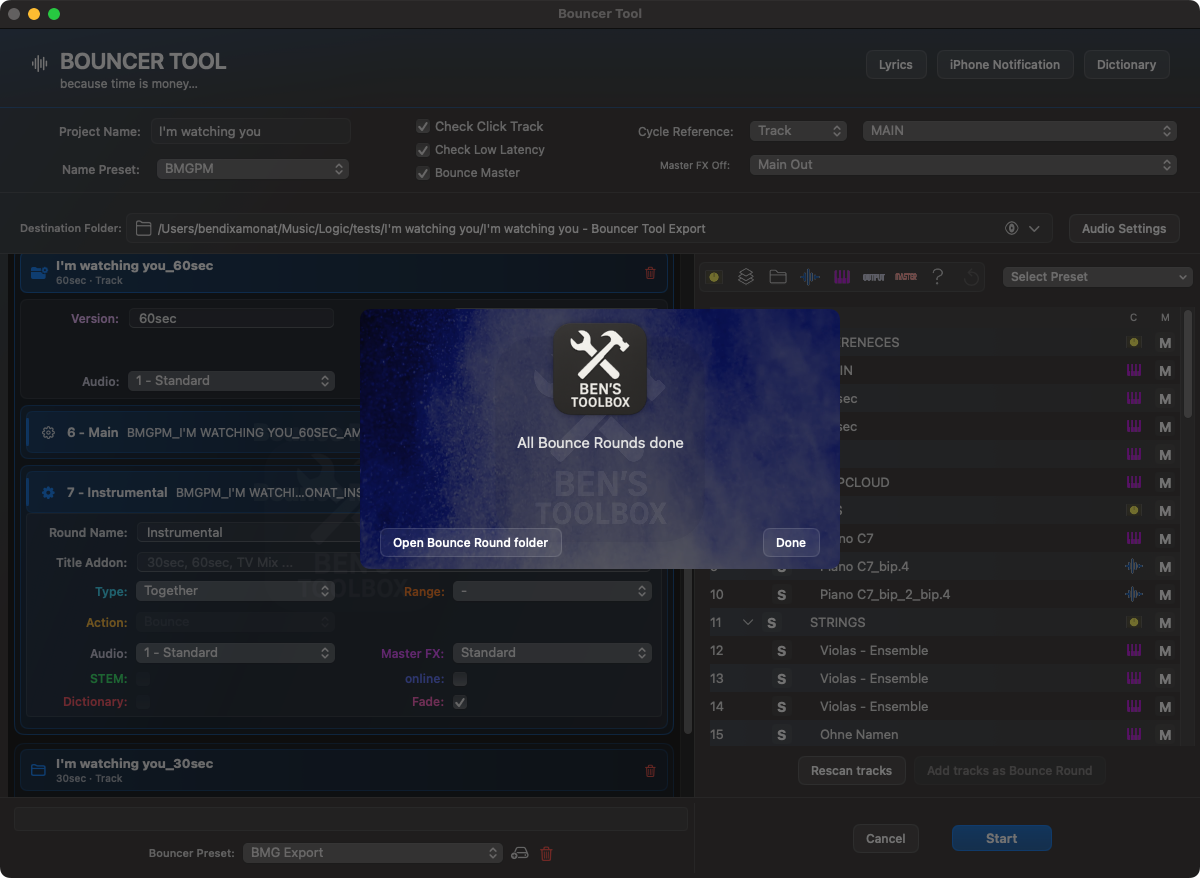
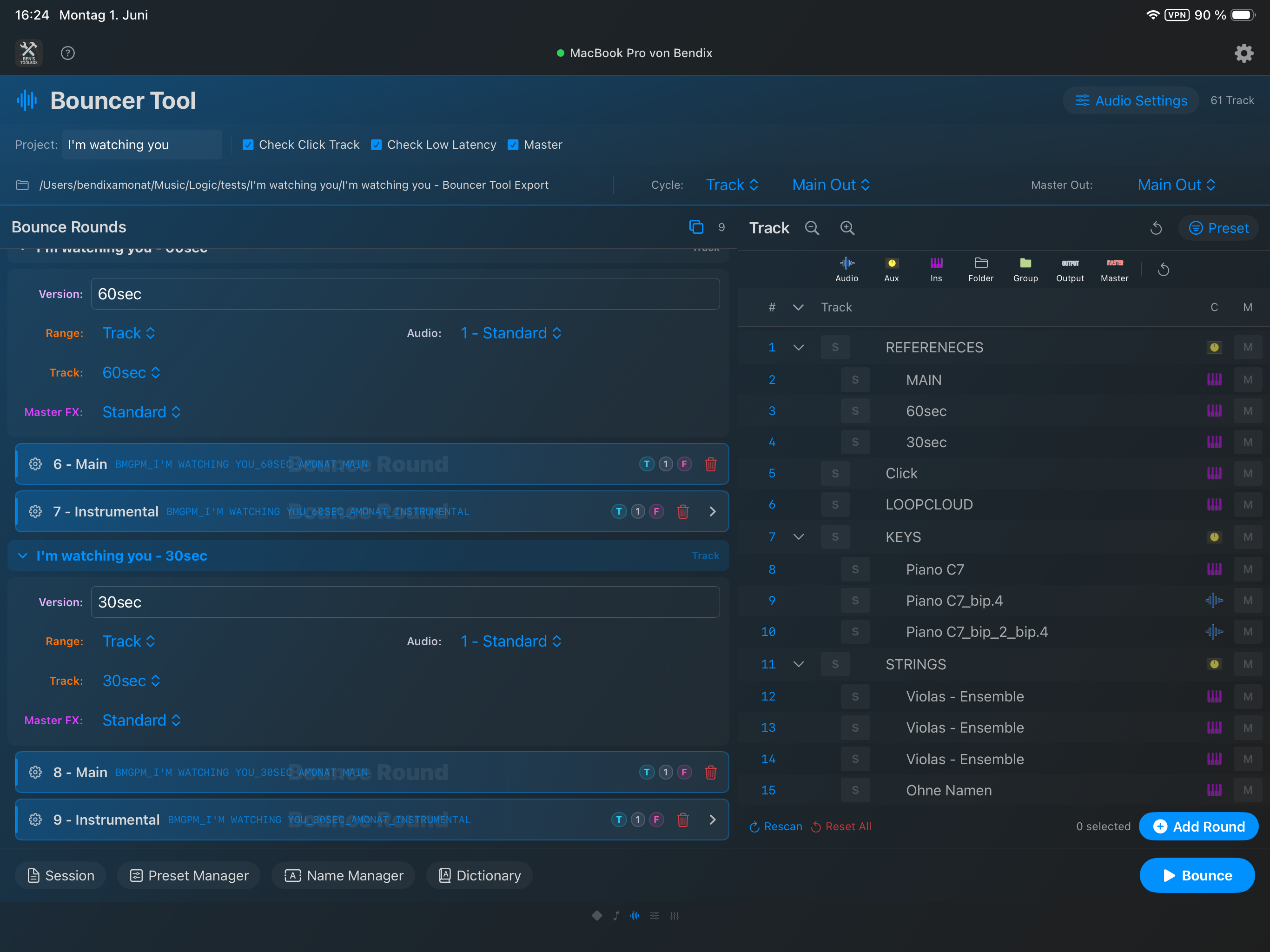
Opened Bounce Versions show their rounds with range, track reference, audio preset, master FX preset and round settings. Types, selections and mute states remain visible in the track list.After the Bounce-Rounds has been completed, the Bouncer reports the completed run and can open the Bounce-Round folder directly.
Bounce Versions
Bounce Versions are parent collections of Bounce-Rounds. They are intended for multiple variations of the same arrangement, for example 60sec, 30sec, Underscore or alternative cutdowns. A version can have its own default values for Title Addon, Bounce range, track reference, Audio Settings and master FX behavior.
When creating a new Bounce Version, an existing setup is used as a starting point. You can then change, delete or add rounds per version. A Bounce Version can also be deleted; The associated rounds are removed. At least one version is always retained so that the Bouncer Tool does not end up in an empty state.
Preset logic and track selection
A Bouncer Tool preset does not describe fixed track IDs, but rather rules with which tracks are found in the current project. This allows a preset to be applied to similar projects as long as the naming and structure remains consistent.
Rule
Meaning
name contains
The rule applies if the track name contains the entered text. Upper/lower case is ignored.
Name exact
The rule only applies if the track name corresponds exactly to the entered text after trimming.
Track type
A rule can be limited to all tracks or to specific types: Audio, Instrument, Aux, Subgroup, Master, Output or Unknown. Folders are not used as Bounce candidates when creating rounds.
Nesting levels
Rules can be limited to top level as well as other levels. In folder projects, Top Level refers to the complete project tree or – if set – to the active Bouncer scope.
The preset mode decides how the main rules are interpreted. In Include mode only tracks that meet one main rule will be included; An optional counter-filter can exclude individual hits again. In Exclude mode In principle, all non-excluded tracks are included; an optional counter-filter can resume certain tracks despite exclusion.
Mute Rules are separate from it. You add tracks to the round as mute-only tracks if these tracks are not already part of the round. So you can e.g. For example, for an instrumental mix, mute all vocal tracks without treating the vocal tracks as separate export tracks.
Create presets
A preset is created in the Preset Manager. It stores the preset name, include/exclude mode, main rules, optional counter rules, mute rules, Bounce type, export/Bounce type, online/offline behavior, stem option, dictionary usage and the Fade option.
Open the Preset Manager via the Preset menu in Bouncer Tool.
Create a new preset and give it a name that describes the later round, e.g. b. Instrumental, Drums Stem or TV mix.
Choose Include or Exclude. Include is useful for stem presets that specifically only collect certain tracks. Exclude is useful for mix versions where almost everything is included and only certain groups are removed.
Add search terms. After creating it, you can switch between Contains and Exact per chip using the context menu and optionally set a track type.
For Aux/Subgroup or other group tracks, use the appropriate nesting level if only the top group or only a specific nested level is meant.
Add Mute Rules if you want tracks to be muted for this round without exporting themselves.
Save the preset and apply it in Bouncer Tool. Add Tracks creates a new Bounce-Round from this.
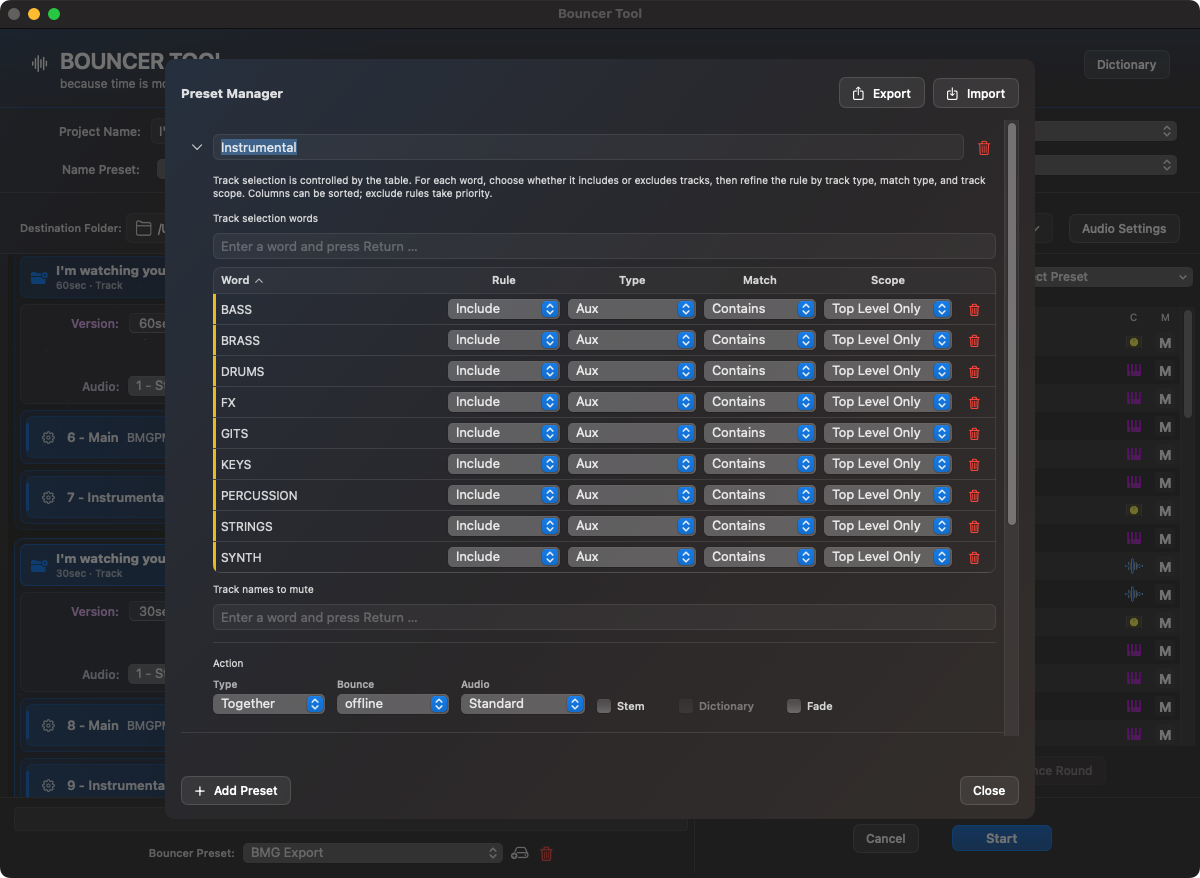
In the Preset Manager, include/exclude logic, track types, nesting level, Mute Rules, dictionary and Fade are defined per preset.
Example: Instrumental preset
An instrumental can be built in Exclude mode: The main rules look for vocal terms like vox, vocal, lead vox or choir. The Bouncer Tool then includes all non-excluded tracks in the round. If you still want certain vocal FX returns to remain in the mix, they can be recorded again using the counter filter. Alternatively, vocal tracks can be muted via Mute Rules if the round is to run as a shared mix.
Example: Stem preset
A drums stem is typically an include preset. The main rules are looking for that's why, kick, snare or a top-level subgroup called Drums. If only the group track is to be exported, the track type should be set appropriately, e.g. B. Subgroup with Nesting Level Top Level. If individual audio tracks are to be exported, the filtering is based on audio or instrument tracks.
Main Preset
A Main Preset is a complete Bouncer Tool setup. It saves not just a single track selection preset, but the entire working configuration: selected Name Preset, click check, low latency check, Bounce master, cycle reference, Master FX, audio settings snapshot, final Fade settings, Bounce Versions and all Bounce-Rounds as templates.
The rounds are not restored as rigid old track objects when loading a Main Presets. The Bouncer Tool reconstructs them using the saved preset names, stable track keys and the current scanned tracks. Manually created rounds retain their selected tracks, changed round names, scheduled mutes, and removed tracks. This allows you to save setups that were not completely created from preset rules.
The Main Preset also includes the active completion configuration. The independent library of your completion presets is retained: loading an older Main Presets selects its saved completion settings, but does not remove customer presets that were created later.
A clean template structure is still important: If track numbers, groups or names change significantly, the tool can only reliably find the tracks that are still recognizable via stable names, numbers and structure.
A loaded Main Preset produces Bounce Versions, Rounds, Cycle References, Track Rules, Name Preset and Audio Settings as a complete reusable setup.
Open Main Preset via WebSocket or Stream Deck
The tool Bouncer Tool can be opened via WebSocket and therefore also via a stream deck action with an optional Main Preset. Use in the tool parameter for this mainPresetName; the name must be unique. For technical integration mainPresetID the more reliable choice. Without parameters, the Bouncer Tool opens as usual without a forced preset. If several presets with the same name are found, a random preset will not be chosen but the request will be rejected.
Completion Actions: ZIP, cloud and customer email
With Completion you automate the steps after the last Bounce-Round. The Bouncer Tool can collect the files generated in this run, save them as a ZIP, upload them via a connected cloud service and then send a final email. These steps also appear in the progress list on Mac, iPad and iPhone.
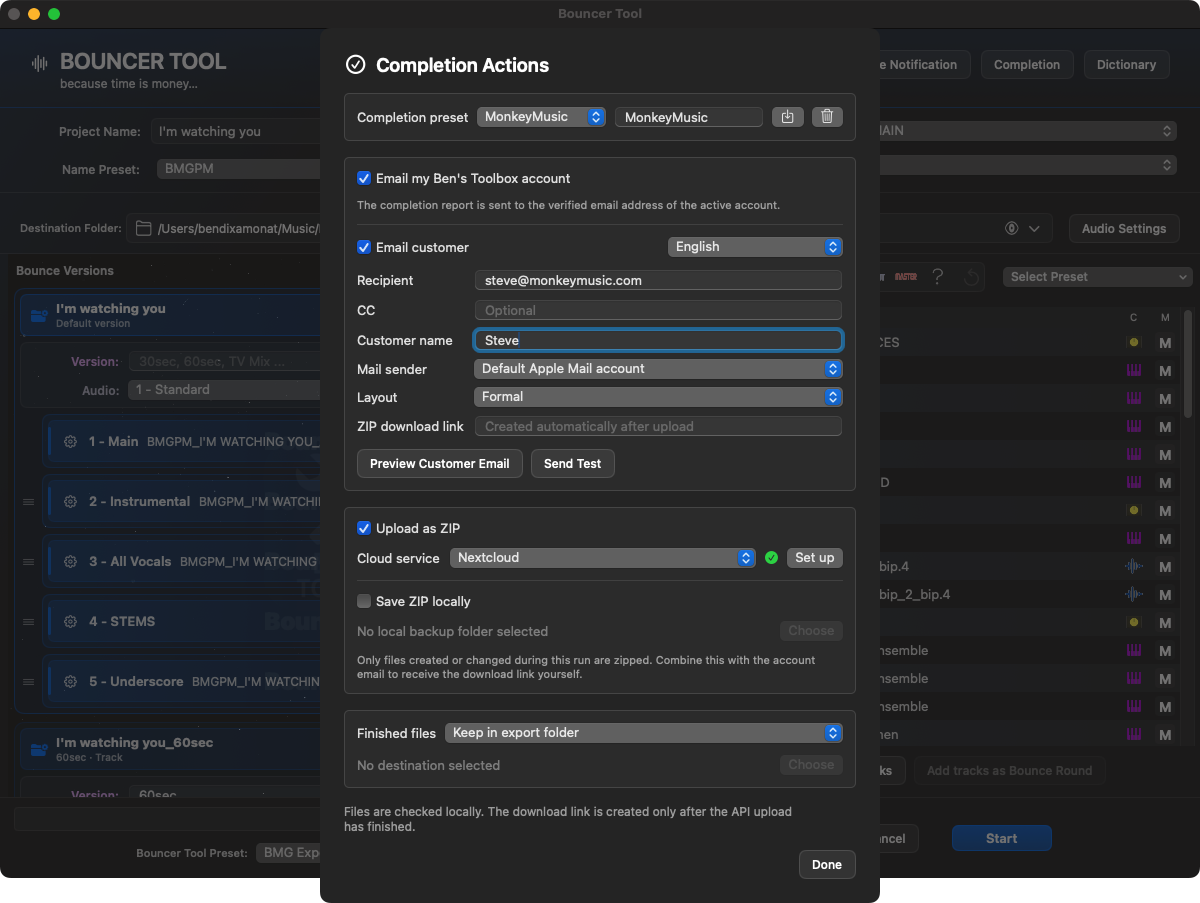
Completion Actions bundle reusable customer data, localized email, cloud upload, local ZIP backup and finished file handling.
Area
Function
Completion preset
Stores recipient, salutation, sender, customer language, mail layout, cloud service, upload folder, local ZIP backup and treatment of the finished files as a reusable customer setup.
Email my Ben's Toolbox account
Upon successful completion, sends a technical report to the verified email address of the active Ben's Toolbox account.
Email customer
Creates a formal or personal message in the customer's chosen language. Recipient, CC, name and Apple Mail sender can be selected separately. Preview and test delivery are available directly in the email block.
Upload as ZIP
Packs only files that were created or changed in the current run. Nextcloud, Dropbox and Google Drive are supported, provided the respective service is set up.
Save ZIP locally
Saves the same ZIP in a freely chosen local folder, for example as a backup.
Finished files
Leaves the exported individual files in the export folder or copies or moves them to another local folder when finished.
If a customer email is activated, the cloud upload as a ZIP is automatically required: The message will only be sent after a successful upload with the checked download link. If a ZIP with the same name already exists in the target folder, the Bouncer Tool creates a unique new name instead of overwriting an existing share unnoticed.
The email to the customer contains the track name, download link and the files actually created. Main rounds are not broken down into a long track list. Before starting, the Bouncer Tool checks the required access for the cloud, keychain and Apple Mail so that system dialogs do not interrupt the ongoing export.
Data protection: Cloud credentials remain in the macOS keychain. Ben's Toolbox does not store any project content on the license server. For the final message, only the recipient and export information selected by the user is transferred to the respective mail or cloud service.
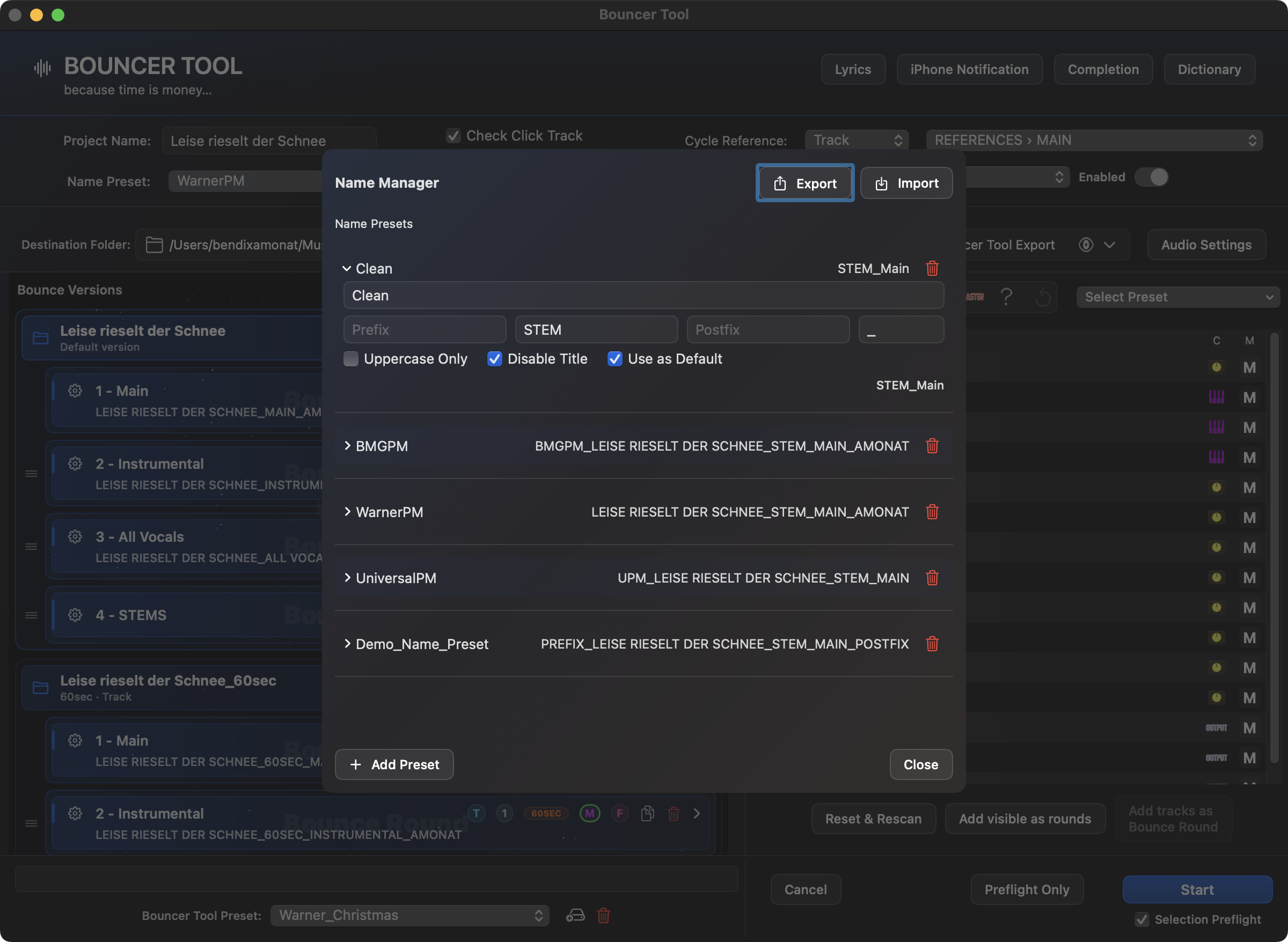
Name Presets
A Name Preset defines how export files are named. It consists of a prefix, separator, optional stem building block, postfix and the option to write the name in capital letters. With Disable title In addition, the Logic project or arrangement name can be completely removed from the export name. Empty name components are skipped so that the file name begins directly with the next existing building block and never accidentally with a separator such as _ starts.
Mark exactly one Name Preset Use as default. This preset is automatically selected every time the Bouncer Tool is started and also saves options such as Disable title and Upper case only. If a Main Preset explicitly loads another Name Preset, the selection stored in the Main Preset takes precedence over the default. This way, a general personal standard is retained without overwriting customer-specific Main Presets.
For Single exports, the file name is built from the optional project or arrangement title, stem component, track name and postfix. Together rounds use the round name accordingly. If multiple tracks had the same name after dictionary mapping, the Bouncer Tool automatically appends a number like -2 so that no files are overwritten.
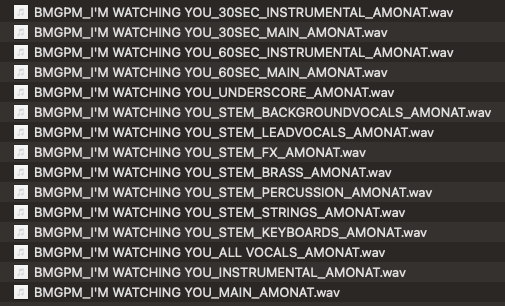
In the Name Manager, each preset shows a live preview. Disable title removes the arrangement title; Use as default determines the selection for a fresh Bouncer start.The result of the Name Manager is visible in the export folder: versions, mixes, instrumentals and stems follow a uniform file name system.
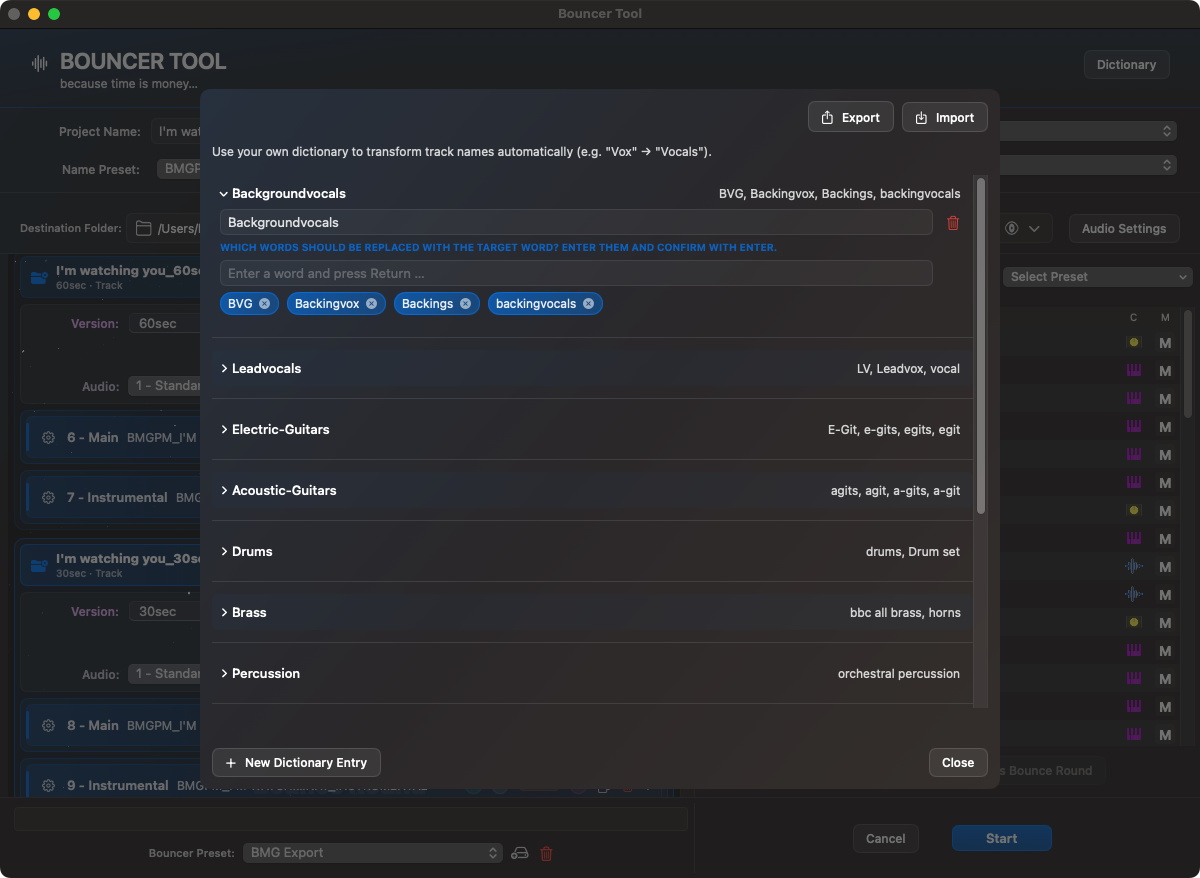
Dictionary
The Dictionary normalizes names. A dictionary entry consists of a target word and several synonyms. If a track name contains a synonym or exactly matches the target word, the Bouncer Tool uses the target word for the export name. This can result in inconsistent names like Violins 1, See 1 or Violin I become a uniform export name.
Dictionary usage can be saved per preset or round. For Together rounds, the naming is more round-based; the dictionary is particularly important for Single/Stem output, where track names become file names directly.
In the dictionary, inconsistent track names are mapped to stable target names.
Lyrics
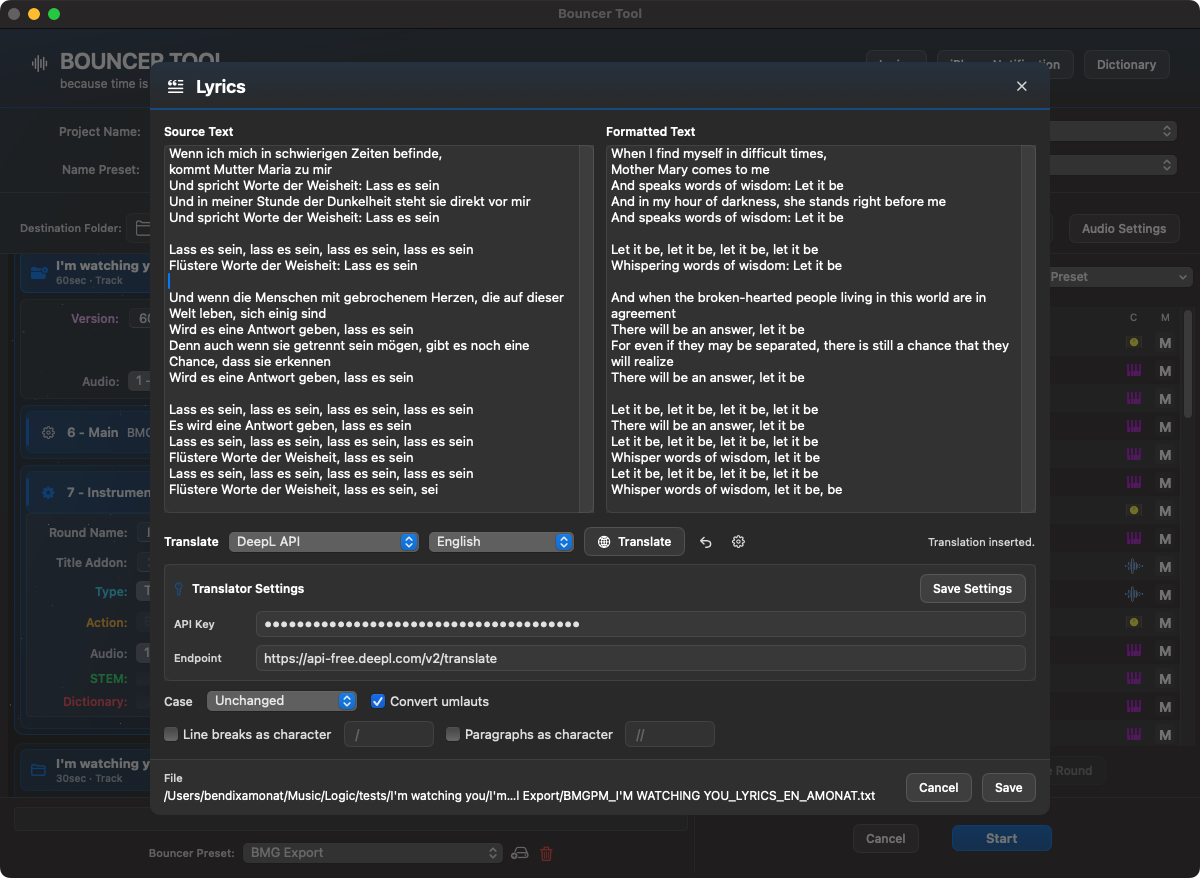
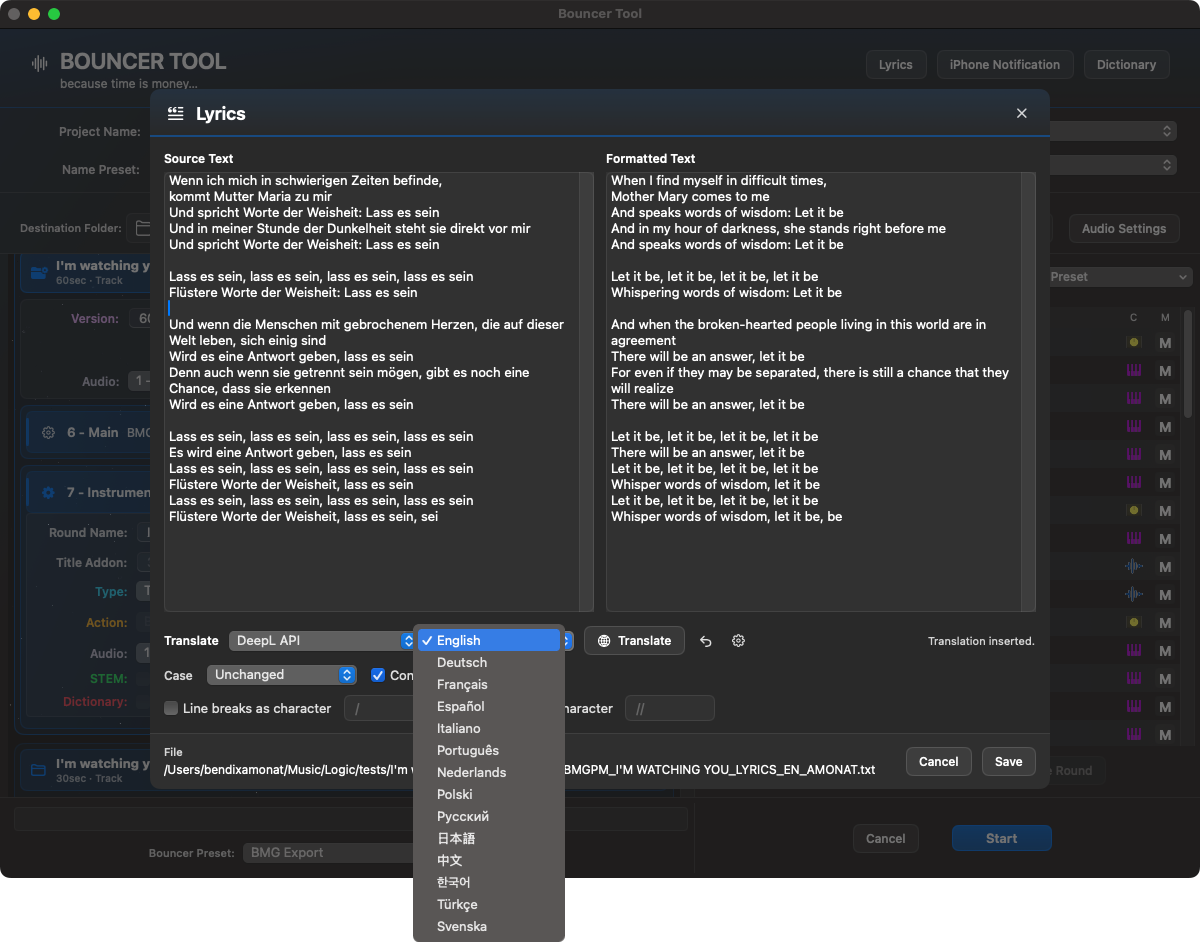
The Lyrics tool is intended for song lyrics that need to be submitted along with mixes, stems or customer versions. You open it directly in Bouncer Tool, insert the text and immediately get a formatted preview. One is saved .txtfile in the current Bounce folder.
The formatting can be changed live: upper/lower case remains unchanged or is converted to uppercase letters, lowercase letters or the beginning of words; Umlauts like ö, ä and u can too oe, ae and ue become; Individual line breaks and paragraphs can either remain as visible breaks or be replaced by freely selectable characters. The default characters correspond to the previous BMG workflow: / for line jumps and // for paragraphs.
The file name uses the active name manager. Instead of a round name, a fixed Lyrics block is used: lyrics. With a suitable Name Preset, the file ends up in the same naming system as the audio exports, for example as UPM_SONG_LYRICS.txt.
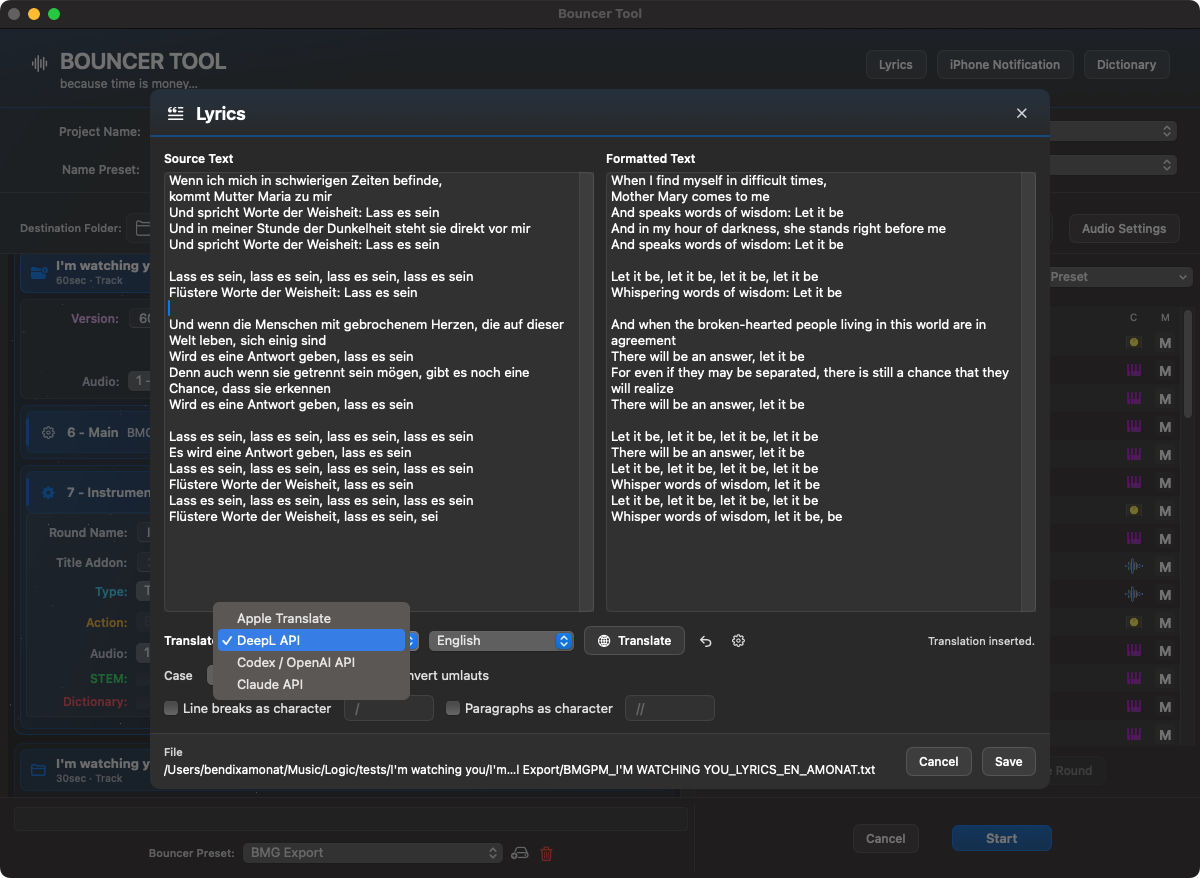
In the Lyrics window, the original text, formatted text, translation service and formatting rules are prepared together.The language list makes Lyrics translations available directly in Bouncer, provided a suitable translation service is set up.
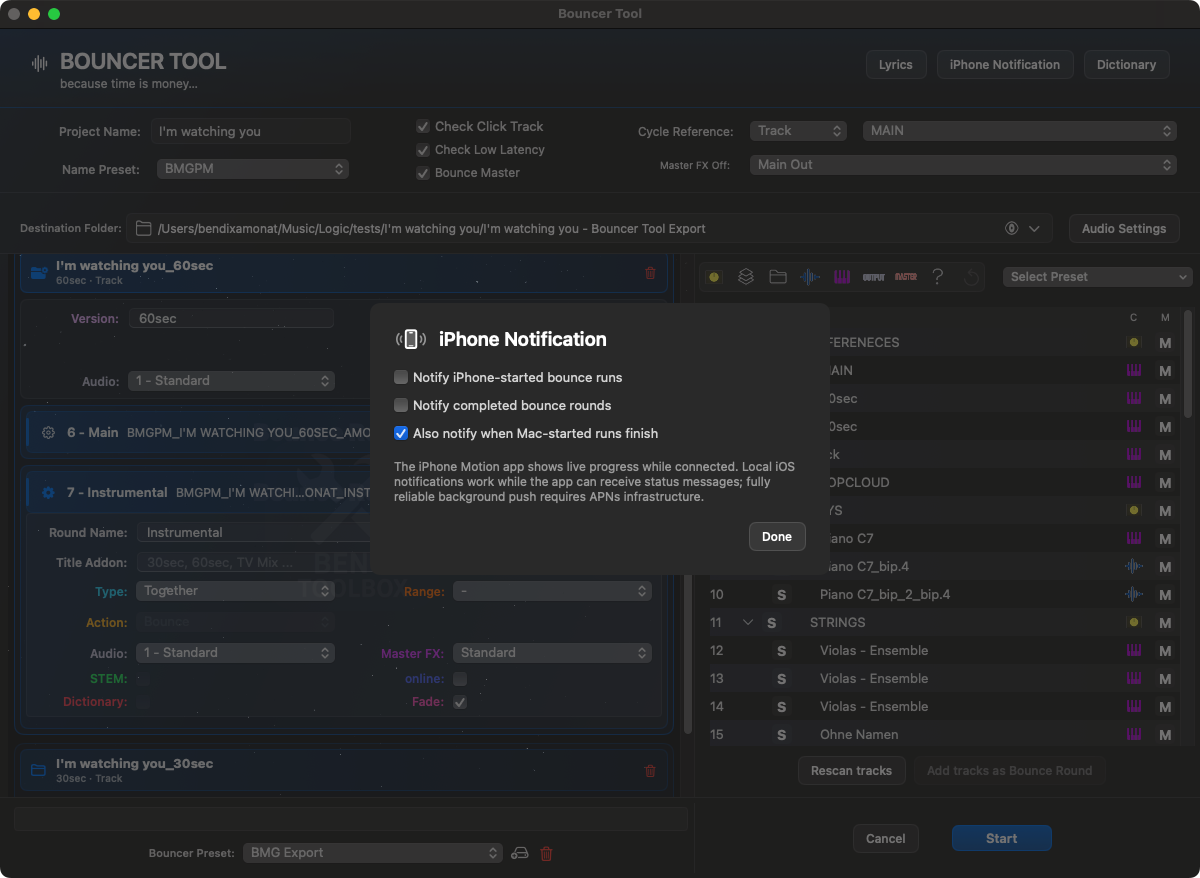
Depending on the setup, different translation services can be used. The translation remains part of the Bouncer workflow and is saved appropriately named.Optionally, iPhone notifications can inform about started and completed Bounce runs when the Motion app is connected.
Confirm click and Cycle safely
If Bouncer cannot reliably read playback-click or Cycle state, it asks for the current state only after Start. Explicitly select each required answer; none is selected by default. Use Show Logic to inspect the settings, then return to Toolbox. Cancel starts no bounce. Answers apply to this run only, never the next Start. Do not change settings after confirming. Switching projects or Alternatives requires validation again.
Playback click is different from recording click and count-in. “Is click disabled?” and “Is Cycle active?” are different questions. Known, validated states are still read automatically. Unreadable locator bounds, unsafe track mapping and invalid project data still stop the run. A read failure after a successful save does not prove a save or MIDI connection failure.
The dialog offers separate, initially unchecked consent for an anonymous technical format report. It contains only numeric Logic version, schema/parser version, bounded settings-block positions/versions, candidate click bits/Cycle booleans and your answers. It excludes accounts, licenses, device identifiers, project/track names, paths, raw file blocks, audio, notes, plug-in data and full logs. A random report ID only prevents duplicate retries. Reports never automatically teach the parser a new rule.
Retries are bounded: at most ten local reports, eligible for seven days, retried after app launch as well. Expired data is cleaned at launch and hourly while the app runs; if the Mac is off, cleanup waits until the next launch. The server aggregates identical technical observations. Retry identifiers expire after seven days; technical signatures after 90 days without a new occurrence. Daily cleanup and day-level storage may add one day. These reports appear anonymously in the admin Support & Error Reports inbox. Regular error reports and support tickets are separately labeled there; “No log sent” means no log is available for analysis.
Extended Safe Run: troubleshooting
Bouncer: Much more detailed Extended Safe Run diagnostics correlate channel IDs, MIDI addresses and submission results, timed Solo/Mute readings, and available Arrangement, Mixer and MCU feedback. Safety stops remain active; diagnostics do not pretend that a root cause has already been confirmed.
Safe Runs and preflight automatically log from preparation through completion, even when Setup logging is off. Dedicated run files, sequential entries, terminal status and interrupted-run detection improve diagnosis. Your logging preference remains unchanged; no additional automatic upload.
MCU status separates saved controller configuration from feedback actually received. Timestamps and guidance distinguish missing, old and unavailable evidence. A green file status is not proof of a working connection. Documentation and admin display updated.
Full run files are stored in ~/Library/Logs/BensToolbox/SafeRuns. Select “Include log” in the support form to attach the latest Safe Run from the past 24 hours in full. Oversized files are rejected with guidance, never silently truncated. Finished run files older than 30 days are removed at the next app or Safe Run start. Logs may contain track names and paths; review before sharing. A hard crash can prevent final entries: “interrupted_unconfirmed” means missing completion evidence, not a proven bounce failure. MCU feedback is recent for only 15 seconds; missing feedback alone does not prove a fault. Use the connection test in Installation & Repair to test the command path.
Pre-launch header options
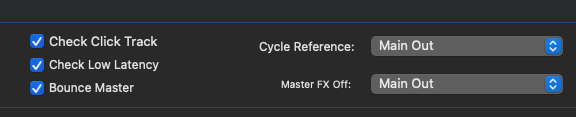
The startup options check critical logic states and can prepare cycle reference and master FX handling before export.
option
What happens at startup?
Check click
The Bouncer Tool checks the metronome/click status in Logic and attempts to turn off the click before the Bounce. This prevents accidentally bounced click tracks.
Check low latency
The Bouncer Tool checks the Low Latency Mode and tries to switch it off. If this doesn't work, the process stops because an active low latency mode can change mix and plugin behavior.
Bounce Master
Adds an additional main round for master out. This round contains all non-folder tracks and is intended as a master/main Bounce.
Cycle Reference
Selects a track as a reference for the Bounce area. A deeply nested track can also be selected: The Bouncer navigates specifically to it and sets the cycle over its first and last region. If a cycle reference is selected, the Bouncer Tool forces the cycle range during export.
Master FX
Selects the channel with the master plug-ins and sets the default Enabled or Disabled. Enabled ensures that plug-ins are activated on this channel before Bounce, Disabled deactivates them temporarily. Each Bounce-Round adopts this standard, but can overwrite it individually. This option has no effect on export rounds that bypass the master output.
Audio Settings, Bounce/Export and Auto Fade / Final Fade
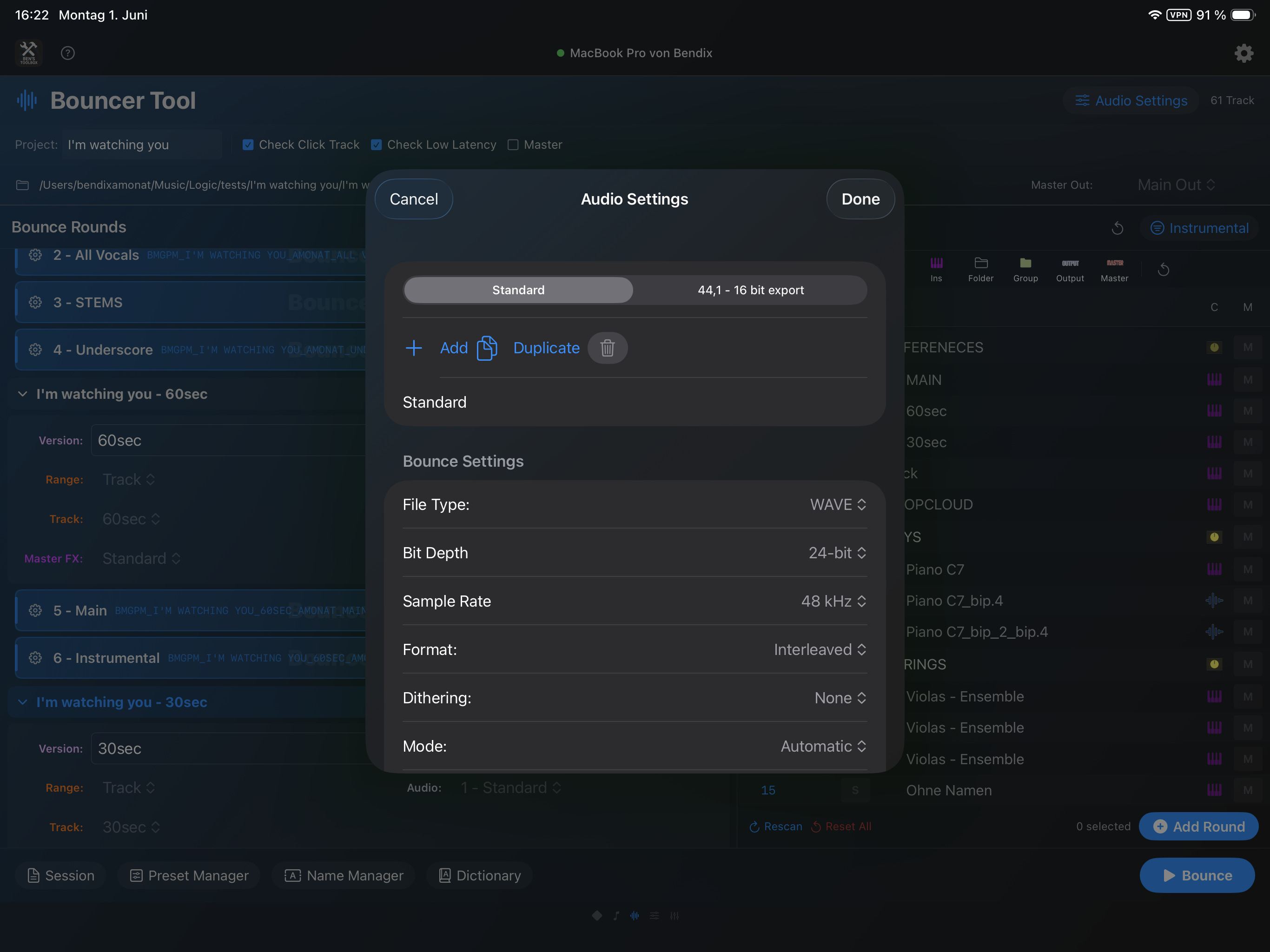
The Audio Settings of the Bouncer Tool correspond to the relevant audio and export settings from Logic. They are in the Bouncer Tool in areas for Bounce, export and Final Fade divided. Here z. B. Format, sample rate, bit depth, normalize behavior, export range, tail/volume/tempo options and the Fade parameters are prepared.
The Audio Settings are divided into Bounce, export and Final Fade and are saved in the Main Preset.
These Audio Settings can be saved as your own presets. This means you don't have to set the format, sample rate, bit depth, Bounce/export behavior and final Fade options again and again per round. Typical presets are for example Mix WAV 48 kHz, Stems 24 bits, MP3 Preview or a special deliverable setup for a customer.
In the audio settings window you can create, duplicate, rename and delete presets. A preset can then be used by Bounce-Rounds and Main Presets. If an audio settings preset is deleted, affected Main Presets automatically use the preset Default, instead of starting with a missing setting.
A Main Preset can not only restore Bounce-Rounds and track rules, but also load the associated Logic-compatible audio settings for recurring deliverables. This is especially useful if mix, instrumental, stems and preview files require different audio formats or Fade rules.
The Fade checkbox of a round or a preset activates automatic post-processing of the generated audio file. WAV, AIFF/AIF and CAF are supported. After the Bounce, the Bouncer Tool analyzes the end of the file, looks for end silence, and renders a Fade out using the saved final Fade settings.
The threshold, hold time, Fade duration, cut-end and hard-end behavior are stored in the Audio Settings. If real silence is detected at the end, the Fade can be set from this point onwards and the end can optionally be shortened. If there is no end silence, the hard-end Fade can grab and put a short Fade at the end of the file. This option is particularly useful for stems or mix versions where you want to automatically clean up reverb tails, empty ends or hard ends.
iPad integration
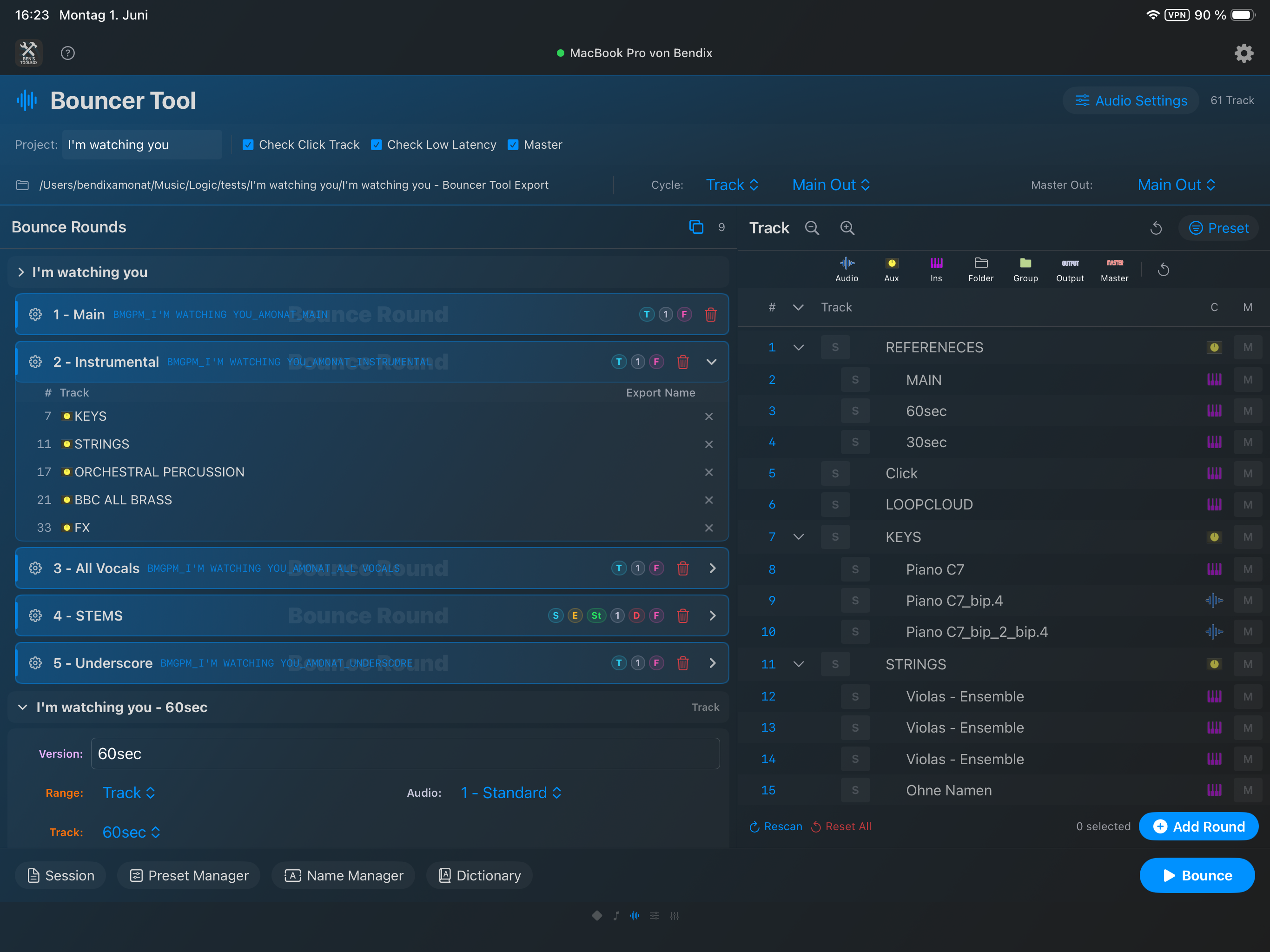
The Bouncer Tool can be operated from the iPad. Mac, iPad and iPhone work with the same session state stored on the Mac. When opened, a device adopts the existing status instead of emptying an already prepared session. Changes to Bounce Versions, rounds, order, open details, presets and completion settings are propagated to the connected devices. The Mac app remains the central authority for Logic execution, project scanning and local files.
The secure boot process can also be carried out entirely on the iPad. When you open the Bouncer page, you will be given a choice between Save, Save As and Cancel; The iPad then shows analysis, possible scan hints and the selection preflight. If the start was previously aborted, it also opens Restore session first this save dialog again before the selected session is loaded.
A saved Bouncer session also contains the required expand/collapse state of the logic track stacks. When restoring, the Mac app restores this structure in Logic before Preflight or Bounce begins. This means the saved track targets remain valid and unnecessary search-and-select fallbacks are avoided.
The iPad workflow corresponds to the Mac workflow: Rounds can be opened, renamed, moved, deleted or tracks can be added. Individual tracks can be removed from existing rounds. Bounce Versions can also be deleted on the iPad as long as at least one version remains. Changed tracks from the track list can be dragged and dropped into a round; The temporary selection state is then reset. Completion presets, customer mail, cloud upload, ZIP backup and file handling are also offered in the same order as on the Mac.
During a run, the iPad and iPhone switch to the status view. The active step is automatically scrolled into the visible area. After completion, the prepared Bouncer session remains until you explicitly reset it via Reset or Cancel.
During an ongoing export, the status dialog shows the processed steps, the active Bounce-Round and the current progress.
The iPad Remote shows track list, filter, Bounce Versions, rounds, preset manager, name manager, dictionary, Audio Settings and the Bounce start.Open rounds show the tracks they contain and, for Single/Stem rounds, the expected file names. Individual tracks can be removed directly from the round.
The Preset Manager is accessible on the iPad so that preset rules and track selection can also be checked remotely.Audio Settings Presets are synced from the Mac app and can be controlled in the iPad workflow.
Options in detail
option
Benefit
Typical example
Project scan
Reads tracks, groups, project name, track types, mute states and nesting from Logic project file or autosave.
Automatically when opening the Bouncer and above Reset & Rescan after structural changes.
Destination Path
Specifies where export files are written.
Project name - Bouncer Tool export alongside the Logic project.
Bounce Versions
Bundle several variants of the same setup including your own round list and version defaults.
60sec, 30sec and Underscore from the same arrangement.
Bounce Rounds
Multiple export passes in one setup.
Main Mix, Instrumental, TV Mix, Drums Stem, Strings Stem.
Round Name
Defines the visible name of a round and, for Together rounds, the central name module of the file.
Instrumental instead of automatically generic round name.
Track include/exclude
Defines which tracks are active per round.
Mute vocals for instrumental, only export stems.
Mute by Bouncer Tool
The Bouncer Tool remembers which tracks it has temporarily changed, cancels necessary initial mutes before solo/export rounds and then restores the original state.
You can still export an originally muted synth track as part of a stem.
Violins 1 becomes too Vlns_1, unwanted special characters are removed.
Lyrics
Formats inserted lyrics live and saves them as a text file with name preset prefix in the export folder.
UPM_SONG_LYRICS.txt next to the audio deliverables.
Completion
Creates a ZIP after the Bounce, optionally uploads it to the cloud, saves it locally, handles the finished individual files and sends final emails.
Load customer deliverables to Nextcloud and automatically send the checked link.
Audio Settings
Defines format, sample rate, bit depth, MP3 options and Bounce mode.
WAV 48 kHz/24 bit plus MP3 listening socket.
Main Presets
Saves complete Bouncer Tool setups.
One preset for trailers, one for song mixes, one for stem submissions.
Open Export Folder
After exporting, opens the target folder directly.
Quick control or transfer to upload/backup.
Cancel
Cancels an ongoing process.
If a round was configured incorrectly.
Plugins & patches
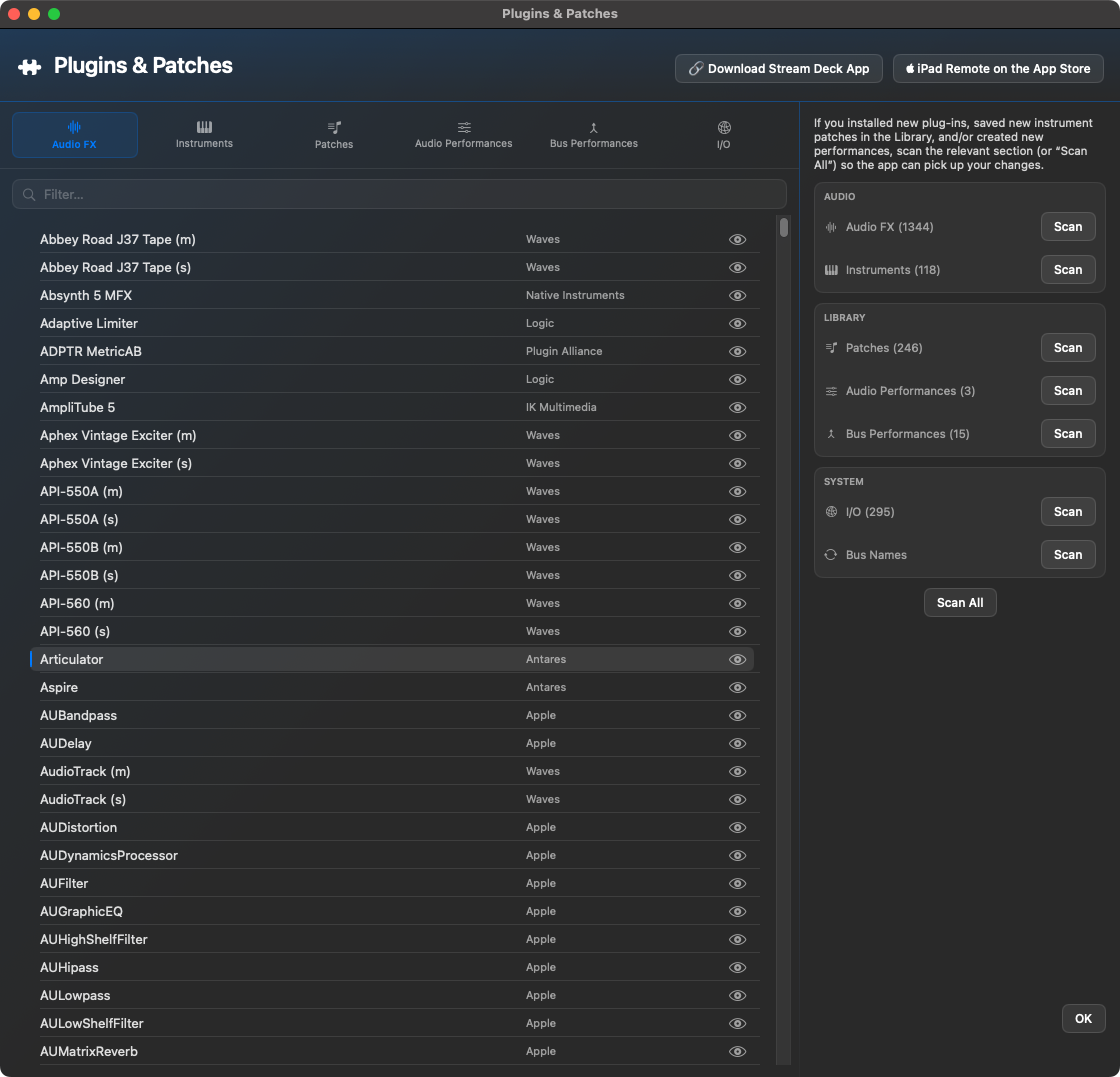
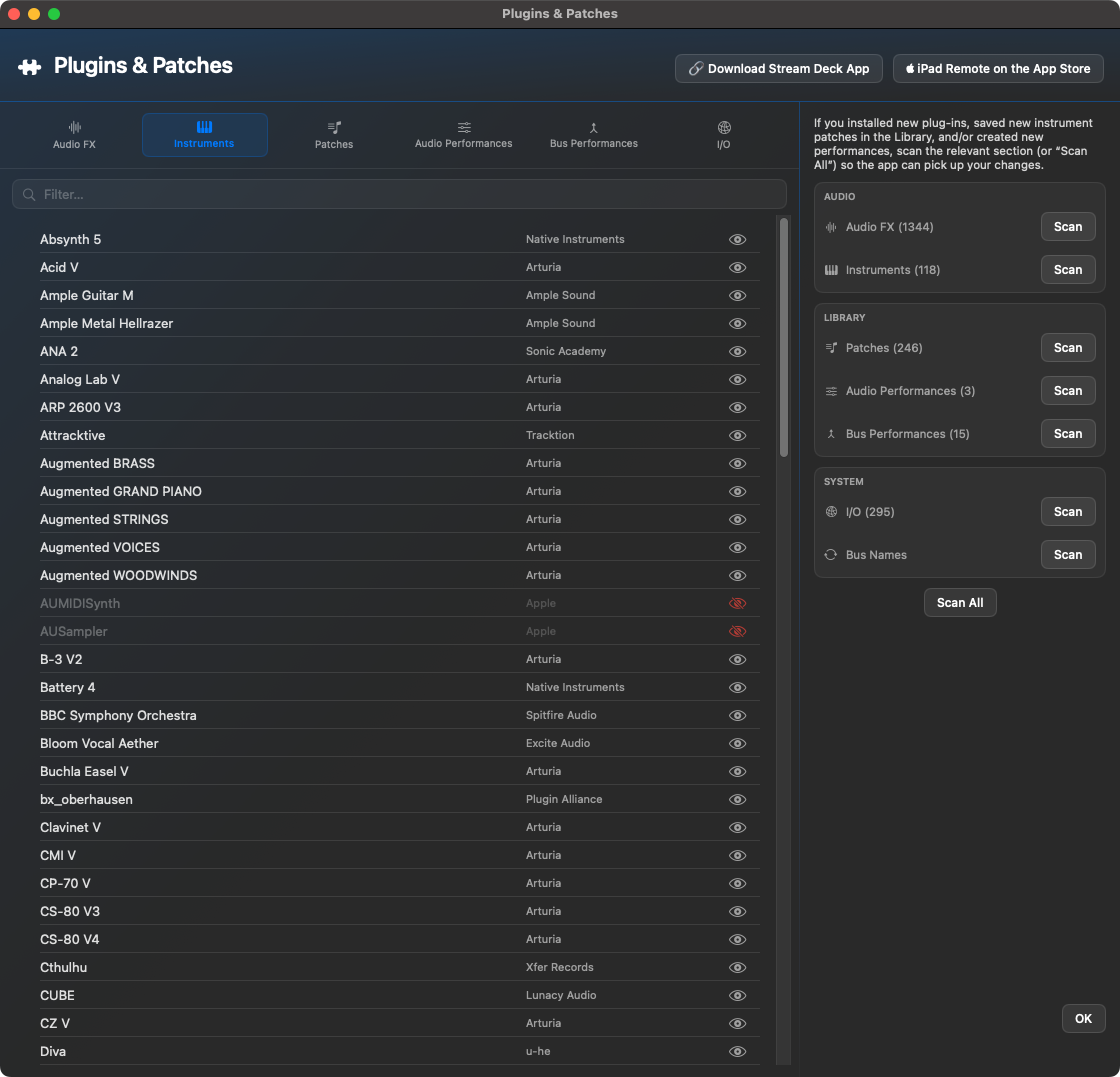
This window provides the database for many other tools. It scans and manages plugin names, library presets, I/O elements, buses, outputs, audio performances and bus performances.
AudioFX
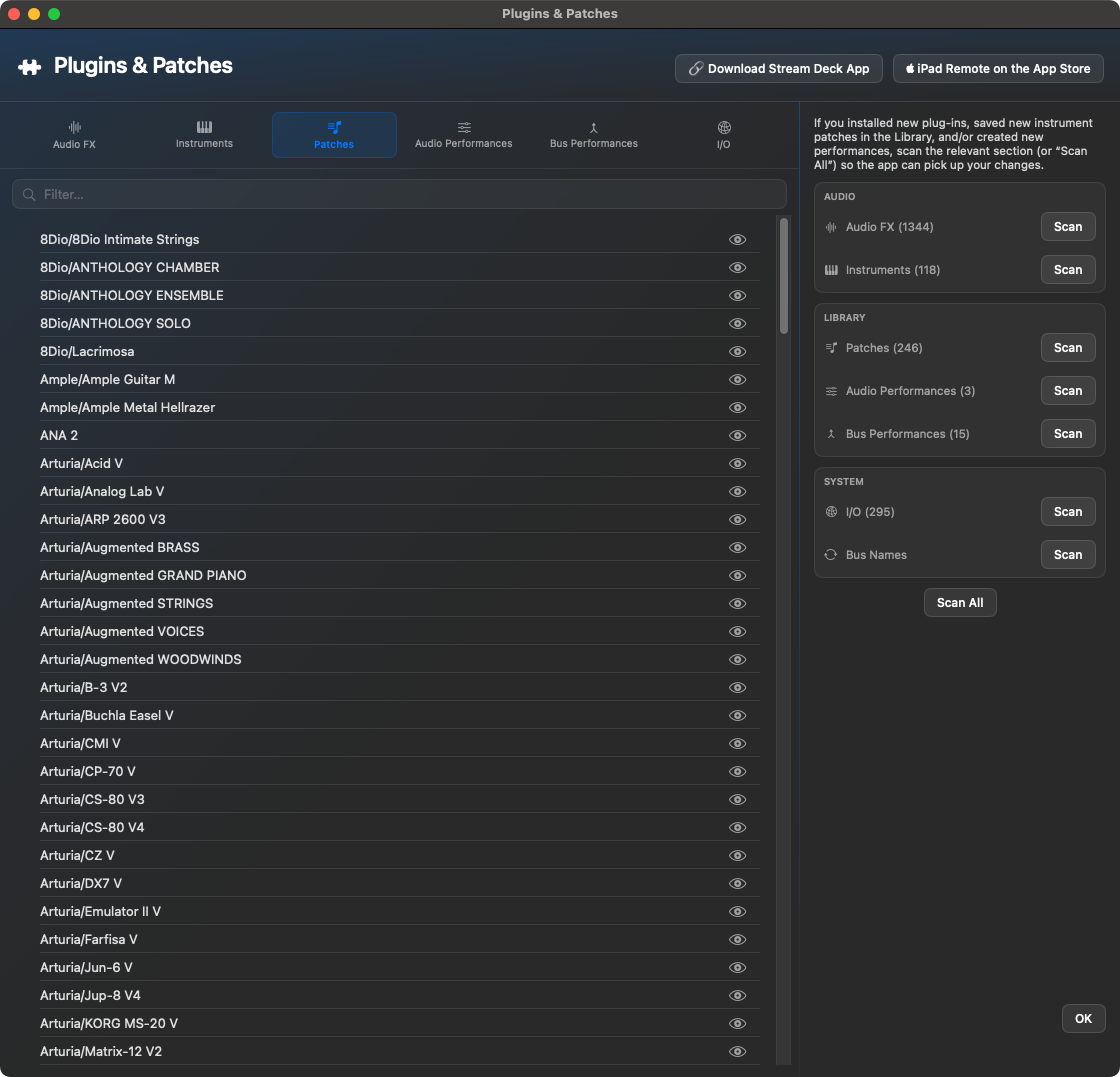
The rider AudioFX shows the scanned audio effect plugins. The plugin names are on the left, followed by the manufacturer; The eye symbol indicates whether an entry is visible. This list is used for the Plugin Picker, Quick Insert, and any actions that load audio effects directly into Logic.
instruments
The rider instruments collects the scanned software instruments. Here you can see the instrument name, manufacturer and visibility. Ben's Toolbox needs this data if instruments are to be reliably selected and loaded via Mac app, iPad, Stream Deck or shortcut.
patches
The rider patches shows the Logic Library patches read. The entries are named according to the library or manufacturer path and can later be opened in pickers or remote workflows. If new instrument patches have been saved in Logic, this area should be rescanned.
Audio Performances
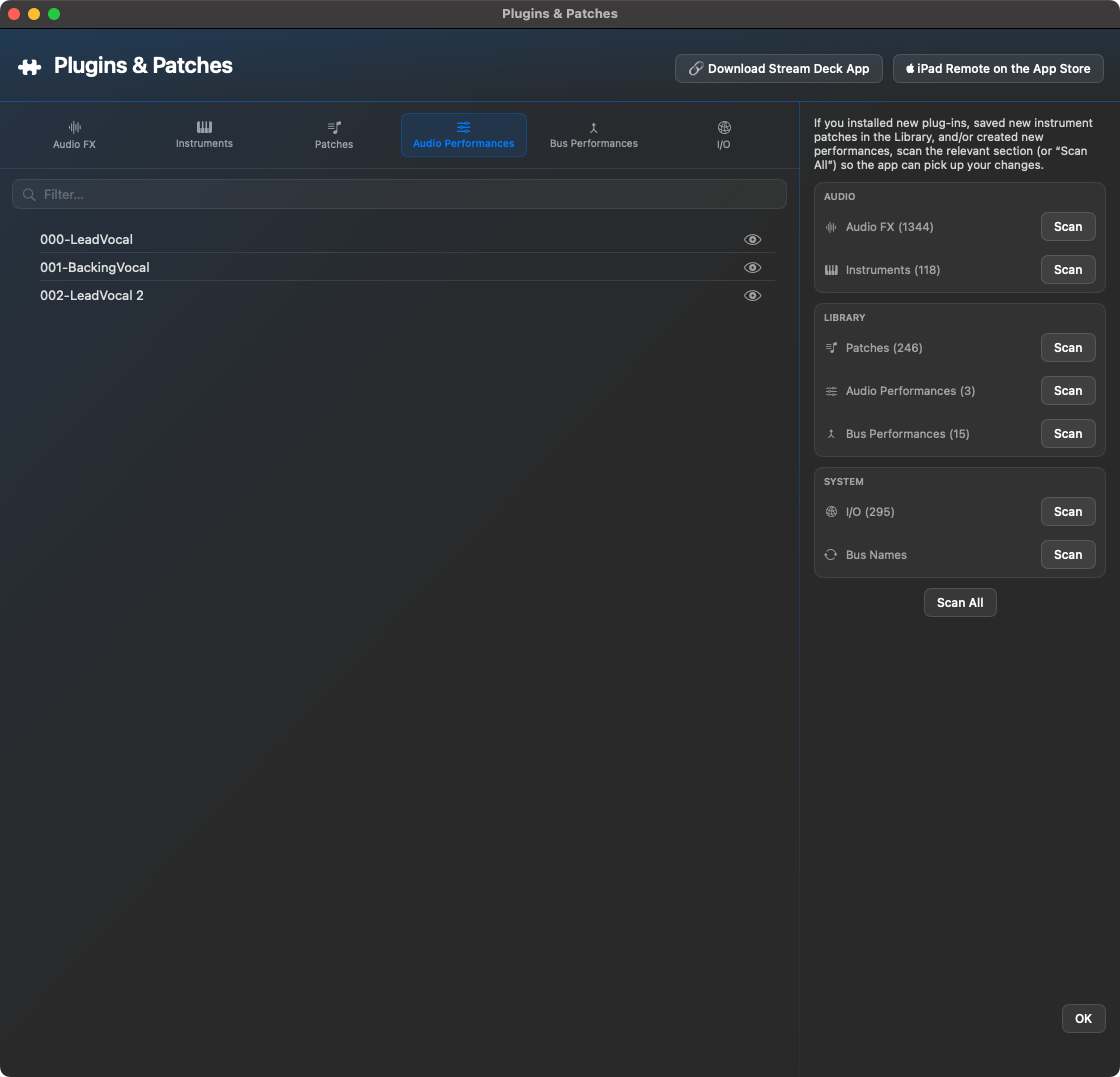
The rider Audio Performances contains saved audio track setups such as vocal or recording chains. This list is intended for workflows where you want to quickly reopen or access a frequently used audio setup.
Bus Performances
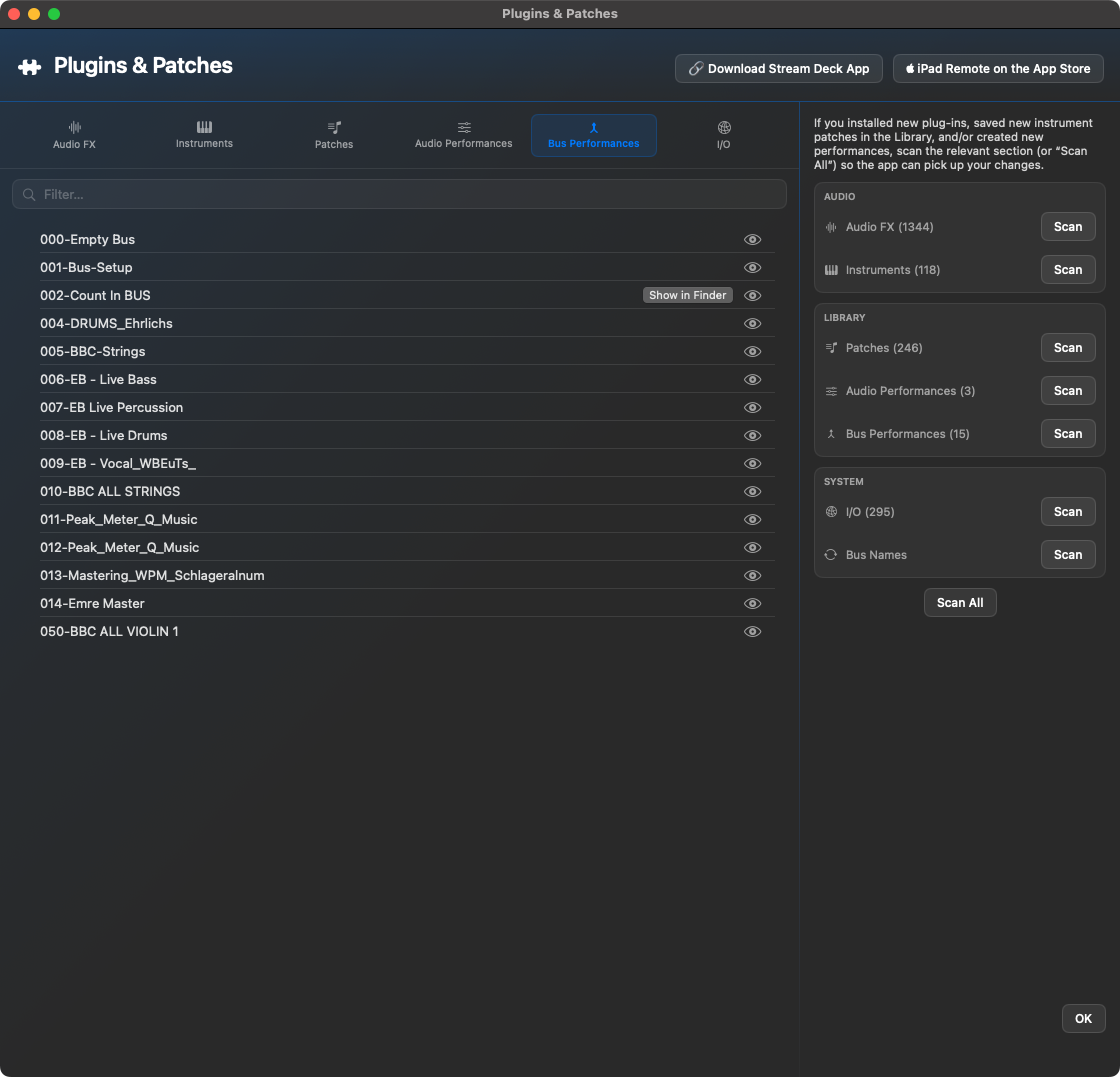
The rider Bus Performances shows saved bus setups and effects chains. These entries are used for recurring routing or effect configurations, for example prepared vocal, drum or mastering buses.
I/O
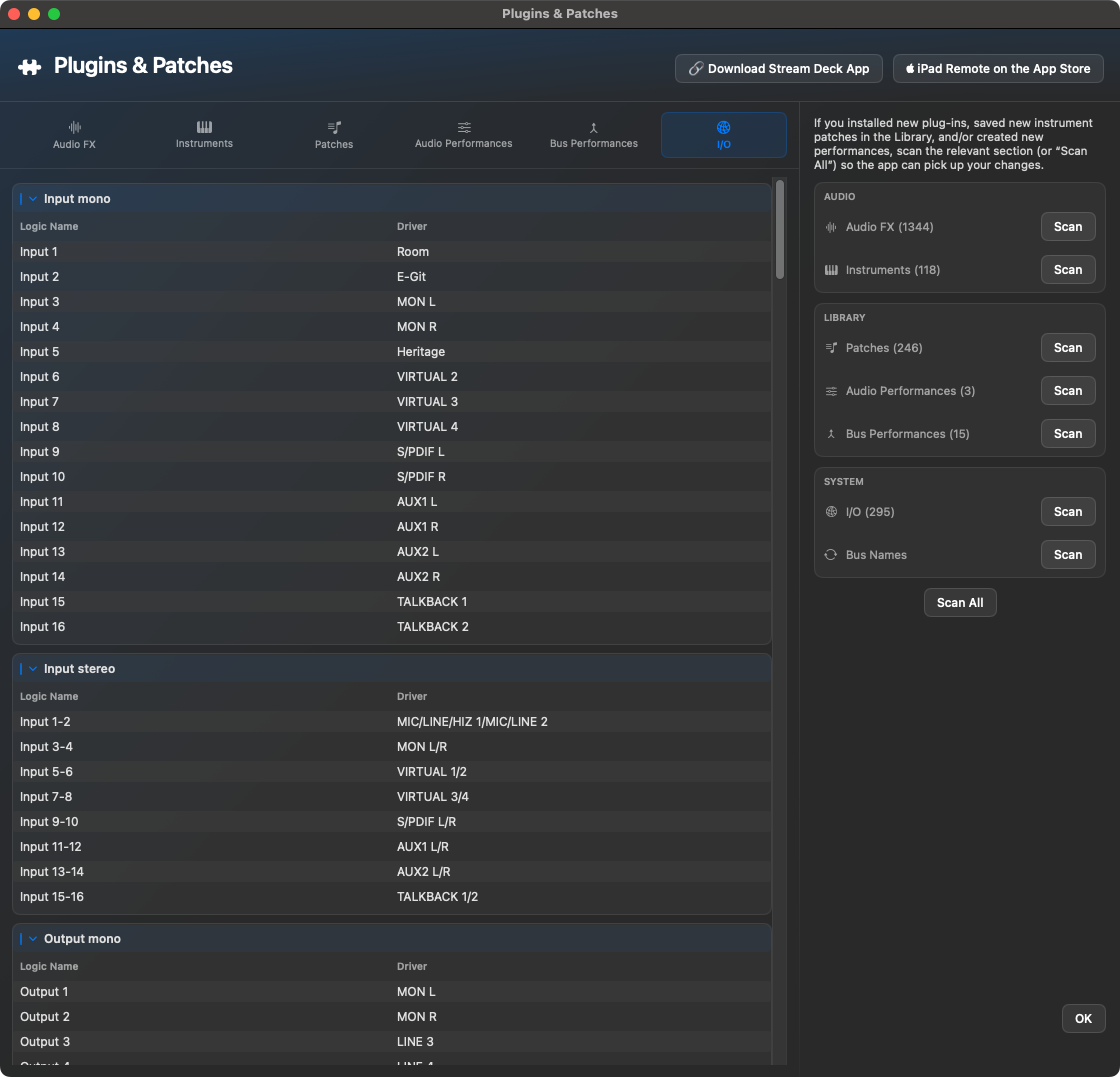
The rider I/O maps Logic names to the actual driver or device name. The picture shows, among other things, mono and stereo inputs as well as output areas. This mapping is important so that output, input, bus, and routing actions in Logic find the correct destinations.
When to rescan?
After installing or removing plugins.
After changes to the audio interface, outputs or bus names.
If iPad or Stream Deck do not display dynamic lists completely.
If new library presets are not found.
After major changes to Logic templates.
4.2.21 · Plugins & Patches
Manufacturer search for audio effects and software instruments: Plugins & Patches and the plug-in/instrument search windows accept combined name and manufacturer terms, such as “sonible smart” or “smart sonible”. Plug-in selection in Scripts, Shortcuts and Fx→Bus also searches the manufacturer.
More reliable list refresh after scanning: manufacturer changes and changes within equally sized lists update the search index and table. Fx→Bus uses the current catalogue; plug-ins without manufacturer information remain searchable by name.
Bus FX Settings
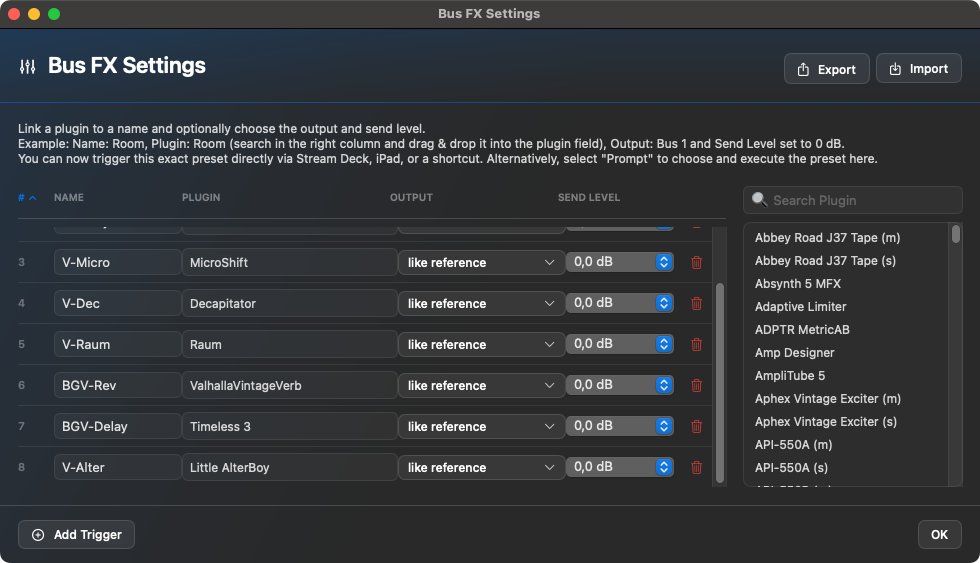
Bus FX Settings is the administration for fast send workflows. You define a kind of recipe: name, target, plugin, output and send level. A button on the iPad, Stream Deck or in the Shortcut Manager can then execute this workflow.
Bus FX triggers combine bus destination, plugin, output and send levels into a repeatable routing workflow.
This management is also present on the iPad. There you can check existing triggers, create new triggers, check plugin, output and send values and rescan I/O and bus data if necessary.
On the iPad, Bus FX Settings shows the trigger list with name, plugin, output and send level. About Add triggers new entries can be prepared; Scan I/O & buses updates the available routing destinations.
Options
Trigger name: Name under which the workflow is displayed or found.
Plugins: Effect to be loaded on the target bus.
Output: Exit or bus destination.
Send level: Start value of the send, e.g. B. 0 dB.
Prompt mode: Selection only when triggered instead of a fixed target.
Routing Map
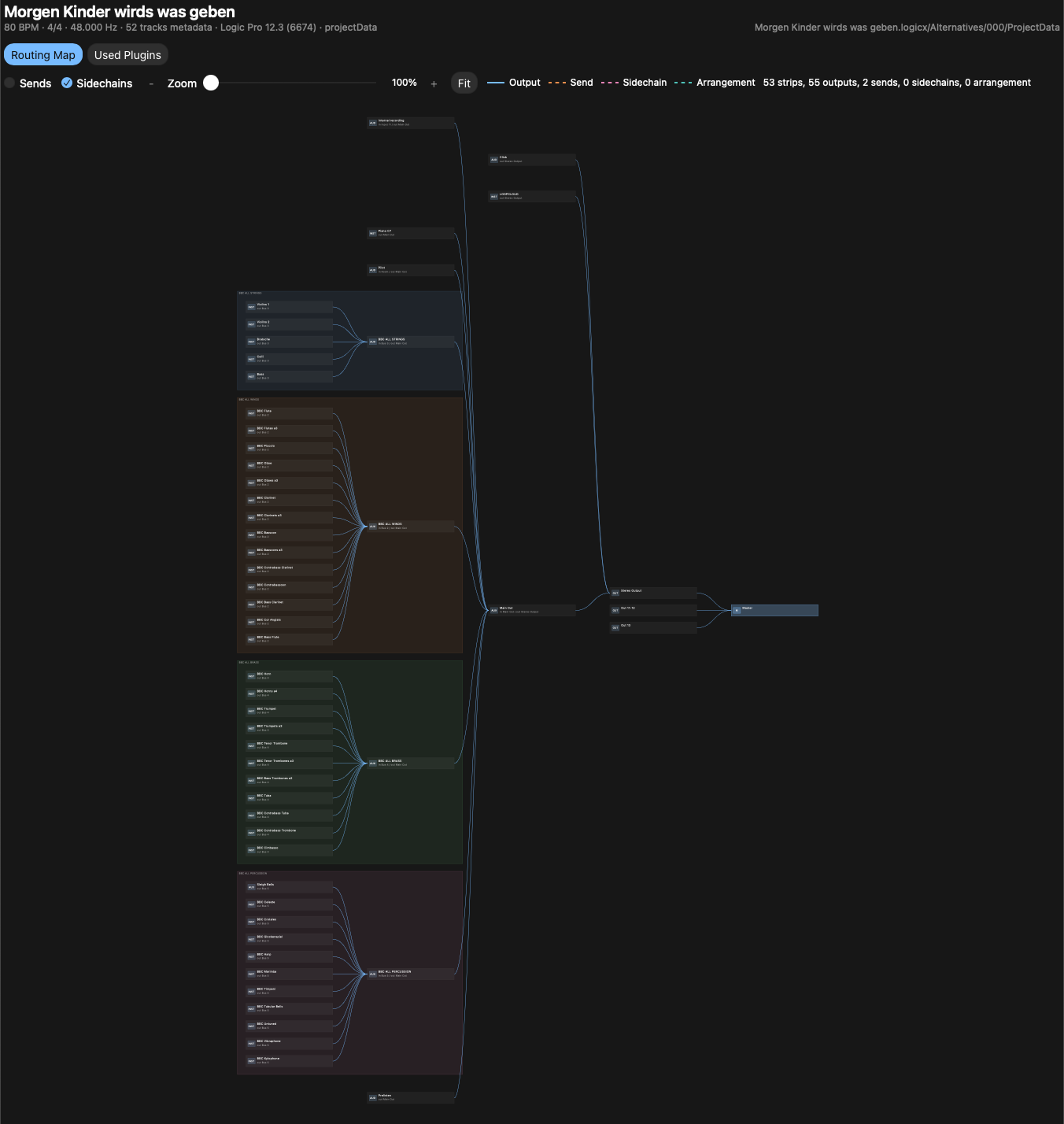
The Routing Map creates an interactive HTML overview of the routing from the currently open Logic project. The menu item is in the macOS app in the main menu right next to the Bouncer Tool.
When executed, Ben's Toolbox reads the Logic project file, regenerates the HTML, saves it in the project folder and then automatically opens it in the browser. The file is named according to the scheme Project name - Routing Map.html.
What the map shows
visible tracks and their exits
Aux, bus and subgroup paths to the output/master
Sends and sidechain references as far as they can be read from the logic file
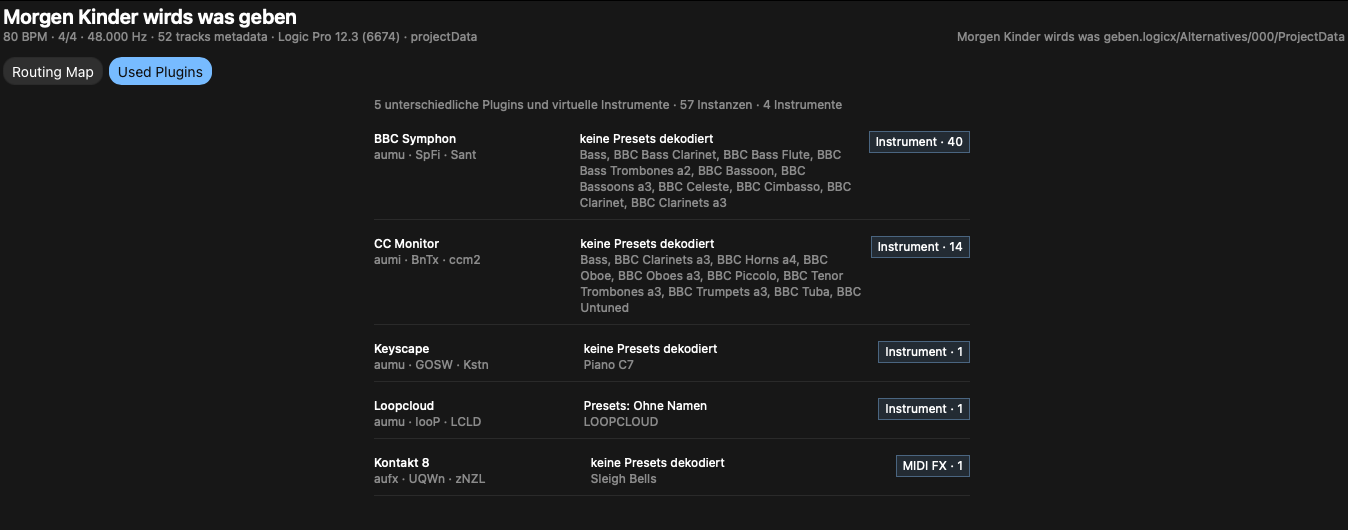
recognized plugins and virtual instruments in the view Used plugins
Project metadata such as project name, tempo, time signature and sample rate
The Routing Map organizes visible tracks, subgroups, aux channels and outputs as an interactive HTML graphic. Colored group areas make larger Logic projects easier to read.Plugins used: Recognized plugins and virtual instruments are compactly summarized with manufacturer identification, presets and instance numbers.
Service
Routing Map click in the main menu.
The HTML is rewritten each time to use the current saved project state.
The map can be scrolled horizontally and vertically; Zoom works via modifier plus mouse wheel.
Hovering over a track or aux element highlights the incoming and outgoing connections.
Important: The Routing Map reads the saved project status from the logic file. Unsaved changes in Logic must first be saved or autosaved in order to appear in the HTML.
Shortcut Manager
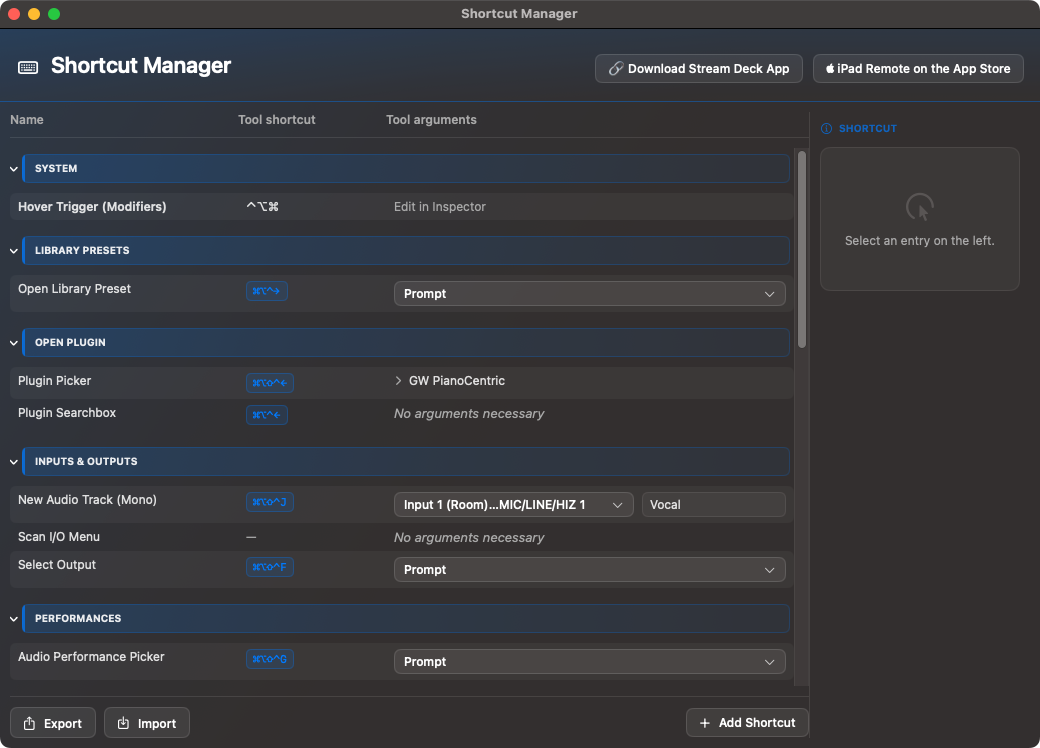
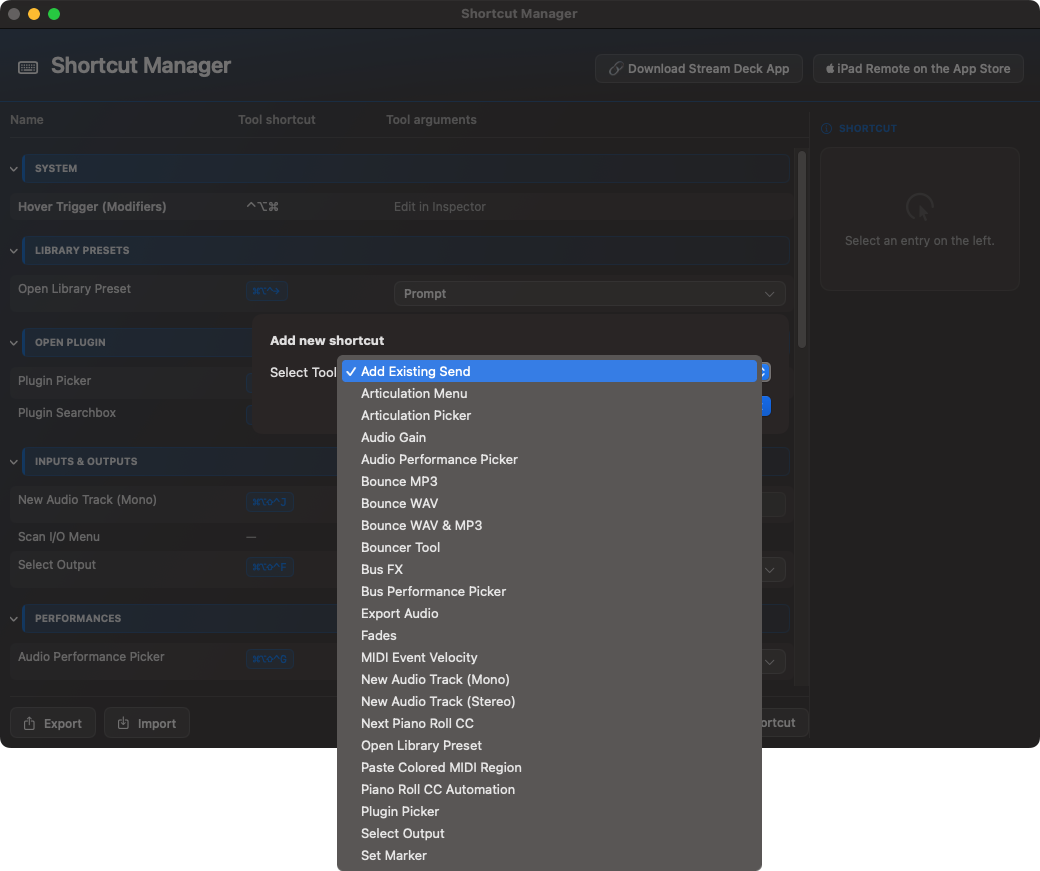
The Shortcut Manager is the bridge between Ben's Toolbox actions and your own keyboard controls. It is also helpful if you want to prepare complex actions without immediately building a Stream Deck layout.
The Shortcut Manager automatically groups entries according to tool areas. You can name shortcuts and store fixed parameters or prompt options depending on the action.The action list combines your own keyboard shortcuts with Ben's Toolbox tools, logic commands and remote workflows.
What a shortcut can contain
An executable Ben's Toolbox action.
Fixed parameters such as plugin, output, gain value or CC target.
Prompt options for Mac, iPad or both.
Shortcut keys and modifiers.
Action-specific options, for example whether a prompt is opened or a fixed target is used.
Hover Actions are not an optional trigger for a shortcut, but a separate area. You work via the mouse position in the visible Logic Pro Channel Strip and can therefore also reach slots on an inactive track, for example Audio FX in the mixer via hover plus Modifier-Klick.
If a shortcut doesn't respond, first check if the same command from the Scripts window works. If it works there, the problem usually lies in the shortcut, focus or parameter values.
Prepare articulation sets
To optimally use the articulation options of Ben's Toolbox with Logic Pro, an existing articulation set is necessary. Ben's Toolbox does not replace library articulations, but rather prepares existing Logic articulation sets so that they can be used reliably live, during later editing as well as on iPad and Stream Deck.
32 articulation slots: Logic provides internal key commands for articulation positions 1 through 32. Ben's Toolbox and the Stream Deck plugin use these sequential positions, not the numeric Art ID value. Art IDs may therefore be higher than 32, but must remain unique within the set. The Art Set Editor fully exposes the first 32 techniques; additional entries remain preserved, appear dimmed, and automatically move into the active range when an earlier technique is deleted.
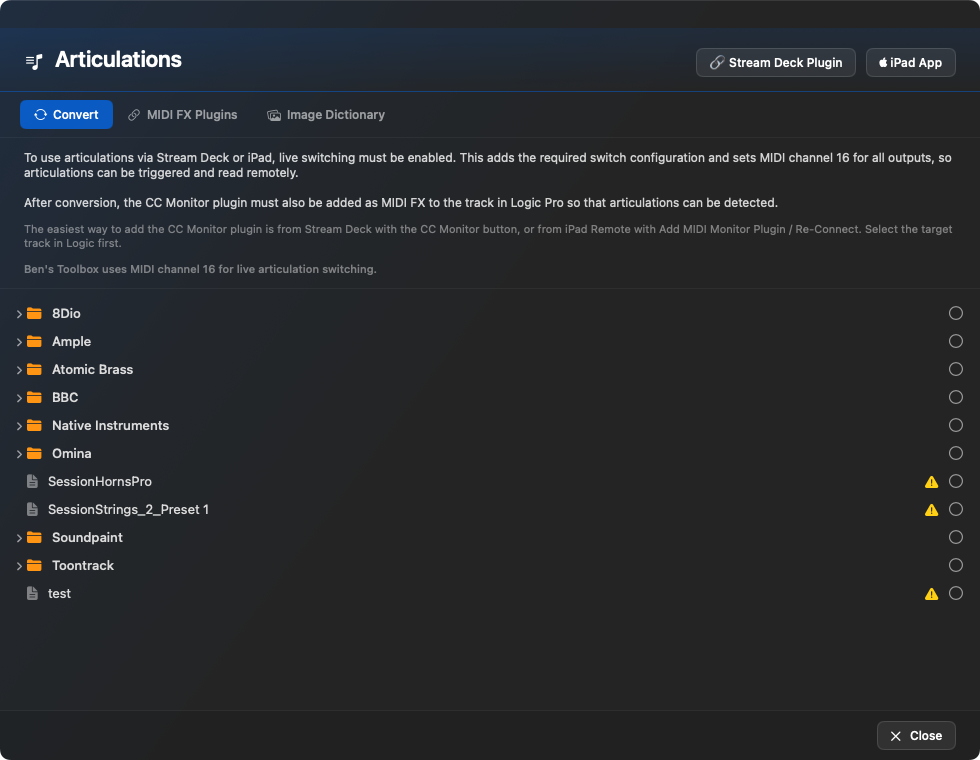
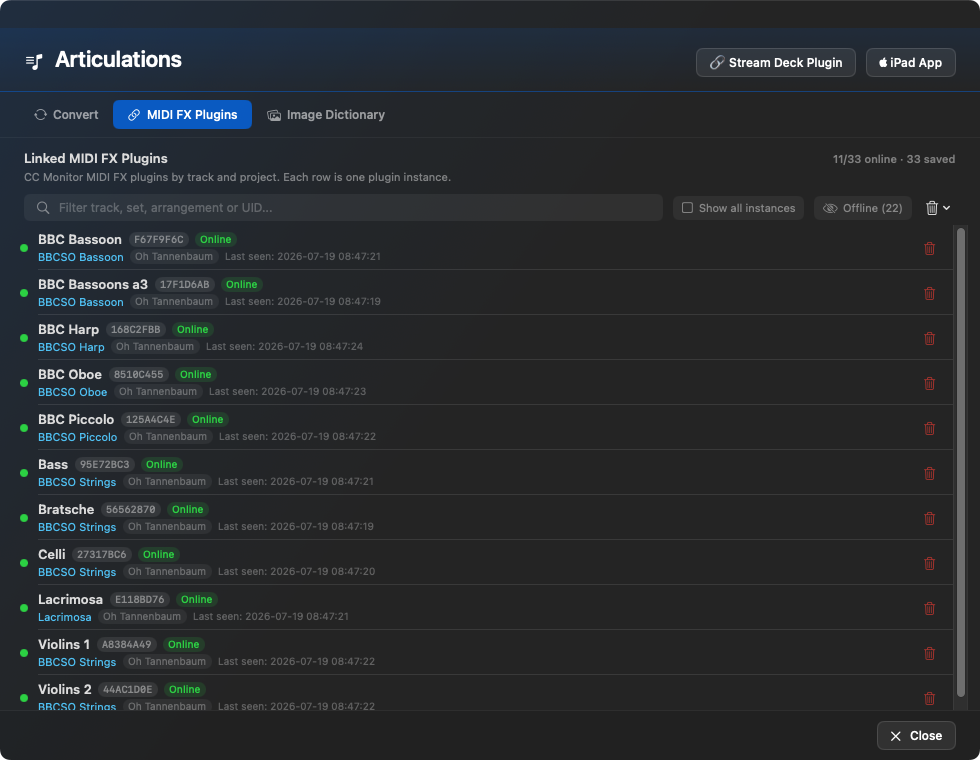
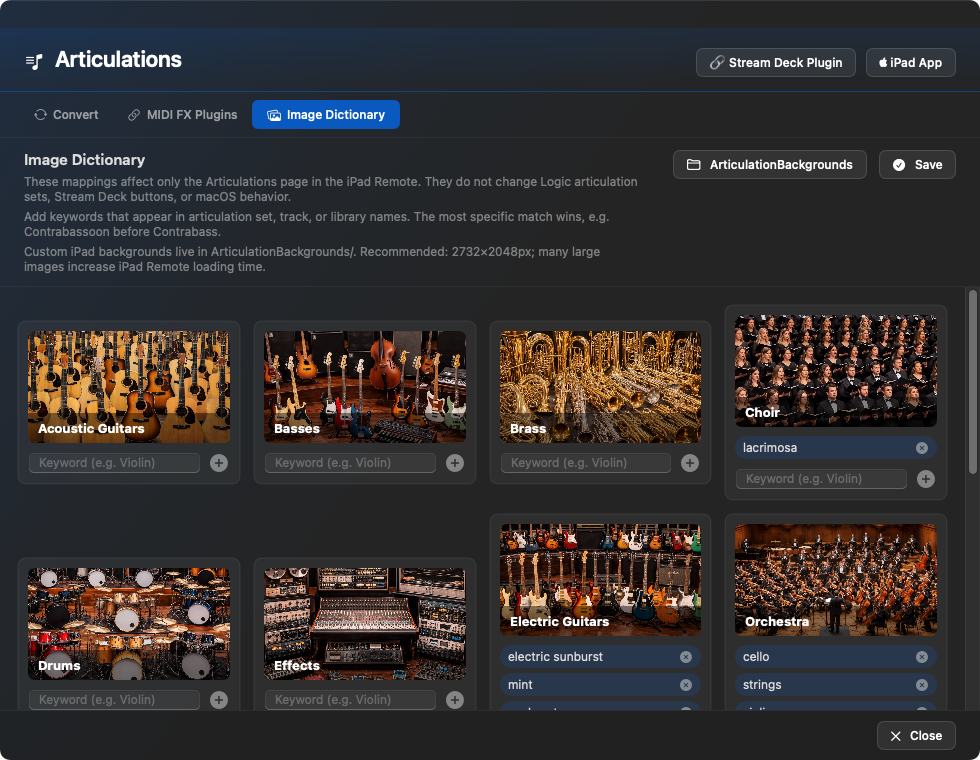
The Convert tab prepares existing articulation sets for remote workflows and shows which sets or folders can be converted.The MIDI FX tab shows saved CC monitor instances, their online status, and the last detected track and set assignment.In the Image Dictionary, iPad wallpapers for the articulation page are assigned via keywords. This does not change Logic, Stream Deck and the macOS app.
Basic principle
Ben's Toolbox works with the articulation sets that you already use in Logic Pro. In order to switch live, this must be in these sets Remote switch be active. So that you don't have to enter these values manually, Ben's Toolbox contains a conversion script for existing type sets.
During conversion, the existing articulation set file is overwritten as a working file. Beforehand, Ben's Toolbox automatically creates a backup of the original file. The existing playing techniques will be converted so that Ben's Toolbox can use them for live use, post-editing, iPad and Stream Deck. Remote switch is activated, the required values are entered and Ben's Toolbox uses MIDI channel for this 16. Ben's Toolbox does the rest.
The three tabs in the Articulations window
Convert
The rider Convert prepares existing Logic articulation sets for remote control. Ben's Toolbox activates the remote switch, enters the required switch values and automatically uses the MIDI channel for this workflow 16. The original file is saved beforehand, then the set must be reloaded in Logic on the affected tracks and then read again.
The conversion does not insert a CC monitor plugin into Logic. For live feedback and MIDI recall the CC Monitor are also on the respective track as MIDI FX. The quickest way to do this is to use the combined one CC Monitor / Read-Button on the Stream Deck or above Add MIDI Monitor Plugin or Reconnect in the iPad Remote.
MIDI FX plugins
The rider MIDI FX plugins shows the saved CC monitor instances. Each line represents a specific MIDI-FX plugin on a Logic track and is grouped by arrangement. Online means that the instance is accessible in the currently open project. Saved offline means that Ben's Toolbox knows this instance from a previous project or track state, but it is not actively connected at the moment.
With Show all instances the saved history becomes visible. This is useful for cleaning up old projects, renamed tracks, or CC monitor mappings that are no longer needed. In the normal view, the list remains slimmer and prefers to show the currently accessible instances.
ImageDictionary
The rider ImageDictionary relates exclusively to the representation of the Articulations-Page in the iPad Remote. It does not change any Logic articulation sets, no Stream Deck buttons, and no macOS function. Stream Deck displays articulations over text and statuses, not over these background images.
Keywords are checked against articulation set, track or library names. The most specific match wins: An entry like Contrabassoon can therefore specifically choose the woodwind picture, although in the word too Contrabass occurs. Your own pictures belong in the folder ArticulationBackgrounds; for iPad backgrounds are large images in the format range 2732×2048 px makes sense.
Important: The iPad Remote caches background images locally. If you still see an old image after making a change in the Image Dictionary, quit the iPad app completely and restart it. A mere reconnect is not always enough.
Recommended preparation process
Select an instrument track in Logic.
Assign the desired articulation set to the track in Logic Pro.
Check whether the existing articulation set contains the desired playing techniques.
In Ben's Toolbox the window Articulations open and go to tab Convert change.
Ben's Toolbox uses the MIDI channel for this 16.
Select and convert the individual articulation set or a folder.
After conversion, reload the articulation set in Logic on the respective track. For a single set, the reload can be started directly via the results dialog; When converting folders, each affected set must be reloaded individually on its track.
Read Articulations to have Ben's Toolbox reread the current set, slots and names.
Den CC Monitor Use as MIDI FX on the logic track or Connect Use if live feedback and MIDI recall are to be used.
Test on iPad or Stream Deck: Trigger slot, check active state, then check MIDI regions in Logic.
What exactly the conversion does
The conversion edits the existing one .plistfile in the Logic folder ~/Music/Audio Music Apps/Articulation Settings. The file will be overwritten, but the original file will be saved in the subfolder first Bens Toolbox Backup saved. This allows you to return to the original set if necessary.
In the work file, Ben's Toolbox activates Remote Switch, enters the required switch values and converts the existing game techniques so that they can be clearly triggered by Ben's Toolbox and later processed further in Logic. Ben's Toolbox uses MIDI channel for this 16.
Note: If errors occur during the conversion or a set does not respond as expected afterwards, please contact support. We would be happy to help you check the specific articulation set.
CC Monitor
CC Monitor 4.2.7: Settings and presets
Playback displays MIDI values and active articulations. In Settings, drag articulations to reorder them per instance. MIDI channel and trigger velocity belong to each articulation: a fixed channel replaces the set channel; Auto uses the set channel. Velocity Auto uses the last played note velocity (64 before any note); fixed velocity applies to Note On triggers. Respect required velocities for velocity-coded keyswitches.
Save stores name, date, project, track, Art Set, order, channels and velocity under ~/Library/Application Support/Bens Toolbox/CC Monitor/Configurations. The project field is editable; overwriting requires confirmation. Load opens a sortable preset list; search filters all metadata. Selection only previews the result. Load applies uniquely matching names AND articulation IDs. Unmatched entries are reported; other current techniques keep their settings. Import previews external files; save afterwards to add them to your library.
A configuration does not replace a Logic Articulation Set or load an instrument. Assign the appropriate set first. Save changes in the Logic project; preset files additionally support reuse. Reload refreshes the set; selecting None clears articulation displays. Insert CC Monitor on the selected track. Native Logic instruments still require the Scripter bridge below. Current Stream Deck clients can use per-instance settings; the Stream Deck plugin is updated separately. The new preset dialogs currently use German wording.
Logic instruments: Scripter bridge in 4.2.6
Instruments such as Studio Strings / Studio Violins use native Logic articulation IDs. To preserve and display these with CC Monitor, temporarily use this MIDI-FX order:
Scripter: 1-before → CC Monitor → Scripter: 2-after → instrument
Quit Logic before installing. The installer places 1-before.pst and 2-after.pst in the logged-in user's ~/Music/Audio Music Apps/Plug-In Settings/Scripter/ folder. Different existing files are preserved in a hidden .bens-toolbox-backup.* subfolder.
Select the instrument track and insert Scripter immediately before and after CC Monitor. Load 1-before in the upper Scripter's preset menu and 2-after in the lower one. Enable all three MIDI FX. Installation does not insert plugins into projects.
Select the matching articulation set. For remote control, set Logic Pro → Settings → MIDI → General → Articulation Switches to MIDI Remote: On / Global and MIDI Channel: 16 / Global. Prepare and reload the set for remote switching. Do not invent output keyswitch notes for native Logic sets with empty outputs.
Select Sustain and Staccato, playing a new note each time. For momentary techniques such as Fall Long, hold the switch while playing a new note. Native articulation IDs and velocity travel with notes; selecting a technique alone need not update the active tile.
Limitations: Always use both Scripters together. Never bypass only 2-after while 1-before remains active. Do not insert other MIDI-changing effects between them. Channel 16 CC110–117 are reserved for the bridge and must not be used for other controls on this path. Morphing an already sounding sample is not guaranteed. Ordinary keyswitch/CC libraries do not universally require this bridge. The tested native ID range is 0–254. Diagnostic probes are not part of this production chain.
For installation without a logged-in user, or for another user: In Finder, choose Show Package Contents on Ben’s Toolbox and open Contents → Resources → Scripter Presets. Copy the two .pst files to your own Scripter folder above, backing up any existing files first. Create the folder and restart Logic if necessary. No script code needs to be pasted manually.
For optimal control of articulations, the CC Monitor as MIDI FX on every Logic track that works with articulations. The plugin helps Ben's Toolbox to report the current articulation state back from Logic and to more reliably align the control via Stream Deck, iPad Remote and Motion with the musical state of the track.
In practical terms, this means: iPad and Stream Deck can not only trigger articulations, but also display the active state better. Motion workflows and remote controls also benefit from this because Ben's Toolbox knows more precisely which gaming technology is active on the track. Therefore, use the plugin on tracks with articulation sets if you want to use live feedback, MIDI recall or the cleanest possible remote control.
The CC Monitor shows the received controller values and the detected articulation of the current track. This feedback is the basis for iPad and Stream Deck to display the active state more reliably.
Playing live vs. editing playing techniques
Target
Preparation
What to pay attention to?
Play live
The existing set is prepared for live release through the conversion.
Remote Switch must be active; Ben's Toolbox enters the necessary values.
Edit playing techniques
The converted playing techniques remain editable in Logic.
After major changes to the articulation set, reload the set in Logic and reread it in Ben's Toolbox.
Remote feedback
Have active articulation reported back via the CC Monitor and MIDI recall.
Without a plugin, a surface can send, but cannot automatically know every external state change.
Great libraries
Break complex sets into appropriate iPad or stream deck pages.
Not all rare effects have to go to the first level; Quick orientation is important.
What should be checked before converting
Existing set: The articulation set must already exist in Logic and contain the desired playing techniques.
Remote switch: Remote switch is required for live switching; the conversion activates and fills these values.
MIDI-Channel 16: Ben's Toolbox automatically uses this channel for the workflow.
Backup: The working file will be overwritten, the original file will be in the folder beforehand Bens Toolbox Backup secured.
CC Monitor: For live feedback, MIDI recall and optimal remote control, use the CC Monitor on the relevant tracks.
MIDI Recall and active state
MIDI Recall is particularly helpful when not only a button is pressed, but the interface should know the current state. The CC Monitor can return articulation information from the Logic context to Ben's Toolbox. This means the iPad or stream deck display can stay closer to what is actually musically active.
Normal: short flashing in Logic
When triggering articulations live via iPad or Stream Deck, if the Piano Roll is not in focus, Logic may flash briefly or visibly change focus. The reason is not a bug in the function, but rather that the wrong window for setting the articulation is active. The articulation is still triggered; flashing does not affect functionality. If it bothers you, click on the piano roll once. As long as the Piano Roll remains the active window, the flashing disappears.
Recommendation: For live recordings with articulation changes, click on the piano roll once beforehand. Then the correct window stays in focus and Logic doesn't flash when triggered.
Stream Deck
The Stream Deck is the fastest hardware interface for Ben's Toolbox. It can trigger tools, windows, logic key commands, articulations and prepared workflows.
Live feedback: Stream Deck Buttons can not only send, but also display status. This is especially true for articulations and MIDI-CC feedback. The active playing technique can be reported back instead of just blindly pressing a button.
Installation and updates
When started, Ben's Toolbox checks whether Stream Deck is installed and whether the Ben's Toolbox plugin is present. If the plugin is missing, the app can offer to download it. If an older plugin version is installed, an update window appears and, after downloading, opens the Stream-Deck-Plugin for installation.
Button types
Tool Actions: direct Ben's Toolbox tools.
Open Window: Open the Mac app window.
Logic shortcut: Send logic key commands.
Articulation buttons: Trigger slots 1 to 32 and display status.
Configure buttons in the Stream Deck app
Many Ben's Toolbox buttons are set up directly in the Property Inspector of the Stream Deck app. There you can specify whether a button immediately works with a fixed parameter or opens a prompt when pressed. The lists come from the Mac app data: plugins, library presets, current Logic project outputs and buses, audio performances, bus performances and bus FX presets.
Prompt or firm: A button can remain universal, opening a selection every time it is triggered, or it can be fixed to a target. This way you can build a general work page and still prepare individual buttons for recurring studio setups.
Fixed plugin buttons: A dedicated audio FX plugin is implemented via Logic's function Search and add plugin loaded into the next free insert slot of the selected channel strip. Ben's Toolbox only confirms an exact matching plugin name; The manufacturer is only used to differentiate between names that are actually identical. Just the attitude Prompt opens the plugin picker of Ben's Toolbox. If the Stream Deck unexpectedly switches pages when activating Logic, check the profile automatically bound to Logic in the Stream Deck app; This profile change is a setting of the Stream Deck app.
Complete button list
The following list corresponds to the current Stream-Deck-Plugin. Button actions are intended for normal stream deck buttons; CC Fader and Gain Dial use the knobs of supported stream deck models.
button
Function
Connection status
Shows the connection to the Mac app and reconnects if necessary.
Open Window
Opens the selected window of Ben's Toolbox.
Logic shortcuts
Triggers a selected logic key command from the current command list.
Open Project Folder
Opens the folder of the current Logic project.
Set of markers
Creates a logic marker with prepared text at the current position.
Paste Colored MIDI Region
Inserts the copied MIDI region and assigns it the configured color.
SMPTE position
Sets the SMPTE position at the current playhead position to zero.
Bounce
Starts MP3, WAV, WAV+MP3, Export Audio or the Bouncer Tool with the selected settings.
Plugin Picker
Loads a fixed plugin directly into the next free audio FX slot or opens the Ben's Toolbox selection in prompt mode.
Searchbox plugin
Opens the searchable quick insert selection of Ben's Toolbox.
Open Library Preset
Opens a fixed logic library preset or a folder or queries the target.
Audio Performance Picker
Applies a saved audio performance directly or via selection.
Bus Performance Picker
Applies a saved bus performance directly or via selection.
Add Existing Send
Adds a send with destination and level to the selected channel strip.
Bus FX
Creates a send from a saved bus FX preset or prompt selection.
Select Output
Sets the output of the selected channel strip to the fixed or polled destination.
UAD mixer
Executes a configured action in the UAD console mixer.
New Audio Track (Mono)
Creates a mono audio track with fixed or polled input and optional name.
New Audio Track (Stereo)
Creates a stereo audio track with fixed or polled input and optional name.
Fades
Sets or changes Fade-In, Fade-Out, curve and Fade type of the selected audio regions.
Audio Gain
Sets region gain absolutely or changes it relatively.
Gain Dial
Changes gain via rotary control; Pressure resets to 0 dB.
MIDI Event Velocity
Sets the velocity of the selected MIDI events.
Next Piano Roll CC
Switches to the next MIDI-CC lane in the piano roll.
Piano Roll CC Automation
Selects the configured MIDI-CC automation specifically in Piano Roll or Arrangement.
CC Fader
Controls a MIDI-CC value via rotary control; Pressure resets him to 64.
Link CCs
Keeps the selected Piano Roll CC lane linked when changing lanes and shows the status.
Automatic articulation
Triggers articulation slots 1 to 32 and shows name and active state.
Articulation Picker
Selects an articulation from the current set.
Articulation Menu
Opens the articulation menu for the active track or MIDI selection.
CC Monitor / Read
Connects or repairs CC Monitor and then rereads the current articulation set.
Prompt and picker buttons
At Plugin Picker and Open Library Preset Many buttons can automatically receive the appropriate image. The Stream-Deck-Plugin comes with over 1000 images for plugins and software instruments. You can use this automatic image selection, deactivate it or use your own or manually selected image at any time.
Open Library Preset: loads a fixed plugin or opens a prompt with the scanned plugins.Bus FX: selects library presets from the scanned preset list or asks when triggering.Bus Performance Picker: sets a fixed output or opens an output selection from the scanned I/O data.CC Monitor: creates sends with destination and level; Target can be fixed or selected by prompt.
Performances, routing and Bus FX
New Audio Mono: Calls up saved audio performances directly or opens a selection.New Audio Stereo: uses prepared bus setups as a fixed button or prompt workflow.Bus Performance Picker: selects bus FX presets with plugin, target and send level or opens a dialog.
Audio tracks, gain and Fades
CC Monitor: creates mono audio tracks with fixed or polled input and optional name.CC Monitor: creates stereo audio tracks with prepared stereo input and track names.Fades: controls Fade-In, Fade-Out, time mode, specific Fade times and Fade type.Audio Gain: sets gain absolute or relative, for example fixed values or quick plus/minus steps.
4.2.19 · Stream Deck 0.4.3.7
Smoother Stream Deck response during CC and articulation feedback. With plug-in 0.4.3.7, only currently visible relevant buttons request data; unnecessary polling and duplicate display updates are avoided.
Stream Deck Articulations
Universal articulation buttons
Articulation buttons on the Stream Deck can be created universally. The buttons are not tied to a specific instrument, but rather adapt to the instrument or articulation set of the currently selected Logic track. This allows the same Stream Deck page to be used for different libraries, instruments and articulation sets.
Connect CC Monitor directly in the stream deck button
The CC Monitor can be connected directly from the button configuration. At Automatic articulation The Connect button only appears if no CC Monitor has been detected on the currently selected logic track. Once the track is connected, the Inspector will show the green status. Alternatively, the separate CC Monitor / Readbutton can be placed on a Stream Deck page to quickly check the current track, reconnect, or re-read the articulation set.
Automatic articulation: If the CC Monitor is missing, it can be connected directly in the articulation slot button.Related: If the CC Monitor is present on the active track, the Inspector shows the green status and hides the Connect step.CC Monitor / Read: The separate button can be placed on a stream deck page as a quick repair, setup and refresh button.Status on the Stream Deck: After a successful connection, the button shows the green Connected status.
Example with BBC Symphony Orchestra Strings from Spitfire: The Stream Deck buttons adapt to the currently loaded articulation set. At the top right, the CC monitor/read button shows which articulation set is currently loaded.Example with Lacrimosa Choir by 8Dio: Visual feedback shows playing technique and velocity used. The colored MIDI events in the piano roll make articulation changes easier to recognize later.
The button at the top right of the Stream Deck articulation page is the combined one CC Monitor / Readbutton. If the CC Monitor is not connected, the button tries to connect the current logic track or use the CC monitor plugin. If the CC Monitor is already connected, the same button reads the articulation set of the currently selected track again. When connected, the button shows the name of the articulation set currently being read on a green background, not the currently active playing technique.
Recommended workflow
In Logic, select the instrument track whose articulation set you want to control.
Press Stream Deck on the CC Monitor / Read. This means that Ben's Toolbox connects the CC Monitor if necessary or rereads slots, names and the active set of the track.
Lay Articulation slot-Buttons on the Stream Deck. In Property Inspector you set the desired slot 1 to 32 for each button.
Use Property Inspector of an articulation button Connect CC Monitor, if the current track does not yet have a CC monitor MIDI FX plugin. Ben's Toolbox sets or connects the plugin to the active logic track.
Then trigger the articulations directly from the Stream Deck. If a MIDI event is selected in the Piano Roll, its articulation is changed. If no MIDI event is selected, the articulation is set live for recording.
Check the visual feedback: the button titles come from the Logic articulation set, active articulations are highlighted in color, and the velocity colors help recognize the changes in Logic.
The Connect CC Monitor-Button only appears as a setup or repair step in Property Inspector. If the CC Monitor is already connected on the current track, the Inspector shows the connected status and the button no longer needs to be used. If you switch to another track without CC Monitor, you can continue to use the same articulation button and connect the new track directly from the button configuration.
Alternatively, you can use the separate one CC Monitor / Readbutton on your stream deck page. This button is useful if you want to quickly check or repair whether the currently selected logic track is connected to the CC Monitor while working. It shows directly on the Stream Deck whether the monitor is connected, can re-establish the connection or insert the plugin on the current track and serves as a manual refresh for the articulation set if a connection is established.
Setting up with automatic articulation buttons is particularly quick: If you drag and drop these buttons onto the Stream Deck, each button counts up its slot independently. So you only create the buttons once; They are automatically assigned the correct slot and can then be used by any track with an existing articulation set. The stream deck page is therefore quick to set up and can be used universally for different instruments.
Important: This should be on the tracks used CC Monitor MIDI FX Plugin so that Ben's Toolbox can clearly assign the articulation information to the correct track and report the active state back to Stream Deck and iPad. Without CC Monitor, articulation buttons can still broadcast, but live feedback is limited.
On the Stream Deck, link CCs can be made visible as a separate button. The active state and the linked CC value are displayed directly on the button.
A button press has two tasks: If a MIDI event is selected in the piano roll, its articulation is changed to the playing technique pressed. If no region or MIDI event is selected for editing, the same key press sets the playing technique for live playing. This means you don't have to differentiate between separate editing and live buttons.
Normal: If the Piano Roll is not the active window, Logic may flash blue briefly when you press an articulation button. The function is not restricted by this. The button triggers both editing and going live; The edit command just doesn't end up in the required piano roll window if it isn't currently active.
MIDI-CC buttons on the Stream Deck
Stream deck buttons can also be used as MIDI-CC or performance parameter buttons. The buttons not only send a value, but can automatically respond to the current Logic state: the active parameter is highlighted on the Stream Deck, while Logic shows the appropriate automation or MIDI lane. This makes it immediately visible whether you are currently controlling modulation, expression, sustain, Pitch Bend, velocity or another controller.
The new one Link CCs-Button holds the currently selected Piano Roll CC lane when changing tracks or regions. When activated, the current CC is adopted as the target. If you then select a different CC via Stream Deck, iPad or shortcut, this new value becomes the link target. The button displays the linked CC, shows the active state in green and the deactivated state in red.
MIDI-CC buttons with automatic response: The active parameter is highlighted on the Stream Deck and matches the currently selected MIDI or automation lane in Logic.
Ben's Toolbox Remote is the touch interface for iPad. It connects to the Mac app over the local network. The Mac app provides tool catalog, window list, text, images, presets, articulation status, Bouncer Tool data and UAD console mixer status.
Concept: The iPad is not just a second screen with buttons. It's a customizable Logic control surface with a dynamic tool catalog, auto-labels, custom images, pages, sections, UAD mixer and live feedback for articulations.
UAD mixer
The iPad Remote can directly display and control selected UAD console mixer functions. The Mac app reads the UAD console state, prepares channel strips, inserts, plugin parameters, preamp controls, sends, cue/aux sends, talkback and session information and synchronizes them with the iPad.
The UAD Mixer is available as its own iPad page and is powered via the Mac app. It is intended for studio situations in which UAD Console runs on the Mac, but levels, sends, inserts or cue mixes should be accessible directly on the iPad.
UAD Mixer in Ben's Toolbox Remote: Channel strips, insert and send areas are synchronized by the Mac and displayed as an iPad-compatible mixer interface.
Area
What is controlled
Channel strips
Input and virtual channels with Fader, pan, metering, record/monitor status and names.
Preamp & Unison
48V, PAD, phase, low cut, input type and unison slot for real input channels.
Inserts & Plugins
Insert slots, plugin selection, parameters, power, presets and removing plugins.
Sends, cues & Aux
Cue and aux sends with level, pan, mute and large send overlays for multiple destinations.
Talkback & Sessions
Load, save, resave, rename and delete talkback strip and UAD session.
Tool catalog
The catalog contains Bounce, plugins, performances, mixing, audio, MIDI, articulations and utilities. Many tools have parameters, search lists or status feedback.
Section Presets
preset
Contents
Windows
opens Mac windows like plugins & Patches, Bus FX, Motion, Scripts and Shortcuts.
The iPad can control the complete Bouncer flow: Project via Save or Save As backup, accompany analysis, restore sessions, add visible logic tracks as rounds, load presets, edit rounds, run Preflight Only and start the actual Bounce. When opening the Bouncer page, the iPad Remote requests secure boot from the Mac app. Presets, dictionary, Name Presets, Audio Settings presets, Bounce Versions, track list, round structure and status are then continuously synchronized.
When a Main Preset is loaded, the iPad Remote sees the resulting Bounce Versions, Bounce-Rounds, track selections and audio settings assignments. Rounds can be renamed, tracks can be added or removed from a round using drag-and-drop, and Bounce Versions that are no longer needed can be deleted. The actual Logic execution remains on the Mac so scanning, export path, WebSocket status and automation are controlled in one place.
Since track numbers remain relevant for later mute/solo/select control, the visible track structure should not be changed outside of the Bouncer window while the Bouncer is open. A restored session automatically resets its saved track stack state before preflight. New changes to the structure should only be made via the Bouncer and then reread.
Articulations on the iPad
The iPad app can display active articulations, trigger slots and work with background images. Your own images can be made available via the Mac app; Large, iPad-compatible images are recommended.
In the articulation area there is a toggle in the lower MIDI-CC bar on the right Link CCs. If you activate it, Ben's Toolbox remembers the currently visible piano roll CC lane and tries to restore this lane even after track or region changes. This is helpful if you want to edit the same controller on several orchestral voices one after the other, for example modulation or expression. If no piano roll automation is visible, the CC should first be opened manually in Logic so that the target value is clear.
iPad page for articulations
On the iPad, articulation sets are presented as a separate performance page. At the top you can see the connection to the Mac, the active track and the articulation set read. The large tiles trigger the playing techniques directly; Each generated MIDI event is mapped via the playing technique and velocity. Velocity uses Logic coloring so that recorded articulation changes can be quickly recognized later in Logic. The active articulation can be reported back in color when the CC Monitor is used on the logic track.
The iPad side combines articulation tiles, track navigation, live status, CC-Fader, CC buttons and the link CCs toggle. Your own background images help you quickly recognize instrument groups.
Area
What can be seen?
What is it intended for?
Header
Connection to Mac, active track, articulation set, live/auto/CC status.
Quickly check whether the iPad page belongs to the correct Logic track.
Articulation tiles
Playing techniques such as legato, staccato, pizzicato, tremolo or longs. Every triggered event is written with playing technique and velocity.
Trigger slots live without having to search in the Logic menu and recognize the played changes in Logic based on the velocity coloring.
Track navigation
Arrows on the left move to the previous or next track.
Jump between instrument tracks and display the appropriate set again.
CC lanes
Freely configurable controller lanes on the left of the page, e.g. B. Expression, modulation, CC21 or your own CC targets.
Play important controllers directly next to the articulations and adapt them per lane to the musical workflow.
Read / Active
Every lane can Read (green) or Active (blue).
Read shows or accepts values, Active makes the lane the actively played controller.
Vertical slider with side slider
Each vertical CC slider also has a side slider for a second value. CC numbers and values can be freely chosen.
Trigger vertical and horizontal CC values simultaneously with one controller, e.g. B. Modulation plus vibrato or expression plus timbre.
CC-Fader and CC buttons
Controller at the bottom or left of the page; the assignment is freely configurable.
Control dynamics, expression, vibrato and common MIDI controllers directly while playing.
Link CCs
Toggle bottom right in the CC area.
Maintains the selected Piano Roll CC lane when switching between tracks or regions as long as Piano Roll is active.
Background image
Instrument image from the Mac app's Image Dictionary.
Only for the iPad Remote: visual orientation for large templates and many library groups.
Practice: The combination of vertical slider and side slider is particularly useful for expressive libraries. A typical use is modulation on the vertical axis and vibrato or another sound parameter on the horizontal axis.
Grid, pages and buttons
The iPad grid can be built as a large, template-specific control surface. Pages and sections structure the buttons by work area: prompts, logic tools, helpers, gain/Fade, articulations or your own setups. This means that even a very large button layout can be used without having to put everything on a single layer.
An existing iPad grid with several sections: prompts, logic tools, helpers and mixing buttons can be combined on a large, scrollable controller page.Bus FX: Library presets and instrument patches can be searched for and set as button targets directly on the iPad; Alternatively, the selection remains on the Mac when triggered.Open Library Preset: Plugins from the Mac scan appear with an image and manufacturer and can be directly selected as the target of an iPad button.Pages are created and managed in the iPad settings. About Add Page new controller pages are created; the connection to the Mac and discovered hosts are displayed directly below.
option
Description
pages
Multiple controller pages for different workspaces, templates or instrument groups.
Sections
Ready-made groups such as transport, editing, mixer, MIDI, articulations, Bouncer Tool or your own tool groups.
Grid size
Button areas can be organized as a grid so that iPad pages can be laid out densely or generously.
Own labels
Buttons can be named manually.
Car label
If no custom name is set, labels automatically come from tool names, logic shortcuts, presets, CC targets or articulation names.
Own pictures
Buttons, sections and articulation backgrounds can be provided with your own images from the Mac app.
Dynamic lists
Plugins, presets, outputs, busses and logic shortcuts are loaded from the Mac app.
Folders/subpages
Complex setups can be divided so that large templates remain usable.
All shortcuts can be triggered
Logic Key commands and Ben's Toolbox shortcuts can be triggered from the iPad.
Live articulations with feedback
For sample libraries with many playing techniques, the articulation system is one of the most important workflows. Ben's Toolbox reads the articulation set of the active track, builds a remote representation from it and displays the slots on iPad and Stream Deck. When switching, the active state can be reported back.
If the CC Monitor is on the logic track as MIDI FX, MIDI recall can help to better track the current articulation state. This ties the iPad interface closer to the actual musical state: press button, Logic receives the articulation, feedback goes back to iPad and Stream Deck.
Articulation options
Trigger slots 1 to 32 directly.
Read current articulation set.
Show active playing technique on iPad and Stream Deck.
Use articulation backgrounds from your own images.
Use automatic labels from Logic articulation names.
Assign manual names when Logic names are too long or impractical.
Use MIDI recall via CC Monitor if the status should be reported back reliably.
Link CCs Use if you want to keep the same Piano Roll CC lane open when switching between tracks or regions.
iPhone Motion
Ben's Toolbox Motion uses motion and optionally position data from the iPhone to control MIDI CC, Pitch Bend, articulations and performance parameters. The configuration is in the macOS app so that mappings and display can be changed without adjusting the iPhone app.
Concept: Dynamics don't just have to be controlled with Modwheel, Fader or mouse. The iPhone can serve as a performative controller: move forward for activation, lift for intensity, tilt for expression, or a clean sine wave for vibrato.
The motion settings are prepared in the macOS app. Here you specify which iPhone movement or AR position controls which CC, pitch bend or articulation value, which axis is used, how sensitive the movement reacts and whether presets are loaded or saved.
The iPhone app provides the movement data; the actual configuration is on the Mac. This allows new mappings, presets, CC targets and activation gestures to be changed without customizing the iPhone app itself.
Bouncer control on iPhone
The iPhone Motion app can also operate the Bouncer. Using the Bouncer panel, you select a Main Preset, load the preview with Bounce Versions, Bounce-Rounds, round tracks, cycle/audio/master FX details and start the prepared run directly from the iPhone. The actual Logic execution remains on the Mac.
While a run is in progress, the iPhone app shows status, current round and progress. It can cancel the run and display local iOS notifications for iPhone-started runs, completed rounds, and optionally Mac-started completions. These local notifications work as long as the app can receive status messages; fully reliable background pushes need APNs infrastructure.
The iPhone app shows the connection to the Mac app, the currently loaded playing technology and the active motion lanes. In Performance, Stop and Calibrate are directly accessible so that the movement can be quickly realigned or stopped.The live position monitor visualizes the iPhone position and at the same time shows the currently sent values. This way you can check whether sensor, AR and CC assignments respond musically cleanly.
Articulations with the volume buttons
An important iPhone motion tool is articulation control via the volume buttons. The existing playing techniques are directly available for selection for the currently recognized articulation set. The assignment is automatically saved for each recognized set; Alternatively, settings can also be saved manually as a preset and reloaded.
Each volume button can hold two articulations: a main slot and a toggle slot. If you press the button while the main slot is active, it will jump to the toggle slot. If the toggle slot is active, it jumps back to the main slot. If neither articulation is currently active, the main slot is set first; with repeated use, the button switches between both slots. This allows a single volume button to be used e.g. B. switch between legato and tremolo or between staccato and pizzicato.
For each articulation set, Volume Up, Volume Up Toggle, Volume Down and Volume Down Toggle can be placed on specific slots.
Mapping basics
Source: Sensor, AR position or other motion data.
Axis: e.g. B. X, Y, Z or derived directions.
Direction: only above, only below or bidirectional.
Goal: MIDI CC, Pitch Bend or internal Ben's Toolbox action.
Range: minimum and maximum MIDI value.
Starting value: Value when activated or in neutral state.
Activation trigger: Movement that first activates a lane.
Pitch Bend and vibrato
Pitch Bend should not constantly react to every small movement. Therefore an activation gesture can be used. When activated, the current iPhone height is set as the zero point. A clean sine wave can be used for vibrato; The movement then determines intensity or activation rather than the actual shape of the curve.
Live preview
The Motion Live Preview shows mappings, values and curves. Sine Vibrato uses a true sine representation to show what is being sent musically.
Typical mappings
Musical goal
movement
Mapping
Dynamics/expression
Lift iPhone slowly
Y or height on CC 11, CC 1 or instrument-specific dynamics.
Activate vibrato
Move iPhone forward
Z axis as activation trigger, Pitch Bend or CC only active afterwards.
Vibrato intensity
Move iPhone up
The amplitude of a sinusoid increases, the actual curve remains clean.
Filter/timbre
Tilt or rotate
X/Y axis on CC 74, CC 71 or library specific controller.
Articulation
short, defined gesture
Trigger Ben's Toolbox articulation action.
Safe zero point
Activation gesture
Current altitude or position is set as a neutral starting point.
Activation triggers
Each lane can optionally only be activated by a different movement. This prevents normal hand movements from immediately sending MIDI. Example: Z axis forward activated Pitch Bend; only then does the height control the vibrato intensity. If the iPhone is withdrawn, Pitch Bend is deactivated again.
Window Catalog
These windows can be opened remotely via iPad or Stream Deck:
Bouncer Tool
Plugins & patches
Bus FX Settings
Motion
Scripts
Shortcuts
Articulations
System windows such as Settings, License or About are not offered as a remote catalog in the same way.
Tool options at a glance
This table summarizes which parameters the most important tools typically have and why they are relevant in practice. The specific selection may vary depending on the tool catalog, scan status and logic context.
Tool
Important options
Remote use
Bouncer Tool
Main Presets, Bounce Versions, Bounce Rounds, Destination, Track Selection, Mute Rules, Audio Settings, Name Presets, Dictionary, Lyrics, iPhone Notifications, Open Export Folder, Cancel.
iPad can use Tracks, Presets, Versions, Rounds, Status and Bounce start. iPhone Motion can start Main Presets with preview, show progress, cancel and trigger local notifications.
Bounce WAV
Format WAV/AIFF/CAF, bit depth, sample rate, interleaved/split, dither, normalize, offline/realtime, audio tail, tempo info.
iPad, Stream Deck or Shortcut can trigger fixed Bounce presets.
Bounce MP3
Bitrate, Mono/Stereo, Quality, VBR, Smart Encoding, Filter under 10 Hz, Normalize, Audio Tail, Tempo Info.
Ideal as a quick listening mix button.
export
Cycle Only, Trim Silence, Extend to End, Format, Bit Depth, Bypass FX, Volume/Pan, Tail.
For quick region or area exports.
AddFX plugin
Plugin name, slot behavior, mono/stereo variant, prompt or direct parameter.
iPad/Stream Deck show plugins after scanning and can use auto icons.
Source, axis, direction, range, target CC/Pitch Bend, activation trigger, zero point, sine vibrato.
iPhone as a performative controller.
Open Window
Window ID for Bouncer Tool, Motion, Plugins & Patches, Bus FX, scripts, shortcuts, articulations.
iPad/Stream Deck open the appropriate Mac view.
Submit Script Request
Contact and feedback entry for new script or workflow requests.
No automation command; leads to the support/contact route.
Support/Voice Central
Support collects diagnostic and log context; Voice Central manages voice profiles and is only visible with active Ben's Choir access.
Support is intended locally in the Mac app; Voice Central is not a general remote button.
FAQ & Troubleshooting
Which components do I really need?
The macOS app is the center and is always needed. Stream Deck Plugin, iPad Remote and iPhone Motion are additional user interfaces. Without the Mac app running, you cannot control Logic Pro.
What permissions does Ben's Toolbox need?
The app requires macOS operating aids so that Logic Pro can be read and controlled reliably. Network access, MIDI and access to local files may also be relevant for certain functions.
Why does Logic blink when triggering articulations?
When triggering articulations live via iPad or Stream Deck, if the Piano Roll is not in focus, Logic may flash briefly or visibly change focus. The reason is not a bug in the function, but rather that the wrong window for setting the articulation is active. The articulation is still triggered; flashing does not affect functionality. If it bothers you, click on the piano roll once. As long as the Piano Roll remains the active window, the flashing disappears.
Stream Deck Plugin is not recognized
Check whether the Elgato Stream Deck app is installed, the Ben's Toolbox plugin appears in the Stream Deck plugin list and Ben's Toolbox has been restarted after installation. If an old version is installed, the Mac app update window should offer the Stream Deck update.
iPad and Mac must be on the same local network. Also check that Ben's Toolbox is running, the remote connection is active in the Mac app and no firewall is blocking the local WebSocket port.
iPhone Motion feels delayed
If possible, use a stable local WiFi and check in the Motion window whether Live Preview and unnecessary windows are closed. With AR mappings, the position can be smoothed more than pure sensor signals.
Bouncer Tool does not find tracks or does not start
Check that Logic is open, the project is fully loaded, and Ben's Toolbox can read the current Logic project file or autosave file. Save the project manually once if the project path is not yet stable. For large templates, rereading them after they have fully loaded can help.
If track selection, mutes or solos do not fit the visible structure, track stacks outside of the Bouncer have probably been collapsed or expanded. Establish the desired visibility in Logic, reopen the Bouncer or read the tracks again and rebuild the affected round.
Where can I find logs and support information?
Logs are located in the user folder Library/Logs/BensToolbox or in the app support/log area of the installed version. For support, app version, macOS version, Logic version and a short description of the reproducible flow are helpful.
A button doesn't do anything
Check that Ben's Toolbox is running, Logic is open, accessibility features are enabled, and the action works directly in the Mac app.
Lists are empty or incomplete
Scan into plugins & Repatch the affected category. Then reconnect iPad or Stream Deck or reload the catalog.
Articulation status is incorrect
Check active track, save project once or wait for autosave and put CC Monitor on the track as MIDI FX. Ben's Toolbox now prefers to read articulation sets, CC monitor instances and plugin information via the Logic project index; Manual AX reading is usually no longer necessary.
Motion affects incorrect values
Check mapping lane: target, axis, range, direction and activation condition. For Pitch Bend, also check the pitch bend range in the instrument.
CLI · Assistant automation
New: built-in local CLI with a JSON catalog of 157 actions. Codex and other assistants can invoke Toolbox commands with explicit user authorization; no additional AI keys are required.
Toolbox must already be running; Logic actions also need Logic open and the required Accessibility permission. The helper never starts apps automatically. Account, installation and repair remain interactive entry points.
actions lists the catalog, describe explains parameters and side effects, and status reads state. --dry-run only validates the plan. Examples use the full path; no global shell command is installed.
Grant only what the task requires: --allow-ui permits windows/focus, --allow-changes modifications, --allow-destructive marked deletion/replacement actions, and --allow-external external effects such as exports or sending data. Flags are not authentication; local loopback does not protect against other local processes.
accepted and exit code 0 only confirm dispatch for changes; completion_confirmed is false. Never automatically retry a timeout/outcome_unknown: inspect the actual state first to avoid duplicate tracks or plugins. Responses may contain private project and path names.
Here you will find the most important changes to the current versions of Ben's Toolbox.
Version 4.2.24 (303) - 19.10.2026
New: built-in local CLI with a JSON catalog of 157 actions. Codex and other assistants can invoke Toolbox commands with explicit user authorization; no additional AI keys are required.
Toolbox must already be running; Logic actions also need Logic open and the required Accessibility permission. The helper never starts apps automatically. Account, installation and repair remain interactive entry points.
Improved audio-input selection with custom I/O labels and nested menus. Absolute MIDI velocity also works when the inspector slider is initially clipped; locally tested with single and multiple notes.
Version 4.2.23 (302) - 19.10.2026
Bouncer: Visible output tracks such as “Stereo Out” no longer incorrectly cause “Logic project state could not be verified”. The special output presentation created by Logic’s Master Track command is also recognized.
Safe identity matching: Outputs are verified using project ID, channel type, saved name and Logic track number, never name alone. Master, VCAs and ordinary tracks named “Master” or “Stereo Out” retain their existing mappings.
Safety checks remain active: Unresolved or changed tracks still block starting. Lua commands, MIDI slots, CC Monitor and the Stream Deck plugin are unchanged.
Version 4.2.22 (301) - 16.10.2026
Clear installer introduction: On opening, the installer explains that you must save your project and quit Logic Pro before installation because the package also updates CC Monitor. Introduction and blocking messages are included in all seven app languages.
Early Logic check before administrator authorization: If Logic is still running, installation is blocked with a specific explanation. Save your project, quit Logic yourself and reopen the installer. macOS controls how the block appears; Logic is not quit automatically.
Additional protection: The later preinstall check remains in place in case Logic is reopened in the meantime. Unknown process states safely block installation; the native macOS empty result is recognized correctly. App functionality, Lua mappings and CC Monitor are unchanged.
Version 4.2.21 (300) - 15.10.2026
Manufacturer search for audio effects and software instruments: Plugins & Patches and the plug-in/instrument search windows accept combined name and manufacturer terms, such as “sonible smart” or “smart sonible”. Plug-in selection in Scripts, Shortcuts and Fx→Bus also searches the manufacturer.
A separate Manufacturer column in plug-in and instrument search windows. Display and search terms stay separate from insertion: Logic still receives the original plug-in name; existing presets, shortcuts and Lua mappings remain unchanged.
More reliable list refresh after scanning: manufacturer changes and changes within equally sized lists update the search index and table. Fx→Bus uses the current catalogue; plug-ins without manufacturer information remain searchable by name.
Version 4.2.20 (299) - 15.10.2026
Bouncer now switches Solo through the uniquely selected and verified track rather than a Solo slot inferred from its selection slot. ON and OFF states are read back in every Run Safety mode, including None. Identically named tracks remain distinguishable by project identity; uncertain states stop the run without blind retries.
Improved Click/Cycle recognition for older project settings: a known secondary settings block 2507 no longer prevents reading the valid primary block. Stale copies are never used as the state source; unknown formats still require manual confirmation.
Safer Solo cleanup after cancellation: Bouncer checks the current state of its own target tracks and avoids accidentally switching Solo back on. Output routing, sends, Lua mappings and shortcut positions remain unchanged. No Output with sends still needs a suitable signal path for the bounce.
Version 4.2.19 (298) - 14.10.2026
Smoother Stream Deck response during CC and articulation feedback. With plug-in 0.4.3.7, only currently visible relevant buttons request data; unnecessary polling and duplicate display updates are avoided.
The shared plug-in insertion path for Stream Deck and Toolbox can use Logic's unique enabled native search menu command when the MIDI request does not open its search window. Insertion still requires a verified matching search result.
Persistent MIDI endpoint IDs are assigned earlier and read back; discrepancies are logged. This does not certify general Lua reconnection. Other MIDI commands are not blindly retried on missing feedback; iPad feedback and shortcut addresses remain unchanged.
Version 4.2.18 (297) - 09.10.2026
More reliable track recognition for iPad and Stream Deck: the current track name is read directly from Logic and checked against the full project catalogue, including collapsed stacks. Unresolved selections no longer leave the previous Art Set active.
Improved automatic assignment of newly inserted CC Monitors. Toolbox insertions remain pending when track data is initially unavailable and are checked again once the track is uniquely resolved. Improved MCU discovery retries; plugin ownership is not guessed.
Articulation feedback now accounts for low-velocity keyswitches output by Logic on channel 1. CC-lane feedback to iPad again uses channel 16; MIDI sent to the instrument is unchanged.
Velocity targets are set without the slow sequence of individual steps, using direct input or absolute slider access followed by a value check.
Usage: set iPad CC lanes to channel 16 and Read for this feedback. Re-enable Link CC after restarting Toolbox; this existing behavior is unchanged.
Version 4.2.17 (296) - 06.10.2026
Important fix: A controller assignment could prevent selecting and editing MIDI notes in Logic Pro's Piano Roll. The assignment confirmed by direct comparison has been removed. All other command numbers, MIDI addresses and track commands remain unchanged.
New installations and the repair assistant use the corrected template. With Logic closed, existing Toolbox assignments are selectively cleaned up after a backup, preserving other controllers. Restoring an older controller backup will not reintroduce this assignment.
After updating, quit Logic, start Ben's Toolbox, then reopen Logic. The affected “Convert Repetitions to Loops” command is temporarily unavailable through the Toolbox MIDI device; it remains available directly in Logic.
Version 4.2.16 (295) - 30.09.2026
Safe Runs and preflight automatically log from preparation through completion, even when Setup logging is off. Dedicated run files, sequential entries, terminal status and interrupted-run detection improve diagnosis. Your logging preference remains unchanged; no additional automatic upload.
MCU status separates saved controller configuration from feedback actually received. Timestamps and guidance distinguish missing, old and unavailable evidence. A green file status is not proof of a working connection. Documentation and admin display updated.
Version 4.2.15 (294) - 29.09.2026
A clearer Installation & Repair home screen: test the connection, repair controllers, manage installation, and backups. If commands do not arrive in Logic, start with the connection test.
Controller repair now has three pages: choose an action, choose devices, review and confirm. Selection alone changes nothing. Repair completes missing assignments; reinstall resets selected Toolbox assignments; removal affects only selected Toolbox registrations, not the app or plugins.
Main views no longer require page scrolling. Test results, the five-part manual guide and the support form are separate. Prerequisites appear beside actions; controller changes remain blocked while Logic is running. Guidance in all seven app languages.
Manage installation separates file status from package installation and plugin removal. Green checks are not connection tests. Changes require Logic or Stream Deck to be closed, depending on the component. Backups retain tested controller settings; restore imports only Toolbox entries and protects other devices.
Version 4.2.14 (293) - 29.09.2026
Bouncer: Much more detailed Extended Safe Run diagnostics correlate channel IDs, MIDI addresses and submission results, timed Solo/Mute readings, and available Arrangement, Mixer and MCU feedback. Safety stops remain active; diagnostics do not pretend that a root cause has already been confirmed.
With logging enabled, details are written to the local log, which may include shortened track names. No additional automatic transmission. Send the full log of the affected run to support; a comparison song is not required.
Improved VCA/Mixer mapping, including equal-named channels, using object IDs and verified addresses. The instrument picker explicitly confirms the appropriate Stereo/Mono choice.
Installation & Repair reliably opens the current assistant instead of the legacy installer. Guidance in all app languages starts with the connection test.
Version 4.2.13 (292) - 29.09.2026
Bouncer now reads another Logic project variant with two settings blocks correctly. A read failure after a successful save is no longer reported as a save failure.
Playback-click and Cycle states that cannot be read reliably are explicitly confirmed at Start. Answers apply only to that run; Show Logic lets you inspect the settings. Project, track and range safety checks remain in place.
Optional anonymous technical click/Cycle report with separate consent, bounded retries and automatic cleanup. No project, audio, account or device information is included.
Unified admin inbox for support and error reports, showing their source, log availability and review status; relevant guides updated.
Version 4.2.12 (291) - 29.09.2026
Installation & Repair Assistant: consistent naming, clear green component checks and a visible refresh timestamp.
Removed misleading warnings caused only by custom controller assignments or an unnecessary user copy of CC Monitor.
Save tested controller settings with a dated test marker. Restore transfers only Toolbox entries and protects other current controllers.
Uninstall controls identify the Toolbox component and explain disabled buttons. Updated connection-test, repair and backup guidance and documentation.
Version 4.2.11 (290) - 29.09.2026
Installation & Repair now guides you through a direct Logic connection test. TEST opens only the Bounce dialog while Logic runs in the background; it does not start an export.
A successful test is followed by a question about remaining problems. Send your description and current Toolbox log directly to Support and receive a confirmed ticket number.
If the connection test fails, illustrated instructions explain how to remove only the two Toolbox control surfaces, reinstall them and repeat the test.
Clearer configuration and connection status messages in all seven app languages. Missing prerequisites are distinguished from a failed connection test.
Version 4.2.10 (289) - 28.09.2026
Updated CC Monitor and more reliable automatic track assignment. Articulation displays on Stream Deck and iPad are reconciled with the currently selected Logic track so stale bank names do not select the wrong technique list. Detection runs in bounded background checks.
New Installation & Repair assistant: inspect Logic configuration and Toolbox components, remove them selectively, or reinstall them. Other controllers and personal profiles are preserved.
Preview and back up controller changes before applying them. Restore saved configurations; deliberately removed Toolbox connections are not recreated automatically.
Reinstallation now binds controller assignments to the correct local MIDI ports. Unique backup names prevent conflicts during repeated repairs.
Improved diagnostic exports protect sensitive credentials. Further minor bug fixes.
Version 4.2.9 (287) - 26.09.2026
Articulations: The redesigned Art Set editor shows Articulations, Output, and Switches together in one table. The set list remains searchable, and an open set uses the full window width.
Select multiple techniques with ⌘-click or ⇧-click and edit them together. Numeric changes can use the same value or an ascending or descending sequence; Art IDs remain unique.
The editor includes a step-by-step guide, a direct way to open Logic’s Articulation Set Editor, and a warning when Output and Switches use different Note-On notes. Such mappings may be intentional and are never changed automatically.
CC Monitor: Improved association with the current track’s Art Set and reconnection. Open the Art Set editor from the monitor; settings and feedback for momentary techniques have been further stabilized.
Minor usability, display, and localization fixes.
Version 4.2.8 (286) - 18.09.2026
New Art Set Editor: edit Articulations, Output, and Switches together in one fast table. Create new sets, back up existing sets before saving, and load or reload them directly in Logic.
The editor supports unique Art IDs, Logic symbols, MIDI types, channels, keyswitches, values, and the complete Permanent, Momentary, and Toggle modes. Batch editing, search, fast caching, and the 32 articulation positions used by Logic and Stream Deck simplify large sets.
A new step-by-step guide uses Electric Mint to explain editing versus live control, Output versus Switch, Note On versus Controller, and Permanent, Momentary, Toggle, Trigger, and Retrigger. It also explains that momentary actions often need MIDI channel 1 routing in CC Monitor and that the first technique may remain unknown until Logic sends its first articulation change.
CC Monitor connects more reliably to the selected track, rechecks ownership, refreshes the Art Set when reconnecting, and sends articulation state to Stream Deck more consistently. A new button opens the matching Art Set Editor directly.
New Community presets contain a reviewed Logic Art Set, its matching portable CC Monitor configuration, and a square cover image. Instruments, samples, and channel strips are never uploaded. Approved packages are installed into dedicated Community subfolders.
Existing Art Sets, CC Monitor presets, and Stream Deck profiles remain compatible. The accompanying Stream Deck plug-in 0.4.3 expands the interface without removing existing action UUIDs.
Version 4.2.7 (285) - 17.09.2026
CC Monitor: New Playback and Settings views with clearer drag-and-drop ordering of articulations per instance.
Set the MIDI channel and trigger velocity per articulation. The channel replaces the set channel; Auto uses the set default or the most recently played note velocity respectively.
New preset manager: sortable name, date, project, track and Art Set columns, search across all metadata and a preview before loading. Presets are stored in the Ben’s Toolbox user-data folder; existing files are replaced only after confirmation.
Improved Art Set reloading, clearing of removed sets, connection handling and return from momentary articulations. Diagnostic messages stay in diagnostic mode.
Native Logic articulation IDs still require the documented Scripter order: 1-before → CC Monitor → 2-after → instrument. Both presets remain included in the installer. Save the Logic project after changes.
Version 4.2.6 (284) - 16.09.2026
CC Monitor: Improved automatic assignment to the selected track and reconnection when changing tracks.
Complex articulation sets: Detection now considers related MIDI outputs, including channel, message type and value, rather than only the keyswitch note.
Logic instruments such as Studio Strings temporarily require two included Scripter presets to preserve native articulation IDs: Scripter “1-before” → CC Monitor → Scripter “2-after” → instrument. Presets are installed for the logged-in user; insert the MIDI FX on the track manually. See the documentation for instructions and limitations.
The Scripter bridge supports native articulation and velocity feedback. CC Monitor distinguishes permanent and momentary techniques. Hold a momentary technique while playing a new note; morphing an already sounding sample is not guaranteed.
Version 4.2.4 (282) - 15.09.2026
Release notes in the update dialog are now requested from the server in the current Ben’s Toolbox interface language. Previously, English notes could appear even with a translated interface.
Regional language codes are normalized; unsupported languages fall back to English.
Version 4.2.3 (281) - 15.09.2026
Articulation sets can now be found when Logic adds a leading asterisk to their project name. Exact filenames retain priority; ambiguous matches are not assigned automatically.
Reloading articulation sets uses a verified menu structure instead of a translated item name. The original set is checked again after reloading.
CC Monitor receives articulation names without an open articulation page on iPad or Stream Deck. A newly inserted manual instance connects automatically when its track assignment is unambiguous.
Note: Initial automatic connection may wait for Logic's Autosave. Explicitly connect when there are multiple new instances or an ambiguous track assignment. Existing routing compatibility limits remain unchanged; this update does not guarantee support for every instrument library.
Version 4.2.2 (280) - 12.09.2026
Articulation routing now distinguishes message types, MIDI channels, values and complete multi-output combinations. CC Monitor no longer highlights several articulations solely because they share a keyswitch note.
Conversion preserves the instrument's output messages and channels. Unsupported or ambiguous live switches are logged instead of sending guessed MIDI commands.
Expanded CC Monitor diagnostics in the Ben's Toolbox support log help compare incoming and outgoing MIDI and investigate connection and display problems.
Improved articulation display and fixed a crash risk when processing monitor metadata.
Compatibility note: native Logic articulation IDs still require the tested Scripter compatibility setup when passing through CC Monitor. Pitch Bend switches, non-zero octave offsets and momentary/toggle/trigger modes are not yet fully supported. Instrument-specific live playback still needs verification with the matching library.
Version 4.2.1 (279) - 11.09.2026
Fixed live articulation messages stored as “Poly Pressure”: they now use the same MIDI message type as “Poly Aftertouch”, preserving the configured note number and pressure value.
Expanded articulation diagnostics with MIDI channel, message bytes and CoreMIDI delivery status to help investigate live-switching problems. Delivery to CoreMIDI does not by itself confirm a change in the instrument.
More reliable output selection and verification with custom Bus and output names, including copying a reference track's output for Bus FX. Routing choices refresh when the Logic project changes.
Toolbox follows Logic's configured language by default. Manual language selection includes a warning about mismatched languages; installation-window recognition is more tolerant of localized titles.
Logic Library instrument presets support nested folders without a fixed folder-depth limit, with full paths to distinguish identical preset names.
Improved Piano Roll recognition when opening a requested MIDI automation lane, and independent UAD Console channel access for remote buttons without switching the active mixer mode.
Removed the “Color and Insert MIDI Region” and “Create Markers” tools. This update is for the macOS app; no new Stream Deck plugin is released with it.
Version 4.2 (278) - 07.09.2026
Bouncer Tool: Faster, clearer startup and more responsive cancellation, with progress that follows saving, track verification and opening the tool.
Improved Save and Save As workflows, including new projects. Saving has a bounded timeout, while open save dialogs are handled separately.
More precise checks before a run detect changed track names, structure and project alternatives, with concrete explanations. Harmless Cycle changes no longer block a run.
Existing Solo states are identified by track name and can be reset with one confirmation before the run continues.
Improved session restore preserves the destination folder and stack structure, reduces duplicate history entries and keeps stack operations in the background.
Diagnostic runs now open with Command-click on Start. See what the last step did and what comes next; continue to the next step, a chosen step or the end, and end with either restored or retained Logic settings.
More reliable Cycle control, metronome checks and Low Latency detection, including compact or customized Logic control bars.
Improved Bounce and Export handling: audio-setting checks, output-file detection and renaming, Hard End fades and completion with plug-in windows open.
Clearer handling of interrupted runs and unresponsive or closed Logic sessions, with recovery guidance and resume support for unfinished rounds.
Routing Maps use the Bouncer's selected project alternative, resolve higher-numbered buses more accurately and remain more readable in complex arrangements. Improved spacing and browser foreground behavior.
Improved iPad articulation integration: selected-track and playing-technique updates, CC Monitor recognition and connection recovery without unexpectedly opening the Bouncer Tool.
An active Bouncer run can finish when access expires; subsequent starts show a clear purchase notice. Remote reconnection behavior after expiry has been improved.
More consistent English diagnostic logs, clearer action outcomes and less repetitive logging, plus general reliability and performance improvements.
Version 4.1.17 (277) - 02.09.2026
The new optional Diagnostic Run shows every verifiable Bounce/Export step and explains exactly what should be visible or audible at each checkpoint.
Diagnostic runs can proceed one step, to a selected step, or to the end. When stopping, they can either restore the initial Logic state or preserve the current state for manual playback and inspection.
Bouncer Tool now recognizes its own controlled Logic saves between consecutive runs without weakening the safety check for the active project and Project Alternative.
Complex Routing Maps use clearer spacing, and Bouncer Tool reliably returns to the foreground after expanding or collapsing Track Stacks.
Version 4.1.16 (276) - 02.09.2026
Run Safety “None” now fully trusts the prepared Logic setup and no longer opens or changes the Mixer mode before the bounce run.
Silent-output warnings now recommend Extended Safe Run when its additional track-selection and Solo/Mute checks can help narrow down the cause.
Version 4.1.15 (275) - 02.09.2026
Routing maps opened from Bouncer now use the same active Logic Project Alternative as the scanned track list, keeping the displayed routing and Bouncer selection reliably aligned.
Routing map headers now have clearer spacing at the sides for a more balanced layout.
Version 4.1.14 (274) - 01.09.2026
The new Extended Safe Run combines Selection Preflight with an additional selection and accessibility verification of every target and its Solo/Mute state during the actual bounce.
Run Safety is now selected from a compact menu below Start: Selection Preflight remains the default, with Extended Safe Run and None also available.
Bouncer can now detect and select Logic's Tracks mixer mode through the overflow menu when a narrow mixer window hides the regular mode buttons.
Completed runs now show a warning when at least 25% of the checked output files are silent, making selection or routing issues easier to spot.
Starting Bouncer and restoring saved sessions are faster and show meaningful live progress without jumping status layouts.
Version 4.1.13 (273) - 31.08.2026
Bouncer now reads the active Logic Project Alternative, so its track list and mute states match the selected arrangement.
Switching Project Alternatives no longer reuses track data from the previously scanned alternative.
Version 4.1.12 (272) - 21.08.2026
Fixed Stream Deck plug-in buttons now insert the exactly configured plug-in into the next free Audio FX slot through Logic's own search, without opening the Ben's Toolbox picker.
Direct plug-in insertion rejects inexact search results and automatically restores assignments from older button configurations.
The Ben's Toolbox plug-in picker remains available for Prompt buttons and now stays stable during application focus changes.
The Stream Deck documentation now contains a complete list of all 31 current actions and explains the difference between fixed plug-in buttons and Prompt mode.
Version 4.1.11 (271) - 19.08.2026
Release Notes have been cleaned up and now focus exclusively on changes that are visible and relevant to users.
Version 4.1.10 (270) - 19.08.2026
The About and Release Notes windows now keep a stable fixed size and can no longer be resized accidentally.
Release Notes now provide one continuously scrollable history. The version navigation on the left follows the visible entry and can jump directly to any release; search remains available across the complete history.
The previously fragmented release-note history was reconciled across the app, documentation, and forum, including missing entries and duplicated bullet markers.
Version 4.1.9 (269) - 17.08.2026
New Logic projects that still exist only as a provisional Untitled project now request one initial save before opening Input, Output, or Send selection. This prevents outdated or incomplete I/O names from being shown.
The initial-save check recognizes every project-name translation shipped with Logic, independently of the language selected in Ben’s Toolbox.
Bus labels are now rebuilt cleanly for the active arrangement, so names from a previously opened project can no longer remain in the selection lists.
When a new audio track is created with a selected input, Ben’s Toolbox verifies the exact Logic input field and result before continuing instead of relying on unverified keyboard focus.
Version 4.1.8 (268) - 17.08.2026
Plug-in buttons now target Logic’s exact full plug-in name, preventing similarly named effects such as Gain and kHs Gain from being confused.
Adding effects from Stream Deck or Remote is faster because Logic’s Search and Add Plug-in workflow is used directly instead of traversing the slower channel-strip menu.
Before confirming an insertion, Ben’s Toolbox now validates the exact first search result and safely stops if the requested plug-in cannot be identified unambiguously.
Manufacturer information is used only when truly identical plug-in names need additional disambiguation.
Version 4.1.7 (267) - 16.08.2026
MIDI CC buttons can now explicitly target Piano Roll or Arrangement automation; existing buttons remain set to Piano Roll by default.
MIDI CC buttons now reliably target Piano Roll automation even when the Arrange area previously had keyboard focus.
Creating mono or stereo audio tracks with a selected input responds faster because the input picker is used as soon as it is ready.
Bus FX workflows now continue reliably after selecting the next free Send, even when Logic temporarily retains an already dismissed menu in Accessibility.
Version 4.1.6 (266) - 16.08.2026
Hover controls for Audio FX, Sends, Outputs, Inputs, Instruments and channel-strip performance settings now react much faster through non-blocking Accessibility actions and avoid duplicate pointer clicks while Logic is still opening a menu.
Audio FX, Send and Instrument modifiers now work only on genuinely empty slots. Occupied slots remain untouched, even immediately after a plug-in or routing target was inserted.
After inserting an Audio FX plug-in from the hover picker, Logic automatically regains focus while the plug-in window remains open, so the next hover action works without an extra click in Logic.
Fade In, Fade Out and Region Gain changes are faster and show compact temporary feedback. Rapid steps are accumulated, and the new Setup options can disable all feedback windows or configure Gain and Fade feedback separately.
Bus FX creation is faster and safer. Newly created receivers receive unique numbered names when necessary and become available immediately in Send and Output prompts while Logic’s project file catches up.
Version 4.1.5 (265) - 15.08.2026
Logic interaction is safer and faster: Ben’s Toolbox now prefers semantic Accessibility actions over pointer movement and right-click simulation, reducing the risk of a stuck mouse state in individual Logic windows.
Region fades and gain changes were accelerated. Fade types are set directly through Accessibility where possible, and exact ±1 dB gain changes use Logic’s native key commands.
Input, output and Bus choices now refresh automatically when a related prompt opens. Audio-device names come from Core Audio, while unique project Bus names are read from the current Logic ProjectData or Autosave without opening Logic menus.
The manual I/O scan control was removed from Ben’s Toolbox and Stream Deck. Stream Deck routing menus now request fresh names automatically and keep stable targets such as “Bus 2” even when showing a descriptive project name.
Bouncer and export dialogs use safer Accessibility controls with state validation and fewer mouse-dependent fallbacks.
Version 4.1.4 (264) - 13.08.2026
The automatic feedback survey is now offered only once per user account and only during a clean app launch. It no longer interrupts an active Logic or Ben's Toolbox workflow.
The 1–10 rating is now presented as an unambiguous single-choice control.
Version 4.1.3 (263) - 12.08.2026
Bouncer Tool startup can now be completed from Bens Toolbox Remote on iPad, including Save, Save As, project analysis, Selection Preflight, and the transition into the real run.
Restoring a Bouncer session now also restores the saved Logic Track Stack disclosure state before preflight or bouncing begins. The same safe restore flow is used on Mac and iPad.
The iPad Bouncer view now matches the Mac more closely: visible tracks can be added as rounds, manually created presets and final output names stay synchronized, and status plus Routing Map results are available remotely.
Automated Logic interactions were refined to interfere less with physical mouse input while preserving articulation feedback and stable MCU track identity.
Version 4.1.2 (262) - 09.08.2026
Name Presets can now be marked as the default used whenever Bouncer Tool starts fresh. A Name Preset stored in a loaded Main Preset still takes precedence.
The new “Disable Title” option omits the Logic project or arrangement title from exported filenames. Remaining name components are joined without a leading separator.
Together and Main Bounce Rounds now display the resulting export filename on a dedicated second line, making long Name Preset results easier to verify before starting.
Version 4.1.1 (261) - 09.08.2026
Bouncer preset Routing Maps now open with Sends hidden by default, matching the lighter standard Routing Map. The Sends checkbox remains available whenever the complete send routing needs to be inspected.
Zooming and panning now suspend costly hover highlighting and temporarily simplify decorative and excluded graph elements. Track details remain available after navigation, while large preset maps stay substantially more responsive.
Version 4.1 (260) - 09.08.2026
Selection Preflight is now part of the live Bouncer Status window. Cycle references and every distinct track target are shown as they are checked, and a successful Preflight Only result is reused for the exact unchanged session instead of repeating the same validation before Start.
After a successful preflight, validated direct channel addresses are used for Solo/Mute changes. Search and Select remains a bounded fallback for inaccessible or collapsed references, followed by a fresh scan so the rest of the run can continue with current direct addresses.
Resume and Main-round handling are more precise: completed rounds stay skipped, only targets needed by the remaining run are validated, a pure Main bounce no longer requires an arbitrary track selection, and Cycle-reference validation is omitted when no reference was configured.
Preset-based and manual Bounce Rounds can now be reviewed in an interactive Routing Map. It distinguishes included, muted, downstream and excluded channels, focuses the likely problem area after a selection failure, and can optionally save the self-contained HTML map in the Bouncer Tool export folder.
Routing Map navigation is faster and works across the complete canvas. Use 1 to zoom out, 2 to zoom in, modifier-scroll for pointer-centered zoom, or drag and scroll to navigate; the wider zoom range also handles very tall projects.
Success, failure and diagnostic screens were refined for clearer outcomes and safer feedback. All currently used app localization keys are now complete and validated across German, English, French, Spanish, Japanese, Korean and Simplified Chinese.
Version 4.0 (250) - 08.08.2026
Bouncer Tool 4.0 introduces a guided startup flow that saves and verifies the active Logic project, blocks unintended Solo states, and clearly explains when Logic must no longer be edited.
Selection Preflight validates every distinct track and Cycle Reference needed by the remaining run before a long export starts. Preflight Only performs the complete track test without bouncing or exporting.
Track targeting now combines version-aware Logic project analysis with validated direct track IDs. Reordered tracks, Track Stacks, collapsed references and mixer-only channels are handled more safely, while Search and Select remains a bounded fallback.
Add Visible as Rounds uses the rows actually visible in Logic's arrangement. Reset & Rescan rebuilds the track map after confirmation, and arrangement-specific session history can restore or resume interrupted work from completed checkpoints.
Solo/Mute preparation, reference ranges, master rounds, cancellation, Logic hang detection, diagnostics and completion feedback have been hardened for unattended multi-round exports.
The Bouncer documentation has been refreshed with the new startup, preflight, session and visible-track workflows, including current screenshots across all supported documentation languages.
Version 3.3.115 (158) - 05.08.2026
Refresh the active Logic project whenever the Bouncer opens, clear stale project-bound state on song changes, close save-first compatibility alerts, and clarify track numbering and rescan guidance in the app and documentation.
Version 3.3.114 (157) - 05.08.2026
Supports Logic 11.2+ ProjectData layouts, records arrangement versions in Bouncer sessions, and rejects older saved formats with clear resave guidance. Keeps the track scan ProjectData-based without opening the Mixer for identification.
Version 3.3.113 (156) - 05.08.2026
Logic project scanning now reads stable Autosave files more robustly, supports variant zlib headers and accepts only fully validated track structures.
If Logic exposes an incomplete or undecodable Autosave while writing, the last complete ProjectData structure is retained. A transient Autosave state can therefore no longer turn the Bouncer track list empty.
Diagnostics identify the concrete Autosave file only once per file state. No additional Automation permissions are requested.
CCMonitor is correctly recognized as the bundled AU v2 component during installation, avoiding the former misleading missing-host warning on current installations.
Version 3.3.112 (155) - 02.08.2026
Fix the Trial/License onboarding header inset so the Ben’s Toolbox logo remains fully visible on compact macOS title bars.
Bouncer Tool hotfix: “Add Visible Tracks as Bounce Rounds” once again includes every track currently visible in Logic’s arrangement window, including visible contents of expanded folders and track stacks.
Matching continues to use the arrangement order and stable IDs from the Logic project file. The mixer view is not used for this feature.
After a successful Bouncer run, generated audio files are checked for exact digital silence. Completely silent files are deleted automatically and listed in the completion message, while even extremely quiet real signals are retained.
Version 3.3.108 (151) - 31.07.2026
Bouncer Tool: Reference tracks are now displayed consistently with their complete folder path. Root scope mapping reliably treats the selected root folder and its direct contents as the new top level.
Preset Manager: The current Logic project name can be used directly as the preset name. Tracks from the open arrangement can be added immediately from a dropdown as editable selection or mute rules.
Rules created from a project track automatically inherit its track type, use Exact Match, and receive the appropriate scope relative to the current Bouncer root.
Version 3.3.107 (150) - 31.07.2026
Bouncer Tool hotfix: If a newer Logic autosave cannot be decoded, the complete saved ProjectData is now used reliably. Tracks are therefore detected correctly when opening or rescanning the Bouncer.
Version 3.3.106 (149) - 30.07.2026
Bouncer Tool: cycle reference tracks can now be selected from every nesting level. The selection uses the unique project ID and displays the complete path within the Logic structure.
The Bouncer status window now shows the tracks involved in each Bounce Round together with their path from the current root. During Single bounces, the track currently being processed is highlighted.
Version 3.3.105 (148) - 30.07.2026
Bouncer Tool: nested Logic folders are fully scanned, and tracks are addressed through stable project IDs together with their folder path.
A folder can be defined as the Bouncer root. “Start Fresh” resets the scope and returns Logic to the project level.
All currently visible Logic tracks can be added as individual, editable Bounce Rounds using a button or shortcut.
Manual Bounce Rounds containing one track automatically use that track’s name. Empty project or naming components no longer create extra underscores.
Interrupted Bouncer sessions restore the complete round list. Successful rounds are only marked complete when their output files exist and are skipped when resuming.
Temporarily unavailable ProjectData or Autosave data no longer clears an already scanned track list.
Version 3.3.104 (147) - 30.07.2026
Bouncer Tool: a manually selected destination folder remains in place for the current Logic project.
Normal Bouncer/project scanning now uses Apple native decompression and no longer requires Python.
Empty filename parts no longer create leading, duplicate or trailing separators.
Solo-round diagnostics now record project ID, folder context and control-surface slot.
Version 3.3.103 (146) - 30.07.2026
Bouncer Tool now supports deeply nested Logic folder projects: every bounceable track remains selectable and is addressed by its stored project identity.
Folders can be defined as the Bouncer scope. Logic then works inside that scope and the active scope remains clearly visible.
Cycle-reference and Master FX tracks inside folders are uniquely mapped and used reliably.
Bouncer Tool can now be opened directly via WebSocket/Stream Deck, optionally with a selected main preset. “Start Fresh” also clears the preset selection completely.
Version 3.3.102 (145) - 29.07.2026
The installer now checks the macOS version before installation. On Macs with an unsupported macOS version, installation is safely stopped and explained in the system language without changing an existing Ben’s Toolbox installation.
Duplicate legacy entries for the standard Ben’s Toolbox Logic device are detected and cleaned up during safe automatic setup. This prevents repeated MIDI device errors after updates.
Version 3.3.101 (144) - 25.07.2026
CC Link is now event-driven and batches updates instead of continuously polling Accessibility. This substantially reduces load in large Logic projects and improves right-click and normal interaction stability.
During a Bouncer run, CC Link, the articulation reader and MIDI CC monitors are reliably paused and restored afterwards.
Bouncer Tool now saves a recovery session per Logic project. After an interruption, completed rounds can be skipped and only missing rounds are run again.
Error reports now contain the current, specific Bouncer/Logic failure instead of an outdated log excerpt.
The installer ships only the standard “Bens Toolbox” Logic device. Internal Get Shortcuts and separate MCU Lua devices are not installed; older copies are removed during an update.
Apple Mail access is requested only after customer email delivery has been explicitly enabled and explained in Completion. Command-Comma opens the complete Setup window instead of an empty Settings window.
Version 3.3.100 (143) - 24.07.2026
CC Link is now event-driven and batches updates instead of continuously polling Accessibility. This substantially reduces load in large Logic projects and leaves right-clicking and normal interaction unaffected.
CC Link briefly pauses during bounces and other Toolbox automation and does not release mouse or modifier states.
The installer ships only the standard “Bens Toolbox” Logic device. Internal Get Shortcuts and separate MCU Lua devices are not installed; older copies are removed during an update. The running app's MCU handshake remains available.
Apple Mail access is requested only after customer email delivery has been explicitly enabled and explained in Completion settings.
Command-Comma opens the complete Setup window instead of an empty Settings window.
Version 3.3.99 (142) - 23.07.2026
The installer now ships only the standard “Bens Toolbox” Logic device. Internal Get Shortcuts and separate MCU Lua devices are no longer installed; older copies are removed during updates.
The running app’s MCU handshake remains available without changes.
Apple Mail access is requested only after customer email delivery is explicitly enabled and explained in Completion settings.
Command-Comma now opens the complete Setup window instead of an empty Settings window.
Stability and performance improvements.
Version 3.3.98 (141) - 22.07.2026
Link CC reacts faster on track and region changes when the Piano Roll is already the active editor.
Link CC no longer performs automatic Piano Roll focus changes or mouse movement. This reduces interruptions while working in Logic.
Expensive Logic Accessibility checks for Link CC no longer run on the main thread.
WebSocket updates, remote data pushes, usage persistence, and shortcut rebuilds were reduced so the menu bar, setup window, and plug-in search respond faster.
Modifier hover triggers were tightened so the event tap no longer performs Accessibility work directly.
A main-thread stall monitor now writes diagnostic entries to the StartupFlow log if the app blocks again.
Minor bugfixes and stability improvements.
Version 3.3.97 (140) - 22.07.2026
Open Project Folder now reads the Logic project path more robustly and fails cleanly when Logic windows are temporarily not reachable.
Modifier workflows in the arrangement were tightened so the Send picker is no longer triggered accidentally while the mixer is open.
Plugin search now prefers exact Logic plug-in matches and avoids wrong inserts when names overlap with third-party plug-ins.
Setup windows, menu bar actions, and runtime status checks were reduced so Ben's Toolbox responds faster.
Minor bugfixes and stability improvements.
Version 3.3.96 (139) - 22.07.2026
Logic Shortcuts: The key command database was re-read and updated for Logic Pro 12.3. Shortcut Manager, iPad Remote, and Stream Deck now use the current Logic commands.
iPad Remote: Version 3.0 is now available on the App Store and is shown as the current iPad version in the user account.
Stream Deck: The bundled fallback database for Logic Shortcuts was updated to the new command set.
Minor bugfixes and stability improvements.
Version 3.3.95 (138) - 20.07.2026
Articulations: Link CCs, MIDI FX monitoring, and iPad Remote integration were further smoothed and now react more reliably to track and region changes.
iPad Remote: The new Articulations button can open the Mac Articulations window directly from the start grid; the App Store version with the new layout and Link CC features is prepared for submission.
Shortcut Manager: Mac windows can now be selected and opened as their own shortcut action.
Remote/Stream Deck: The list of openable Mac windows is refreshed from the Mac app; Voice Central is only offered when the matching license is active.
MIDI Velocity: Set Velocity/Glide now sets selected events absolutely to the target value again, using Logic's Shift+Option click behavior.
Minor bugfixes and stability improvements.
Version 3.3.94 (137) - 19.07.2026
Articulations: The Convert tab now reliably recognizes already converted Logic articulation sets as Ready instead of incorrectly showing Partial.
Articulations: The converter creates missing switch entries, enables live switching on MIDI channel 16 correctly, and backs up the original file before changes.
Articulations: The Convert tab now shows clearer status and result details, including already ready, newly converted, and failed files.
Articulations: Image Dictionary and MIDI FX plugin views were refined; the iPad Remote version with Link CCs is now approved in the App Store.
Version bumped to 3.3.94 (Build 137), so update prompts and the installer clearly deliver the current macOS build.
Version 3.3.93 (136) - 19.07.2026
Stability fix for Link CCs and Piano Roll CC feedback: Stream Deck and iPad Remote no longer trigger slow Logic Accessibility scans when they only request the current CC state.
Stream Deck and iPad feedback is now served from a cached state. This reduces freezes, latency, and delayed tray menus during active Logic sessions.
The modifier-based hover trigger for fast actions is enabled by default again and can be turned off in Setup if needed.
Version bumped to 3.3.93 (Build 136), so update prompts and the installer clearly point to the newest macOS build again.
Version 3.3.92 (135) - 19.07.2026
Link CCs and the articulation area have been finalized: Stream Deck and iPad Remote show the active Link CC state and the current linked CC target.
The MIDI FX plugin view now shows saved CC Monitor instances by project/arrangement and can reveal offline instances.
Image Dictionary now stores custom backgrounds with stable paths; keywords for custom images can be deleted reliably again.
Image matching is more precise, so e.g. BBC Contrabassoon is no longer overridden by Contrabass/Bass orchestra images. Image Dictionary also documents the iPad image cache.
Documentation updated; the new iPad Remote version with Link CCs will follow separately in the App Store.
Version 3.3.91 (134) - 18.07.2026
Added link CCs: The selected piano roll CC lane can be retained when switching between tracks or regions.
Stream Deck: The combined CC Monitor / Read button connects or updates the CC Monitor and shows the name of the articulation set when green.
iPad Remote and Stream Deck: Articulation and MIDI-CC feedback has been updated for the new Link CC workflow.
The Visual Helper / Grid Helper has been removed because Logic Pro now provides this grid function itself.
Updated documentation for iPad and Stream Deck articulation workflows.
Version 3.3.90 (133) - 18.07.2026
Fix: Routing Map now reads duplicate Logic channel records more robustly, so tracks routed through a named output channel are no longer shown as routed directly to Stereo Output.
Named output channels and direct Stereo Output tracks are kept separate, so tracks such as Click/Loopcloud can still remain directly on Stereo Output.
The bundled Routing Map resource was synced so the menu item uses the corrected decoder.
Version 3.3.89 (132) - 18.07.2026
Fix: Version and build were bumped so installations that already report an older 3.3.88 package reliably receive the Routing Map update.
Routing Map is available in the main menu and creates an interactive HTML overview for the currently open Logic project in the project folder.
The Routing Map shows track, aux, bus, and subgroup paths through to the output/master and lists detected plugins and virtual instruments.
The documentation now includes a dedicated Routing Map entry with details about the menu item.
Version 3.3.88 (131) - 17.07.2026
New: Routing Map in the main menu. Ben's Toolbox can create an interactive HTML overview for the currently open Logic project, save it in the project folder, and open it automatically.
The Routing Map shows track, aux, bus, and subgroup paths through to the output/master and also lists detected plugins and virtual instruments.
CC Monitor reconnect is more robust: when a Logic project already contains a CC Monitor plugin on the current track, lost mappings and stale connection files can be repaired more reliably.
Remote connect commands are now more tolerant: existing CC Monitor instances are reconnected instead of unnecessarily inserting another plugin.
Version 3.3.87 (130) - 16.07.2026
Minor bug fixes and stability improvements for Logic Pro workflows.
The Visual Helper / Grid Helper has been removed because Logic Pro now includes its own grid.
Version 3.3.86 (129) - 16.07.2026
Setup status reports in the admin console now distinguish between a real failed update check and an update status that was not checked.
Usage and menu snapshots no longer report "Update check failed" when no active update request was made.
New build 3.3.86 b129 so affected users can clearly update to the corrected status display.
Version 3.3.85 (128) - 16.07.2026
Free Power User license activation now ships with a distinct new build number so users on the earlier 3.3.84 build are reliably offered the update.
Setup status now recognizes prepared Logic preset lists more reliably and no longer marks readable existing preset caches as missing.
Music folder access state is recovered from an actually readable Logic Music folder if the local prepared flag was lost.
Version 3.3.84 (127) - 16.07.2026
Open Library Preset now waits until Logic Pro has actually finished loading the selected library preset before closing the Library again.
If the Library was closed before the script started, it is closed more reliably after loading; if it was already open, it stays open.
Free Power User licenses now activate more reliably and the activation dialog no longer gets stuck on "Activating...".
Eligible trial accounts see the free license offer again if it has not been activated yet, limited to five reminders.
Version 3.3.83 (126) - 14.07.2026
MIDI CC values are now selected reliably in the Piano Roll instead of the Arrangement.
Early URL and shortcut requests during app launch are now handled more reliably.
Version 3.3.82 (125) - 13.07.2026
Completion actions now support direct setup of Dropbox and Google Drive in addition to Nextcloud.
Cloud permissions and connection status are now explained and displayed more clearly.
Version 3.3.81 (124) - 13.07.2026
Main Presets now reliably preserve Completion and customer presets created later.
Version 3.3.80 (123) - 12.07.2026
Bouncer Tool sessions, bounce rounds and progress now synchronize more reliably between Mac, iPad and iPhone.
New Completion actions can save finished exports as ZIP files, upload them to the cloud and notify customers when processing is complete.
Improved presets, bounce-round ordering, progress displays and export completion error handling.
Version 3.3.79 (122) - 11.07.2026
Automatic connections with the iPad Remote app and iPhone Motion app are now more reliable.
Wi-Fi, hotspot and direct network connections are detected more reliably.
Version 3.3.78 (121) - 10.07.2026
Stream Deck articulation buttons update their status more reliably when Logic Pro is closed.
Silent status checks between Ben's Toolbox and connected controllers have been improved.
Version 3.3.77 (120) - 10.07.2026
Improved connection discovery for iPad Remote and iPhone Motion.
Ben's Toolbox now publishes more robust network information for Wi-Fi, iPhone hotspot and direct local connections. The companion apps can choose the correct Mac address more reliably and also provide manual connection as a fallback.
Version 3.3.76 (119) - 10.07.2026
Voice Central is more responsive when opening and scrolling for the first time.
The local profile list is prepared in the background, and existing avatar images are no longer reloaded unnecessarily.
Version 3.3.75 (118) - 08.07.2026
The Quick Insert plugin window opens again without the unnecessary loading delay.
The plugin list is no longer rebuilt unnecessarily when the prompt opens, making it more responsive.
Version 3.3.74 (117) - 06.07.2026
Improved connection handling for iPad Remote and iPhone Motion in mobile setups.
The macOS app now publishes multiple local network addresses so hotspot and cable networks can be found more reliably.
The WebSocket connection now handles peer-to-peer networks better and is more robust when Bonjour does not provide the ideal address.
Version 3.3.73 (116) - 30.06.2026
The Setup menu status is now reloaded from the current state after first-run setup finishes.
The red Setup attention marker now disappears immediately once the important setup steps are complete.
Version 3.3.72 (115) - 30.06.2026
The Setup menu status now refreshes directly when setup checks finish or are re-evaluated.
The red Setup attention marker no longer remains visible after all important setup items are resolved.
Version 3.3.71 (114) - 30.06.2026
Accessibility setup now actively asks macOS to add Ben's Toolbox to the permission list when Open Settings is clicked.
Setup Status no longer shows a menu warning for non-blocking MCU handshake states.
First-run permission windows keep the dark Ben's Toolbox appearance more consistently on light macOS systems.
Version 3.3.70 (113) - 30.06.2026
First launch now checks updates, trial/license, permissions and setup even more reliably in sequence.
Missing Accessibility and Screen Recording permissions are detected and shown more clearly in Setup Status.
Visual Helper now requests the required Screen Recording permission directly when enabled.
Version 3.3.69 (112) - 29.06.2026
First launch is more reliable: update check, trial/license, permissions and MIDI setup now run cleanly one after another.
When Accessibility permission is required, macOS System Settings is brought to the front more reliably.
Smaller fixes in the setup and installation assistant.
Version 3.3.68 (111) - 29.06.2026
Trial start now shows clearer messages when a demo has already been used on this Mac or with this email address.
Registration now better distinguishes pending email confirmation, existing accounts and license entry.
Smaller stability improvements in the startup and license windows.
Version 3.3.67 (110) - 29.06.2026
Setup now detects installed Ben's Toolbox MIDI/Lua components more reliably.
On app launch, the update check now appears before other setup windows.
Setup status avoids false warnings when MIDI devices are correctly installed.
Version 3.3.66 (109) - 29.06.2026
Improved first-run setup reliability, especially on macOS systems using the light appearance.
Media library access and Logic list preparation are now checked and displayed more accurately.
The Setup window now shows open setup issues more reliably in the checklist.
The MIDI Device Manager can be opened from Setup again.
Version 3.3.65 (108) - 28.06.2026
The Setup side panel now uses the clearer label "Setup Status" instead of "System Checklist".
The status panel header is no longer styled as an expandable list item, so it no longer suggests another hidden list.
The status line now clearly says when there are no open setup issues.
Version 3.3.64 (107) - 28.06.2026
The Setup window now shows only open issues in the system checklist instead of every successful status item.
The Setup menu item now shows a red exclamation mark when important setup steps such as Accessibility, MIDI/Lua, Logic registration, media access, or screen recording need attention.
Support diagnostics now include a sanitized setup-health status so support can better see which permissions were granted per user and where a setup may be blocked.
Version 3.3.63 (106) - 24.06.2026
Improved setup reliability.
The Setup window no longer reopens automatically after closing.
The setup checklist now shuts down cleanly with the Setup window.
Version 3.3.62 (105) - 24.06.2026
Improved the Setup window with a compact system checklist. The checklist now slides out from the side and stays out of the main Setup layout.
Fixed a crash that could happen when opening Setup on some systems.
Version 3.3.61 (104) - 20.06.2026
Improved app trigger reliability. Shortcuts, Stream Deck actions and benstoolbox links are now registered more reliably after installation or update.
Version 3.3.60 (103) - 18.06.2026
Improved the first-start setup flow. Ben's Toolbox now guides new users more clearly through account setup, permissions and the initial Logic lists preparation.
Version 3.3.59 (102) - 17.06.2026
Improved the installer package so Ben's Toolbox is installed into the Applications folder reliably and starts correctly after installation.
Version 3.3.58 (101) - 17.06.2026
Improved the installer package so Ben's Toolbox is installed into the Applications folder reliably and starts correctly after installation.
Version 3.3.57 (100) - 17.06.2026
Improved the installer flow so Ben's Toolbox is installed into the Applications folder reliably and starts correctly after installation.
Version 3.3.56 (99) - 17.06.2026
Fixes installer output so Ben's Toolbox is reliably installed in the Applications folder and launched after installation.
Version 3.3.55 (98) - 17.06.2026
Improves first launch and license activation after installation.
The registration dialog can now be cancelled cleanly and shows clearer guidance when a trial can no longer be started on this Mac.
Version 3.3.54 (97) - 17.06.2026
The first launch after installation is now more robust.
MIDI device setup now waits for an active demo or license and gives clearer guidance if Logic Pro or the MIDI device setup needs attention.
Ben's Toolbox now warns when the app language and the Logic Pro language do not match.
Additional small stability improvements for setup and launch behavior.
Version 3.3.53 (96) - 16.06.2026
Public notes, release copy and product text were cleaned up and made clearer.
Privacy, documentation and app links were revised and aligned.
Version 3.3.52 (95) - 15.06.2026
If Logic Pro is closed, triggers no longer launch it automatically. Ben's Toolbox now shows a clear message and waits until Logic is opened first.
Improved support diagnostics: Ben's Toolbox now reports the app, macOS and Logic Pro versions more reliably.
Version 3.3.51 (94) - 14.06.2026
The quick feedback window now confirms immediately, closes automatically, and sends in the background. This prevents the app from getting stuck on "Sending...".
Version 3.3.50 (93) - 14.06.2026
The quick feedback window now handles network issues more robustly and can always be closed.
Small stability improvements for server communication and app dialogs.
Version 3.3.49 (92) - 11.06.2026
Fade commands no longer change existing fade times when only the fade type or fade mode is adjusted.
Maintenance fixes for remote and Stream Deck workflows.
Version 3.3.48 (91) - 10.06.2026
Improved remote usage reporting: iPad and Stream Deck now report articulation, CC fader, MIDI button and CC Monitor workflows more reliably to usage analytics.
Small maintenance fixes for remote workflows and the release package.
Version 3.3.47 (90) - 10.06.2026
Improved MIDI Device Manager startup handling: when Logic Pro is already running, Ben's Toolbox no longer tries a silent reinstall of Logic's control-surface file.
The new guidance clearly explains whether to quit Logic Pro or use the Legacy Installer/manual setup.
Server diagnostics now distinguish this blocked state from real MIDI device errors.
Version 3.3.46 (89) - 10.06.2026
Added a direct Community Forum link to the Support window.
Cleaned up update and diagnostic information for the current release state.
Small stability and maintenance improvements.
Version 3.3.45 (88) - 09.06.2026
Shortcut Manager now displays keys based on the current keyboard layout.
Improved support diagnostics: app language and autostart status are shown in the customer portal.
Small stability and maintenance improvements.
Version 3.3.44 (87) - 09.06.2026
Improved language handling: the system language option stays stable and falls back to English when the system language is not supported.
Updated the About window and added a direct documentation link.
Small stability and maintenance improvements.
Version 3.3.43 (86) - 09.06.2026
Added a short in-app feedback prompt after longer use, so feedback can be sent directly from the app.
Improved server communication, usage diagnostics and small setup guidance.
Version 3.3.42 (85) - 09.06.2026
Stability improvements for MIDI device setup, trial start and server communication.
Clearer guidance when the Logic MIDI device needs repair or manual setup.
Improved usage diagnostics for iPad, iPhone Motion and Stream Deck workflows.
Version 3.3.41 (84) - 08.06.2026
Clearer activation flow: trial by email or license by email and license key.
After removing a license, Ben's Toolbox can be activated again directly.
Version 3.3.40 (73) - 07.06.2026
Setup: Improved demo activation and first-run guidance.
Bouncer Tool and remote workflows: Stability and sync refinements.
General: Maintenance fixes for licensing, analytics and documentation.
Version 3.3.39 (72) - 07.06.2026
Bouncer Tool: Improved preset and manual track selection handling.
Setup: Refined licensing, MIDI device setup, and usage diagnostics.
General: Stability fixes and release maintenance.
Version 3.3.38 (70) - 05.06.2026
Bouncer Tool: Added a compact localized start screen with short setup steps and a direct documentation link in the current app language.
Bouncer Tool: Added a Lyrics tool with live formatting, umlaut conversion, undo, translation options, language detection, and lyric file export into the bounce folder.
Bouncer Tool: Added iPhone notification settings and prepared the Motion app integration for starting Main Presets from the iPhone.
Setup: Added a safer MIDI Device Manager. Ben's Toolbox can now install its Logic MIDI device in the background, creates a backup before editing Logic's control-surface file, and offers restore, re-install, legacy installer, and manual setup options.
Bouncer Tool: Improved mute handling. Tracks muted in Logic are now detected, planned round mutes are shown correctly, and muted tracks are temporarily unmuted before solo/export when needed, then restored after the round.
Bouncer Tool: Improved Main Preset recall for manual Bounce Rounds, including saved manual track selections, editable round names, duplicate-name protection, drag-and-drop track assignment, and removable tracks/versions.
Bouncer Tool: Improved Bounce Versions, round detail display, filter states, and single-export layout across macOS and iPad Remote.
Bouncer Tool: Added safer mixer-mode preflight handling before bounce runs and removed slow track-click scanning fallbacks.
Documentation: Updated Bouncer documentation and screenshots for macOS and iPad Remote.
Version 3.3.37 (69) - 04.06.2026
Bouncer Tool: Added a compact localized start screen with short setup steps and a direct documentation link in the current app language.
Bouncer Tool: Added a Lyrics tool with live formatting, umlaut conversion, undo, translation options, language detection, and lyric file export into the bounce folder.
Bouncer Tool: Added iPhone notification settings and prepared the Motion app integration for starting Main Presets from the iPhone.
Setup: Added a safer MIDI Device Manager. Ben's Toolbox can now install its Logic MIDI device in the background, creates a backup before editing Logic's control-surface file, and offers restore, re-install, legacy installer, and manual setup options.
Bouncer Tool: Improved mute handling. Tracks muted in Logic are now detected, planned round mutes are shown correctly, and muted tracks are temporarily unmuted before solo/export when needed, then restored after the round.
Bouncer Tool: Improved Main Preset recall for manual Bounce Rounds, including saved manual track selections, editable round names, duplicate-name protection, drag-and-drop track assignment, and removable tracks/versions.
Bouncer Tool: Improved Bounce Versions, round detail display, filter states, and single-export layout across macOS and iPad Remote.
Bouncer Tool: Added safer mixer-mode preflight handling before bounce runs and removed slow track-click scanning fallbacks.
Documentation: Updated Bouncer documentation and screenshots for macOS and iPad Remote.
Version 3.3.36 (68) - 04.06.2026
Bouncer Tool: Added a compact localized start screen with short setup steps and a direct documentation link in the current app language.
Bouncer Tool: Added a Lyrics tool with live formatting, umlaut conversion, undo, translation options, language detection, and lyric file export into the bounce folder.
Bouncer Tool: Added iPhone notification settings and prepared the Motion app integration for starting Main Presets from the iPhone.
Setup: Added a safer MIDI Device Manager. Ben's Toolbox can now install its Logic MIDI device in the background, creates a backup before editing Logic's control-surface file, and offers restore, re-install, legacy installer, and manual setup options.
Bouncer Tool: Improved mute handling. Tracks muted in Logic are now detected, planned round mutes are shown correctly, and muted tracks are temporarily unmuted before solo/export when needed, then restored after the round.
Bouncer Tool: Improved Main Preset recall for manual Bounce Rounds, including saved manual track selections, editable round names, duplicate-name protection, drag-and-drop track assignment, and removable tracks/versions.
Bouncer Tool: Improved Bounce Versions, round detail display, filter states, and single-export layout across macOS and iPad Remote.
Bouncer Tool: Added safer mixer-mode preflight handling before bounce runs and removed slow track-click scanning fallbacks.
Documentation: Updated Bouncer documentation and screenshots for macOS and iPad Remote.
Version 3.3.35 (67) - 01.06.2026
Bouncer Tool: Added a Lyrics tool with live formatting, umlaut conversion, undo, translation options, language detection, and lyric file export into the bounce folder.
Bouncer Tool: Added iPhone notification settings and prepared the Motion app integration for starting Main Presets from the iPhone.
Bouncer Tool: Improved mute handling. Tracks muted in Logic are now detected, planned round mutes are shown correctly, and muted tracks are temporarily unmuted before solo/export when needed, then restored after the round.
Bouncer Tool: Improved Main Preset recall for manual Bounce Rounds, including saved manual track selections, editable round names, duplicate-name protection, drag-and-drop track assignment, and removable tracks/versions.
Bouncer Tool: Improved Bounce Versions, round detail display, filter states, and single-export layout across macOS and iPad Remote.
Bouncer Tool: Added safer mixer-mode preflight handling before bounce runs and removed slow track-click scanning fallbacks.
Documentation: Updated Bouncer documentation and screenshots for macOS and iPad Remote.
Version 3.3.34 (66) - 31.05.2026
Bouncer Tool: Added Bounce Versions for exporting multiple song variants from one arrangement.
Bouncer Tool: Added per-version defaults and per-round overrides for range, audio settings, Master FX, online mode, fades, stems, and naming addons.
Bouncer Tool: Added marker-aware and bar-based range control, including Logic marker names, marker lengths, and safer locator handling.
Bouncer Tool: Improved preset management with editable include/exclude rules, track types, match modes, and nesting scope.
Bouncer Tool: Improved live bounce status with version, round, and compact setting badges for macOS and the iPad Remote.
Stability: Main-based bounce rounds now keep the current Logic mix state and avoid unnecessary solo/mute or mixer mode changes.
Bouncer Tool: Added reusable audio settings presets. Each bounce round can now use its own saved bounce/export setup.
Bouncer Tool: Main presets now fall back safely to Standard when an audio preset is deleted.
iPad/Stream Deck: Added Visual Helper feedback so the active grid helper state is visible on remote controls.
Visual Helper: Improved Logic ruler-based grid detection and line emphasis at different zoom levels.
UAD Mixer: Improved iPad feedback when values are changed in the UAD Console on the Mac.
Startup: The installation manager now opens only when Logic does not yet have the Ben's Toolbox MIDI device registered.
Version 3.3.32 (64) - 22.05.2026
Startup improvement after updates: Ben's Toolbox now checks Logic's control surface preferences and only opens the installation manager when the Ben's Toolbox MIDI device is not registered.
Existing installations start more quietly after an update while fresh or incomplete Logic setups still receive the setup assistant.
Version 3.3.31 (63) - 22.05.2026
Performance and stability update for larger Logic sessions.
Project and autosave scanning now reuses the current project data more efficiently, reducing repeated file reads during Bouncer and articulation workflows.
Articulation feedback from Monitor CC is more efficient because switch data is cached and refreshed only when the articulation data changes.
iPad and Stream Deck data updates are now debounced and cached, reducing unnecessary JSON traffic while preserving live updates.
Version 3.3.30 (62) - 21.05.2026
Hotfix: Articulation data now follows the currently open Logic project again. After changing arrangements, Ben's Toolbox refreshes the project scanner instead of reusing an old project cache.
Improved reliability for iPad and Stream Deck articulation tiles when Monitor CC instances and articulation sets are read from the Logic project file.
Hover actions for Audio FX, Sends, and Outputs stay faster during Logic playback in large sessions by reusing known slot rows with a safe AX retry.
Version 3.3.29 (61) - 19.05.2026
Hotfix: Hover actions for Audio FX, Sends, and Outputs now open much faster while Logic is playing under heavy project load.
Ben's Toolbox now reuses known Logic slot rows instead of asking Logic's Accessibility tree for every hover trigger. If a cached position is stale, it falls back to a fresh AX read and retries once.
Version 3.3.28 (60) - 18.05.2026
Hotfix: The MCU track-selection port is now enabled by default again, so articulation tracking and Monitor CC filtering work correctly on fresh installations.
This fixes active-track detection for iPad, iPhone, and Stream Deck articulation feedback after the 3.3.27 release.
Version 3.3.27 (59) - 18.05.2026
This release brings major workflow improvements for Logic Pro users.
Bouncer Tool: Tracks are now read from the Logic project data instead of the mixer, including track names, track types, mute/solo state, nested track levels, hidden/folded tracks, articulation sets, and Monitor CC plug-in information.
Bouncer Tool: Track import is faster and no longer needs to open or click the Logic mixer. Presets can now use top-level, first-level nested, and second-level nested track conditions.
Logic prechecks: Click and Low Latency checks were rebuilt to read the current state first and only toggle when needed.
UAD Mixer: The iPad remote mixer now scrolls horizontally, keeps Master/Aux/Talkback sections fixed, and uses a more console-like layout with improved faders, meters, sends, channel strips, and direct low-latency control.
Articulations: Track identification and Monitor CC heartbeat matching are more robust, including duplicate track names and renamed tracks.
Stream Deck: Reduced message traffic and fixed Fade/Gain command handling for better responsiveness.
Ben's Choir: Added licensing refresh from Ben's Toolbox, improved multi-region timing, manual choir rendering after edits, stereo output handling, and safer Voice Match behavior.
General stability and performance improvements across the macOS app, Stream Deck plug-in, and bundled audio plug-ins.
Version 3.3.26 (58) - 16.05.2026
Fixed the Stream Deck update window: after installing the plugin, Ben's Toolbox now confirms the installed version, shows the successful installation, and closes the window automatically.
Version 3.3.25 (57) - 16.05.2026
Bouncer now reads tracks directly from the Logic project file or Autosave file. The mixer no longer has to be opened or clicked for import.
Bouncer detects top-level, first-level, and second-level nesting and can use these levels as Preset Manager conditions.
Track lists show nested tracks with indentation, including on the iPad remote.
Click and Low Latency checks were made more stable and avoid unnecessary mixer openings.
Articulation sets, CC Monitor instances, and plugin information are now read through the new Logic project index.
Remote articulation switching from iPad, Stream Deck, and iPhone again uses the proven channel-16 switch plus Logic articulation command.
Additional Ben's Toolbox windows can now be toggled from iPad and Stream Deck.
Version 3.3.24 (56) - 14.05.2026
Security fix for existing accounts: a known email address can no longer start a new trial without account sign-in.
If a Ben's Toolbox account or purchase already exists for the email, the app opens the portal login and activates only after successful sign-in.
New, previously unknown email addresses can still start a normal trial.
Version 3.3.23 (55) - 14.05.2026
Deleted trial profiles are no longer shown as a persistent "trial revoked" state.
When the server reports a deleted trial, the app starts again with the email entry flow like a fresh installation.
A normally expired trial remains a purchase case and continues to show only the purchase path.
Version 3.3.22 (54) - 14.05.2026
Ben's Toolbox now rechecks license and trial status with the server when an online connection is available.
Offline use remains available for valid trials and purchased licenses.
Deleted or revoked trials and licenses are now disabled locally on the next successful online check.
The license server now treats deleted trial and purchase records as no longer active.
Version 3.3.21 (53) - 13.05.2026
Hotfix for Visual Helper: the grid now remains visible when macOS system overlays such as Notification Center are present.
Active trials now receive the same feature access as purchased licenses, including Visual Helper, shortcuts, URL control, and remote connection.
When the trial has expired, app features stay locked; Buy Now and Quit remain available.
The installer includes the current versions of Ben's Choir, CC Monitor, and the Stream Deck plugin.
Version 3.3.20 (51) - 11.05.2026
Maintenance update with stability improvements for the connection between Ben's Toolbox and Logic Pro.
More reliable handling of fast control data and small status updates.
Updated installer with the current versions of Ben's Choir, CC Monitor, and the Stream Deck plugin.
Version 3.3.19 (49) - 11.05.2026
Maintenance update with stability improvements for the connection between Ben's Toolbox and Logic Pro.
More reliable handling of fast control data and small status updates.
Updated installer with the current versions of Ben's Choir, CC Monitor, and the Stream Deck plugin.
Version 3.3.18 (48) - 07.05.2026
Improved trial flow: Trial activation now sends the selected language and clearly explains when the email address must be confirmed first.
Hardened remote access: URL commands and WebSocket connections are now consistently blocked unless a valid license or active trial is present.
Stream Deck stability: Bounce buttons now load their images directly from the plugin bundle, making icons more reliable after packing and installation.
Version 3.3.17 (47) - 06.05.2026
Improved CC Monitor stability when reopening Logic projects.
CC Monitor IDs are restored more reliably and can be reassigned from iPad or Stream Deck without inserting a new plugin.
Added diagnostic and migration metadata for CC Monitor links to make future updates safer.
Version 3.3.16 (46) - 05.05.2026
The MIDI CC FX Plugin / CC Monitor now remembers received CC lanes per plugin instance. A lane stays visible once it has been received and no longer disappears just because its value is 0.
Reset/Stop now clears the remembered CC lanes intentionally, so a new pass starts cleanly again.
The CC Monitor status bar has been corrected: the Disconnect button now stays fixed to the left of ID/version, and long track names are truncated instead of overlapping Disconnect or ID.
The installer includes the current MIDI CC FX Plugin / CC Monitor build.
Version 3.3.15 (45) - 04.05.2026
Documentation was rebuilt and is now prepared in multiple languages for Ben's Toolbox, iPad Remote, iPhone Motion, and Stream Deck.
Download pages were updated, localized, and structured for the new app and plugin downloads.
In-app links and setup guidance now point more consistently to documentation, downloads, and plugin pages.
The WebSocket connection now reports additional startup information, making remote clients and support cases easier to trace.
Piano Roll CC status feedback no longer blocks the Mac app when Logic responds slowly to Accessibility queries.
Hovering the Settings button on an audio track now identifies the track more reliably as an audio channel and opens Audio Performances instead of Bus Performances.
The installer includes the current versions of Ben's Choir and CC Monitor.
Version 3.3.14 (44) - 04.05.2026
Documentation was rebuilt and is now prepared in multiple languages for Ben's Toolbox, iPad Remote, iPhone Motion, and Stream Deck.
Download pages were updated, localized, and structured for the new app and plugin downloads.
In-app links and setup guidance now point more consistently to documentation, downloads, and plugin pages.
The WebSocket connection now reports additional startup information, making remote clients and support cases easier to trace.
The installer includes the current versions of Ben's Choir and CC Monitor.
Version 3.3.13 (43) - 03.05.2026
Motion: Pitch Bend can now be used as a Motion target and optionally gated by an activation movement.
Motion: Sine vibrato for Pitch Bend generates a clean curve with adjustable rate and attack time; the Live Preview now shows an actual sine display for it.
Motion: The Motion window handling was made lighter, the separate Live Preview closes automatically while the Motion window is open and reopens when an iPhone is still sending.
Motion: Volume buttons can toggle playing techniques in pairs and now trigger the opposite technique when the current one is already active.
Motion Preview: Mapping rows now also show the manually assigned name or, if empty, the CC name supplied by Logic.
Stream Deck: Ben's Toolbox now detects outdated Stream Deck plugins and offers the update in the regular update window for download and installation.
iPad: The Visual Helper/Grid toggle is now available in the tool catalog.
Motion: The Motion window now includes the prepared download button for the upcoming Motion app.
The installer includes the current versions of Ben's Choir and CC Monitor; the Stream Deck plugin remains separate but is updated with the Visual Helper button.
Version 3.3.12 (42) - 03.05.2026
Visual Helper: The new Grid Helper for Logic Pro is enabled in the release and aligns its markers using locator, ruler, and tracks detection.
Stream Deck: The Visual Helper button is back in the plugin and can toggle the helper directly.
The installer includes the current versions of Ben's Choir, CC Monitor, and the Stream Deck plugin.
Version 3.3.11 (41) - 02.05.2026
Ben's Toolbox Motion adds a new Motion window to the macOS app for sensor, AR position, and combo mapping.
iPhone motion can now be assigned to multiple MIDI CC targets, including split directions, bidirectional mode, start values, value ranges, presets, and live preview.
Motion uses the current articulation sets, playing techniques, track-name fallbacks, and background images from the shared image dictionary.
The Motion live preview and the relevant macOS windows have been stabilized; Motion and Voice Central keep a fixed width.
The iPad and Stream Deck window catalogs now include Motion, and the Motion interface is localized in all supported languages.
The installer includes the current versions of Ben's Choir, CC Monitor, and the Stream Deck plugin.
Version 3.3.10 (40) - 01.05.2026
Added and stabilized iPad and Stream Deck feedback for the active Piano Roll MIDI automation type.
I/O, output, and bus scans now push refreshed names directly to connected remote clients.
Prompt and remote workflows between Mac and iPad have been expanded and made more consistent.
The installer includes the current versions of Ben's Choir and CC Monitor.
Version 3.3.9 (39) - 01.05.2026
New Visual Helper: shows a Logic-synchronized grid in the arrangement window around the current mouse position.
The grid is anchored to Logic's timeline, follows scrolling and zoom changes, and stays clipped to the arrangement window.
Added settings for shape, size, color, opacity, and binary or ternary grid behavior.
Added an iPad and Stream Deck toggle for the Visual Helper via WebSocket.
Improved window handling: plugin, Toolbox, and other foreground windows are cut out of the overlay.
iPad Remote and settings now include all new Visual Helper strings in every supported language.
Version 3.3.8 (38) - 29.04.2026
Scripts: Set Marker and Paste Colored MIDI Region now show their new images in the script grid and preview.
Release: The Test menu is hidden again in release builds.
Version 3.3.7 (37) - 29.04.2026
Bouncer: track-based ranges now override the export range and force \"Export cycle range only\".
Bouncer: Main Presets now save and recall preset-specific audio settings.
Bouncer: bounces started from iPad now show the status monitor on the Mac as well; finish dialogs and Finder reveal actions stay synchronized between Mac and iPad.
Bouncer Remote: Reset All now clears click, latency, master out, and cycle reference states; rescanning tracks no longer assigns them automatically.
MIDI CC / Articulations: the active Articulation Set is read from Logic again in a language-independent way and reloads correctly.
Version 3.3.6 (36) - 28.04.2026
Full Logic Pro language support is now implemented for German, English, French, Spanish, Japanese, Korean, and Simplified Chinese.
Logic-dependent menus, dropdown values, reverse path checks, bouncer settings, scripts, Stream Deck, and iPad Remote now use the captured language-specific Logic strings.
The iPad Remote now receives localized tool names, button labels, menu options, page names, Logic shortcuts, articulation controls, and dynamic auto labels from Ben’s Toolbox.
The installer includes the current Ben’s Choir and CC Monitor plugins.
Version 3.3.5 (35) - 26.04.2026
minor bugfixes
Version 3.3.4 (34) - 25.04.2026
Added menu localization for all new test languages.
Separated app menu strings from Logic-specific AX strings.
Voice Central is now localized through the language files.
Version 3.3.3 (33) - 25.04.2026
Made language switching in Settings visible and reliable.
The active language is now shown directly in the Setup window.
Added Setup text translations for the new test languages.
Version 3.3.2 (32) - 25.04.2026
Finalized multilingual Logic Pro support.
Added app language switching for French, Spanish, Japanese, Korean, and Simplified Chinese.
Extended Logic menu bar detection and shortcut language detection to all supported Logic Pro languages.
Ben’s Choir and CC Monitor now follow the Toolbox language through the shared language file.
Chinese is loaded correctly through zh-Hans resources.
Version 3.3.1 (31) - 25.04.2026
Ben’s Choir: New voice profiles can now be created from your own audio material.
Added Voice Trainer Engine with automatic download, installation, and update checks.
Voice Profile Importer now supports import, merge, and create workflows.
Added progress, ETA, material limits, and quality analysis for profile creation.
Added preparation for additional Logic Pro languages.
Current versions of Ben’s Choir and CC Monitor are included in the installer.
Stability and build improvements.
Version 3.3 (30) - 25.04.2026
minor bugfixes
Version 3.2 (13) - 15.04.2026
🔌 CC Monitor V2 — AU v2 Plugin
The CC Monitor has been completely rewritten as a native AU v2 plugin. More robust connection handling, instant articulation detection, and reliable project reload. The old AUv3 version is no longer needed and will be removed automatically.
🎵 Ben's Choir — First Beta
Ben's Choir is now available as an AU v2 Audio FX plugin for selected beta testers. Real-time voice conversion powered by MLX, with a Metal-based piano roll editor.
🔔 Instant Track Activation
Track switching now uses Darwin Notifications for instant plugin activation — no polling delay. Each CC Monitor instance knows immediately when its track becomes active.
🔗 Auto-Connect
New CC Monitor plugins are automatically connected to the selected track. No more manual Connect button needed when adding a plugin.
Version 3.1 (12) - 15.04.2026
minor bugfixes
Version 3.0 (7) - 02.04.2026
🎉 iPad Companion App — Ben's Toolbox Remote
The biggest update yet! Ben's Toolbox now has its own iPad app, available for free in the App Store.
🎻 Bidirectional Articulations with Logic Pro
For the first time, real-time articulation feedback directly on your iPad. See which articulation is active, switch articulations by tap, and monitor CC lanes — all while composing. The new CC Monitor MIDI FX plugin makes it possible: add it to a track, connect with one tap, done.
🎛️ Live CC Monitoring
Expression, Modwheel, and any CC — displayed as live faders on the iPad. See exactly what's happening in your arrangement. Per-set fader configuration with side CC support.
🛋️ Bounce from the Couch
The full Bouncer Tool on iPad. Configure bounce rounds, naming presets, audio settings — and bounce your entire project from the kitchen, the sofa, or anywhere in your studio. Monitor progress in real time.
🎮 Customizable Grid Controller
25+ tools as freely configurable buttons on multiple pages. Drag & drop, folders, dividers, custom images and colors. Your personal Logic Pro control surface.
⌨️ Logic Shortcuts
Trigger any Logic Pro key command from your iPad. Fully searchable, instant execution.
🔌 Stream Deck: CC Monitor Connect
New Stream Deck button to add and connect the CC Monitor plugin directly from your Stream Deck.
Version 2.8 (6) - 21.03.2026
New layout
Bugfixes
Version 2.7.1 (5) - 18.03.2026
bugfixes
Version 2.7 (4) - 16.03.2026
Plugins, patches, etc. can now be selectively disabled so they no longer appear in the prompt.
Prompt performance significantly improved.
Minor bug fixes.
Version 2.6 (3) - 13.03.2026
minor bugfixes
Version 2.5 (2) - 04.03.2026
bugfixes
Version 2.3 (1) - 15.02.2026
The Fade script has been renamed to Fade & Gain. You can now also define the level, the fade-in and fade-out type, as well as the fade lengths.
Accessibility check updated – on launch, a check window appears with all relevant information.
Many functions optimized – now running faster and more stable.
Version 2.2 (1) - 10.02.2026
Update checking added — never miss updates again
Minor bug fixes
Version 2.1 (1) - 10.02.2026
Scripts overview completely redesigned
Each script can be tested quickly
Videos for each script will be available soon (currently placeholders)
To provide the best experiences, we use technologies like cookies to store and/or access device information. Consenting to these technologies will allow us to process data such as browsing behavior or unique IDs on this site. Not consenting or withdrawing consent, may adversely affect certain features and functions.
Functional
Always active
The technical storage or access is strictly necessary for the legitimate purpose of enabling the use of a specific service explicitly requested by the subscriber or user, or for the sole purpose of carrying out the transmission of a communication over an electronic communications network.
Preferences
The technical storage or access is necessary for the legitimate purpose of storing preferences that are not requested by the subscriber or user.
Statistics
The technical storage or access that is used exclusively for statistical purposes.The technical storage or access that is used exclusively for anonymous statistical purposes. Without a subpoena, voluntary compliance on the part of your Internet Service Provider, or additional records from a third party, information stored or retrieved for this purpose alone cannot usually be used to identify you.
Marketing
The technical storage or access is required to create user profiles to send advertising, or to track the user on a website or across several websites for similar marketing purposes.